How to remove the Devyce PWA
Last updated: November 21, 2025
The Devyce PWA is the desktop version of Devyce, we recommend using the Browser version unless this is unavailable as best practice
If you have both at the same time, this can sometimes cause issues on your Softphone, to remove the PWA please follow the below instructions
Locate the PWA Devyce Application, you may have this pinned to your toolbar, or on your desktop
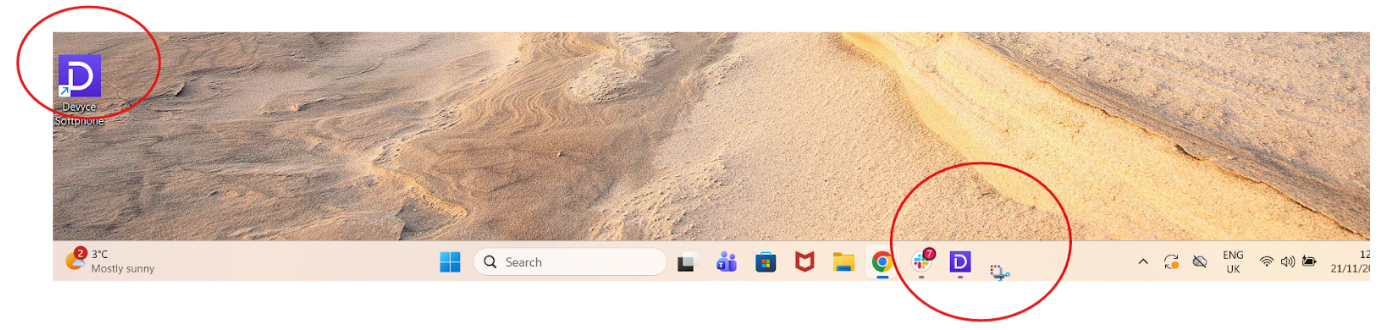
Alternatively, you can utilise the search bar to find it
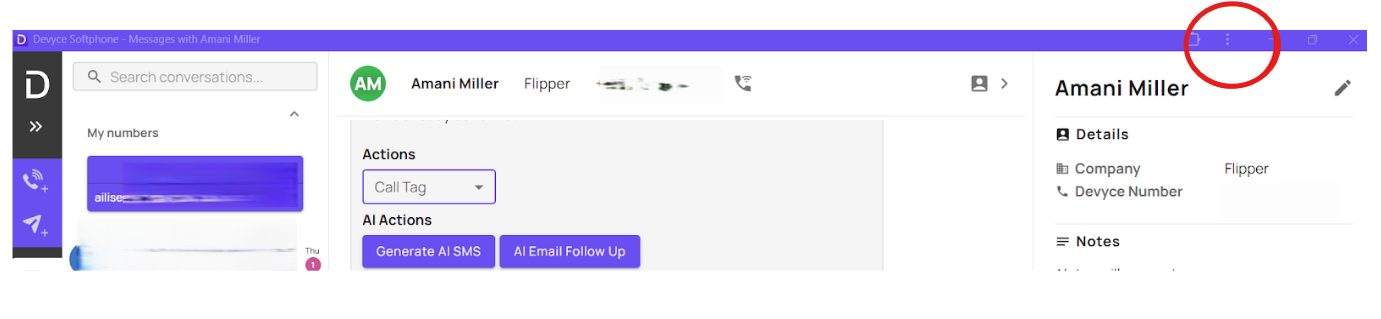
Once you have opened the application, you can select the three dots in the top right hand corner
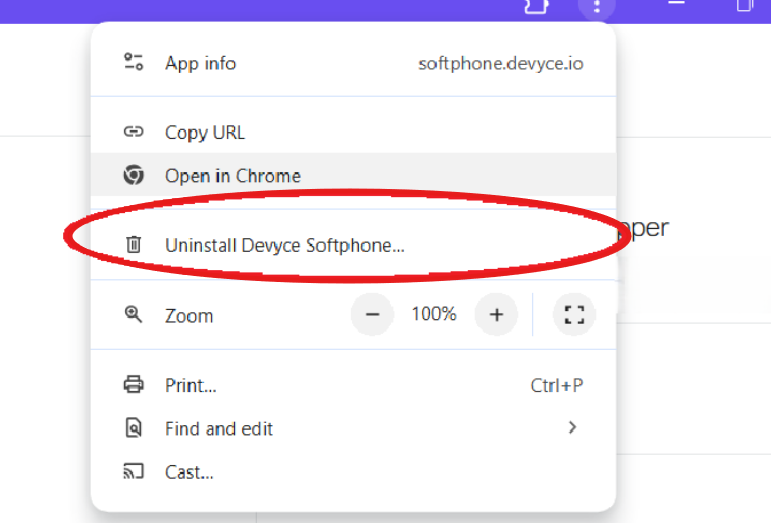
Here you will be given some options, click on 'Uninstall Devyce Softphone'
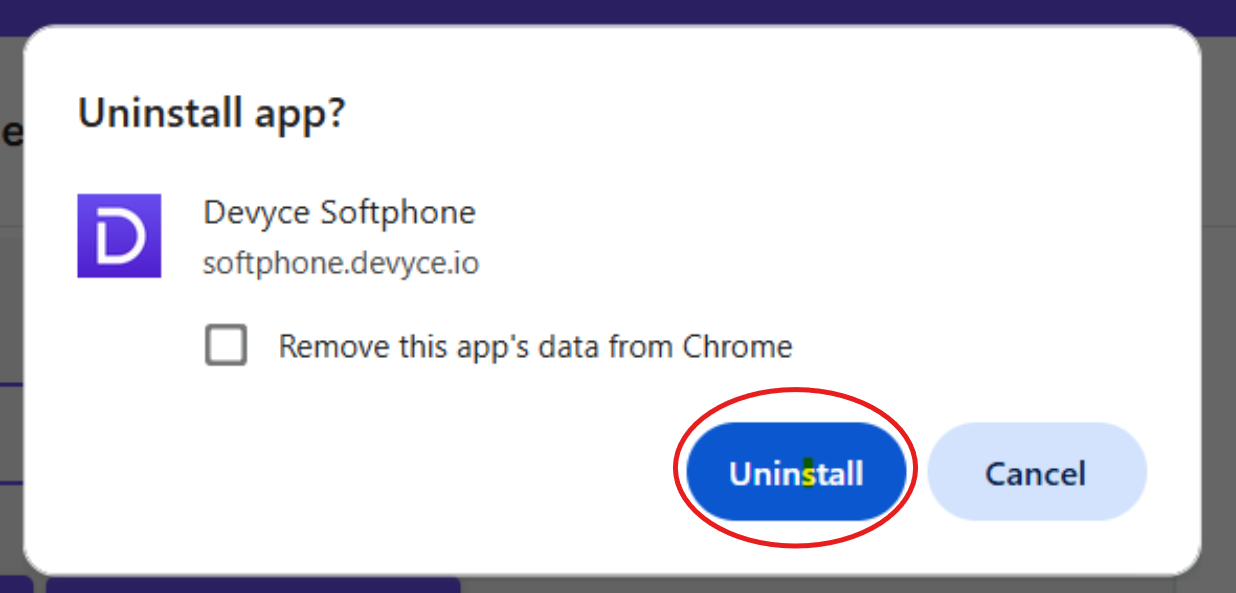
This will then bring up another pop up, confirming you wish to remove the PWA from the computer - Make sure NOT to tick the 'remove app data tick box' in order to retain data in your browser softphone
Click uninstall
If you don't already, you can then download the Devyce Chrome Extension, by following the below steps:
We also recommend that you ensure your Chrome and hardware notifications are setup correctly after installing the Chrome Extension, and removing the PWA
Further guidance on how to do this can be found in the below guides: