Ensuring Notifications are turned on for your Laptop
Last updated: August 7, 2025
Ensure you have enabled your system to provide notifications when you receive a call from Devyce.
On Windows:
Go to your Settings application
Click System, then click Notifications
You should then be able to toggle to allow notification access, for Google Chrome for Devyce to notify you of incoming calls.
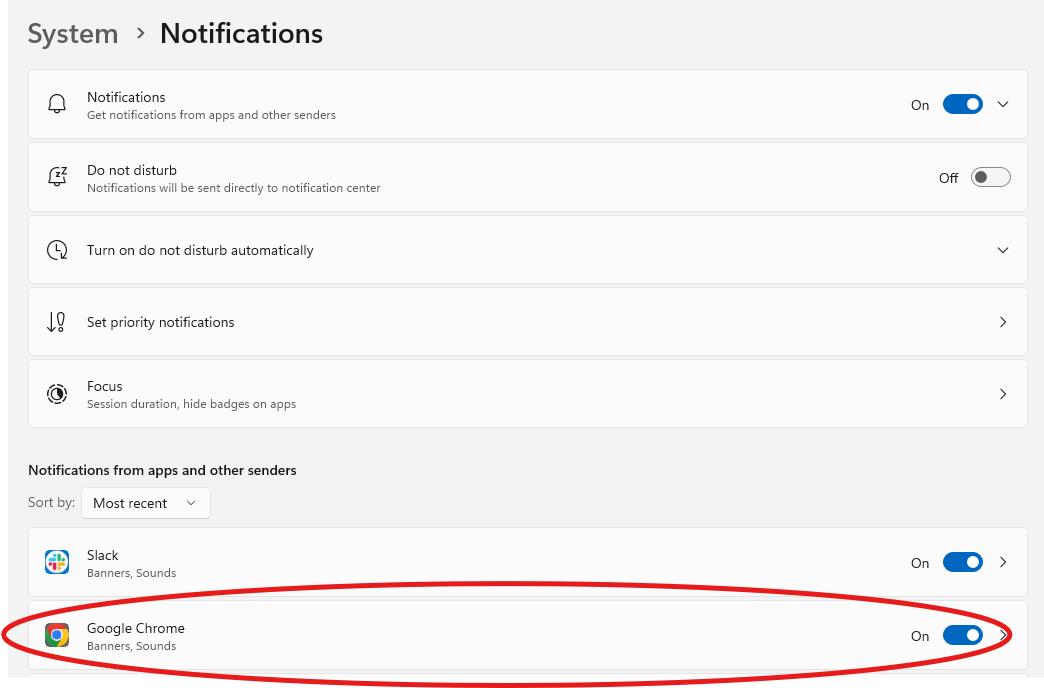
It may show as something similar to the above, depending on your windows version.
You also need to ensure that your Do Not Disturb is not turned on, all notifications will go to the notification centre opposed to pop up for you.
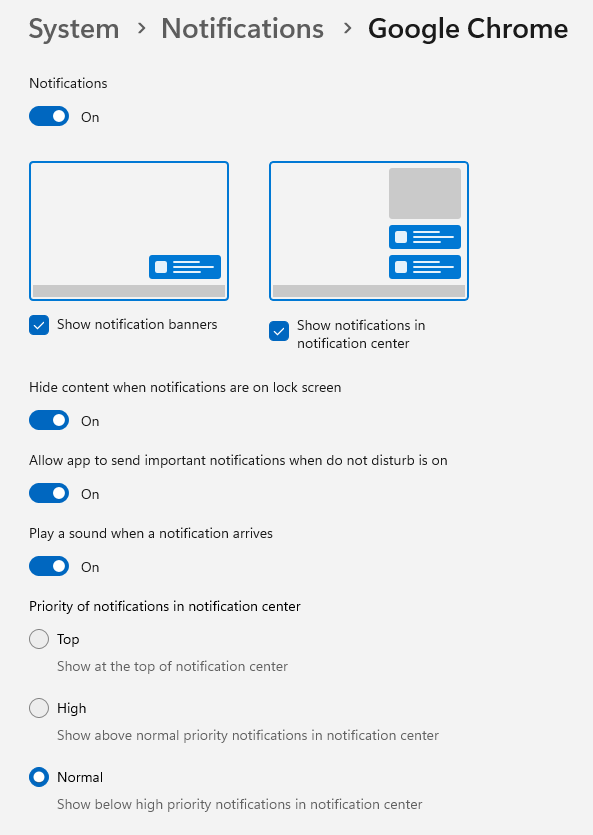
If you click into the notification setting for Google Chrome, you can also determine how you wish notifications to show
On Mac:
Go to your System Settings
Click then click Notifications
Enable the toggle for Google Chrome to allow notifications how you wish i.e. banner, sounds, alerts
You will need to restart the Chrome application in order for the settings to take effect