How to setup your call forwarding
Last updated: July 7, 2026
If you navigate to your softphone https://softphone.devyce.io/conversations/ you can edit your call forwarding - please note once this is set, you need to manually update it for any changes.
Navigate to the settings cog in the left hand side toolbar
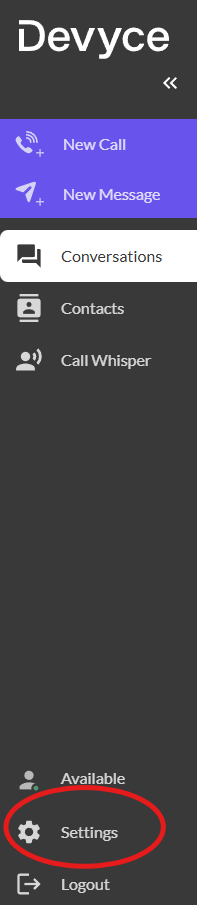
Here you will be able to access additional settings for your account - such as call forwarding, your working hours etc
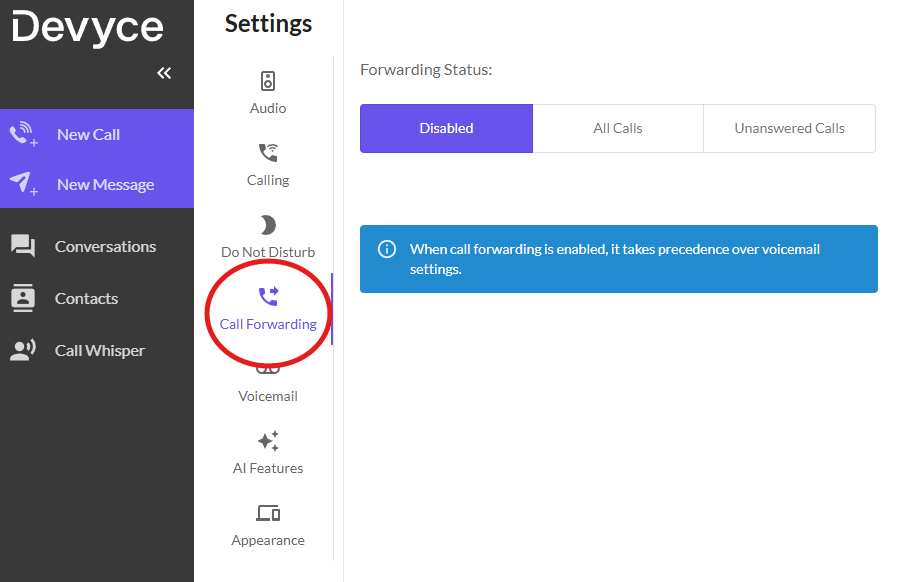
Once you click on the call forwarding option, you can choose to have it:
Disabled - all incoming calls go to you, and if you are unable to answer a call, this will go to your voicemail unless they're calling a call group you are a part of
All Calls - All your incoming calls will divert to the number of your choice. This should only be used when you are out of office and needs to be changed when you are back in office.
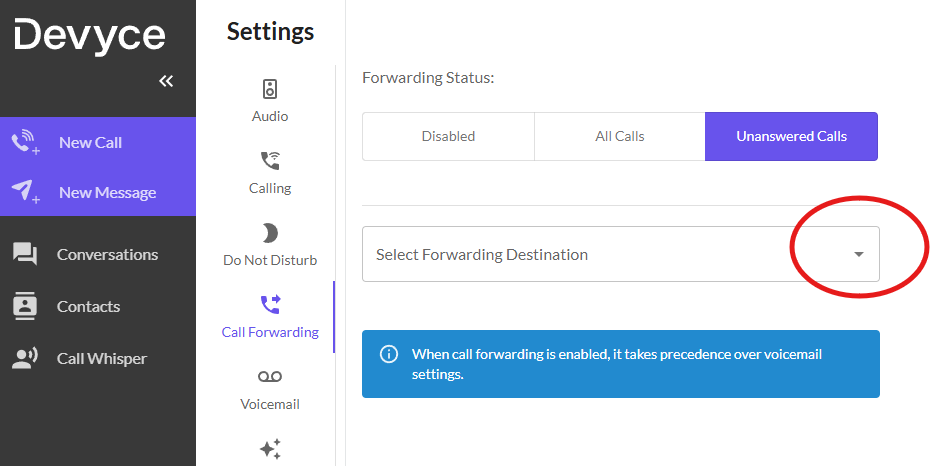
Unanswered Calls - If you are unable to answer an incoming call, instead of going to your voicemail it will forward to a colleague of choice.
When you have chosen which option suits your needs best you can choose a colleague or call group for your calls to divert to, by selecting from the drop down.