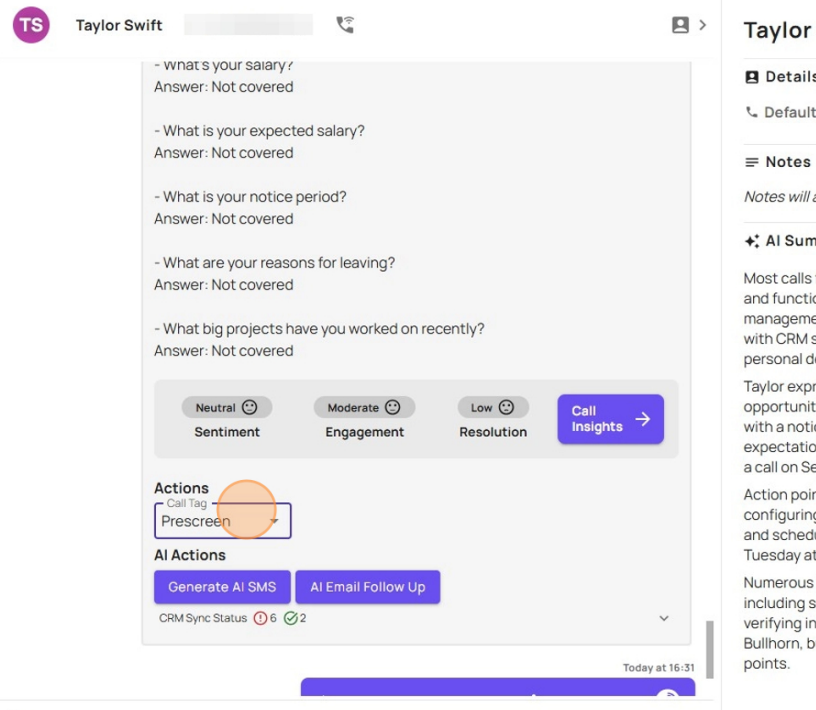
How to make an outbound call and assign a call tag
Last updated: September 12, 2025
Navigate to https://softphone.devyce.io/conversations/
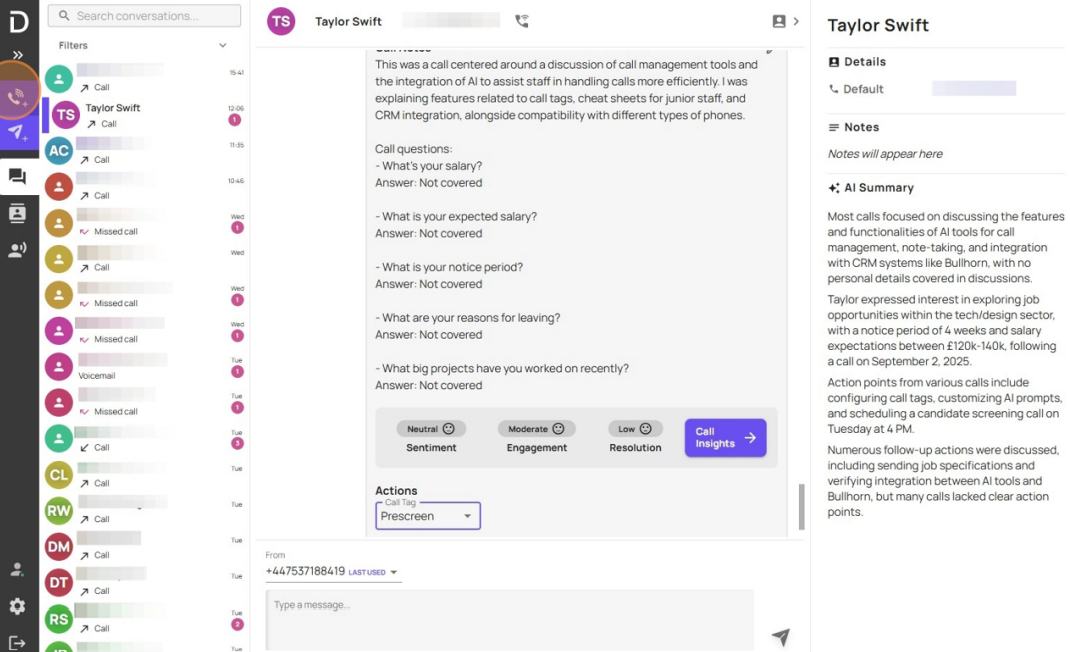
Here you can then click the phone icon within your softphone
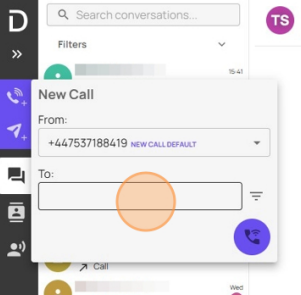
Type, copy and paste or search for the number you are wishing to call within the 'to:' box
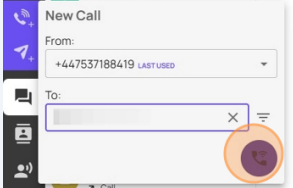
Once you have done this, click the phone icon to call
Once the call has connected, you will be able to select a call tag/action type from the drop down
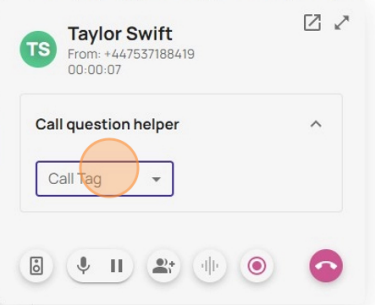
Click the desired call tag/action type and any call questions you may have enabled will display in the custom AI prompts on the call modal. If you dont have access to this but would like this feature, speak with your Devyce Admin and they can reach out to customersuccess@devyce.co.uk where one of our account managers will be able to assist
Please note depending on your subscription, having this feature added may be chargeable
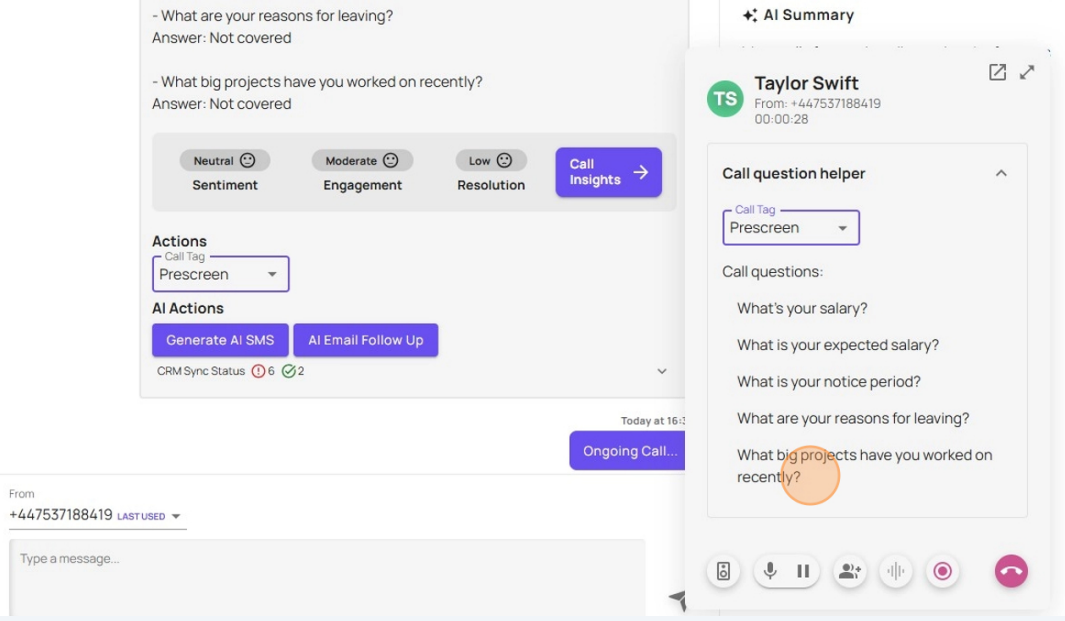
Once ready, you can click the red phone icon to end the call, you can then if needed select a different call tag after the call has ended by clicking on the "actions" drop down menu