How to prevent your laptop from turning of/going to sleep whilst using Devyce
Last updated: August 12, 2025
Sometimes our users like to step away from their desks whilst having wireless headphones to ensure they do not miss any incoming calls, however settings on laptops often mean if you are away from your keyboard for some time, it will 'go to sleep'
To avoid this you can follow the below steps:
Go to your computer settings > Power and Battery
In here you can see a selection of options, you can choose 'Never' for the below options:
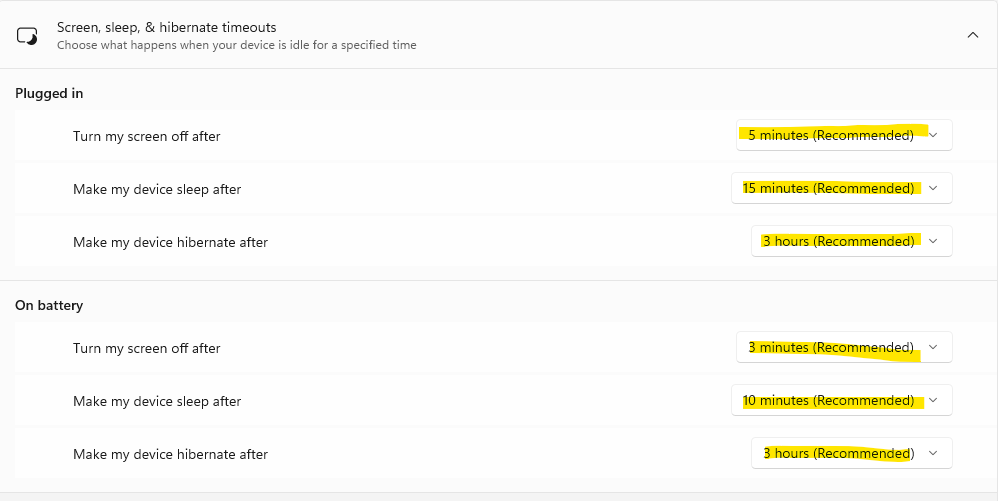
Changing the above settings to 'Never' will ensure your laptop stays 'awake' even when you are away from your desk
You can also change your settings within Chrome to ensure your Devyce Softphone stays active:
Click the 3 dots in the top hand corner of Chrome and navigate to settings

This will open a new section, with options in the left hand tool bar, here you need to click on the performance option
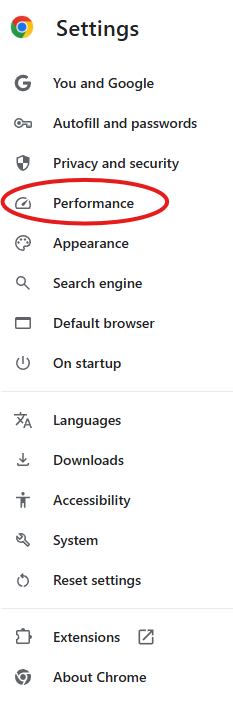
Under the General section in performance, you can find the 'Always keep these sites active' option and an 'Add' button
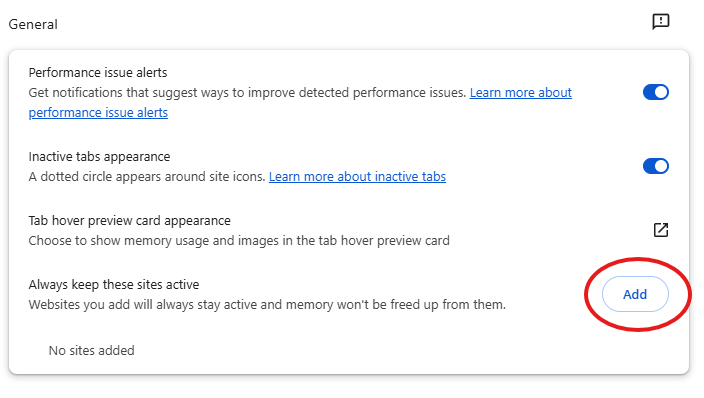
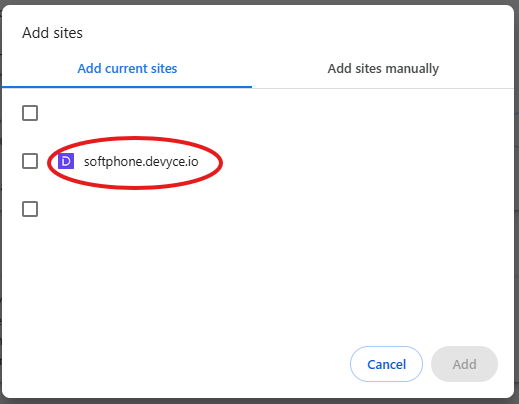
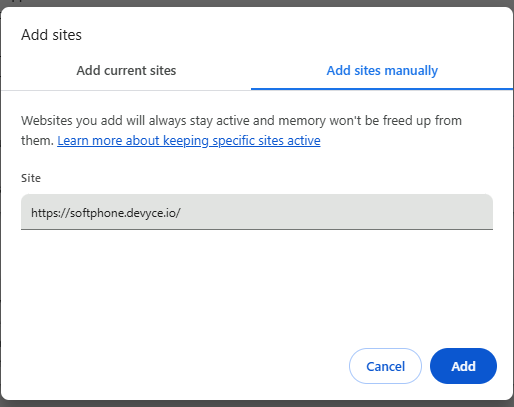
Here you can add a current open site, or add a URL if your Devyce Softphone is not open at the time of doing this.