How to Configure Working Hour Exceptions in Devyce
Last updated: May 14, 2026
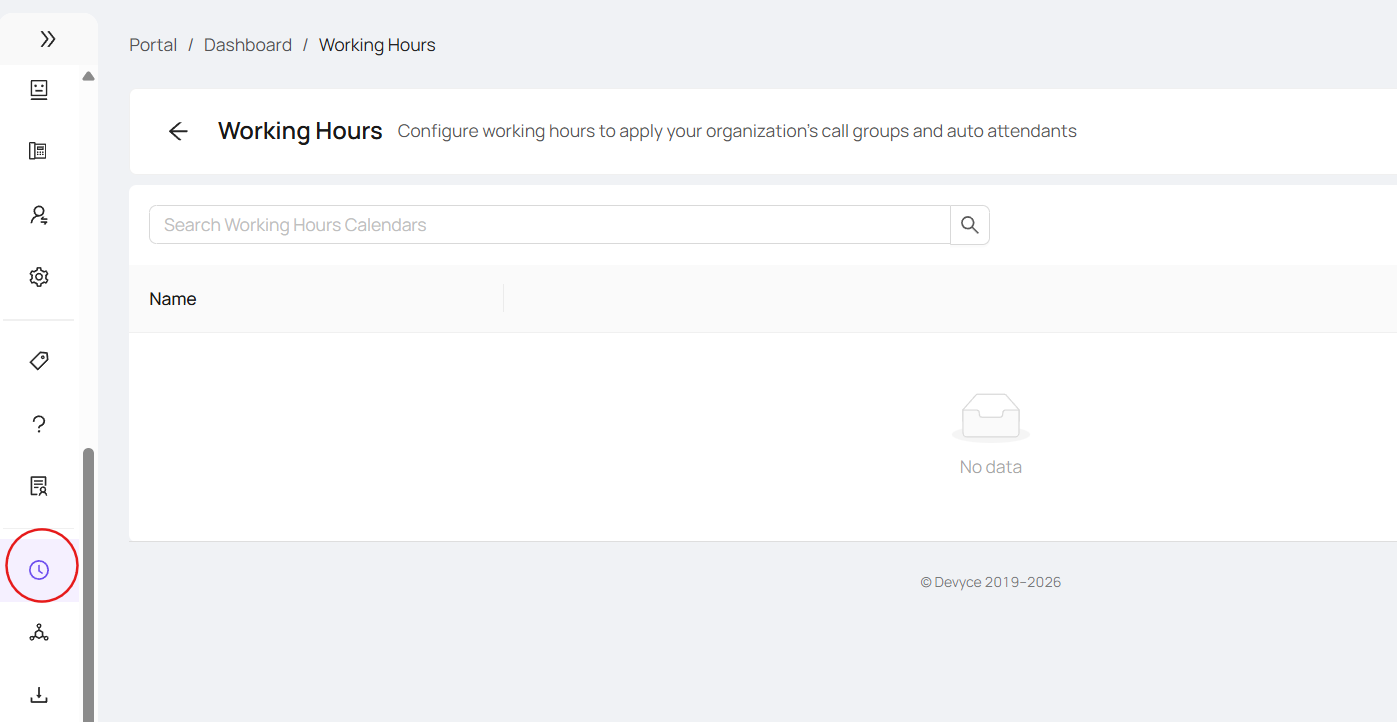
Navigate to https://portal.devyce.io and click on the Working Hours tab
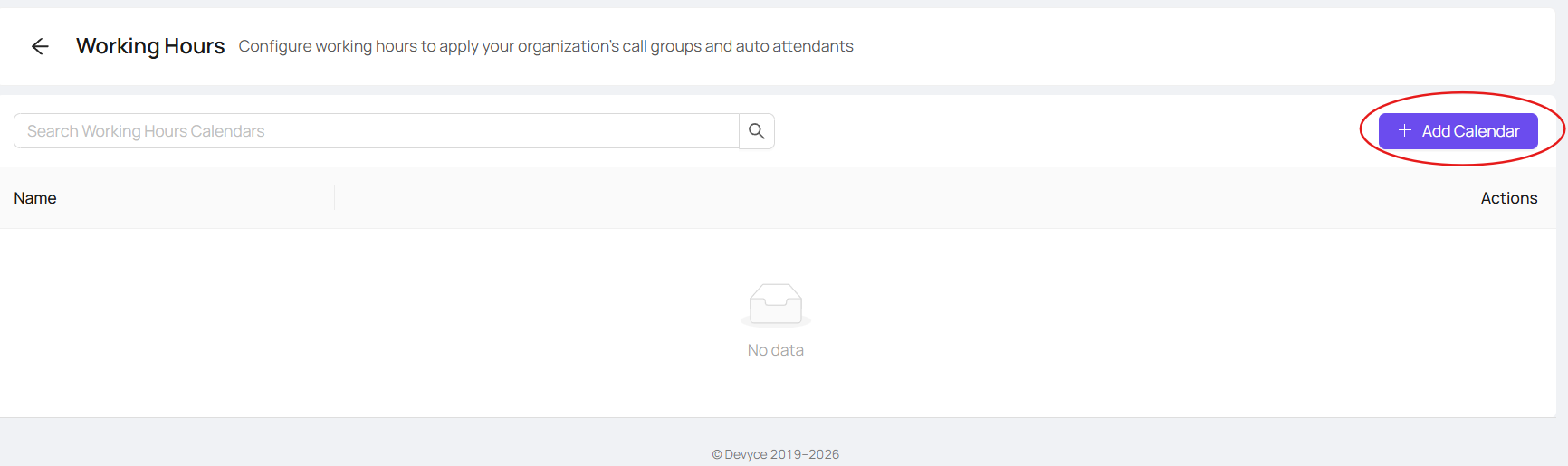
Here you can then click 'Add Calendar'
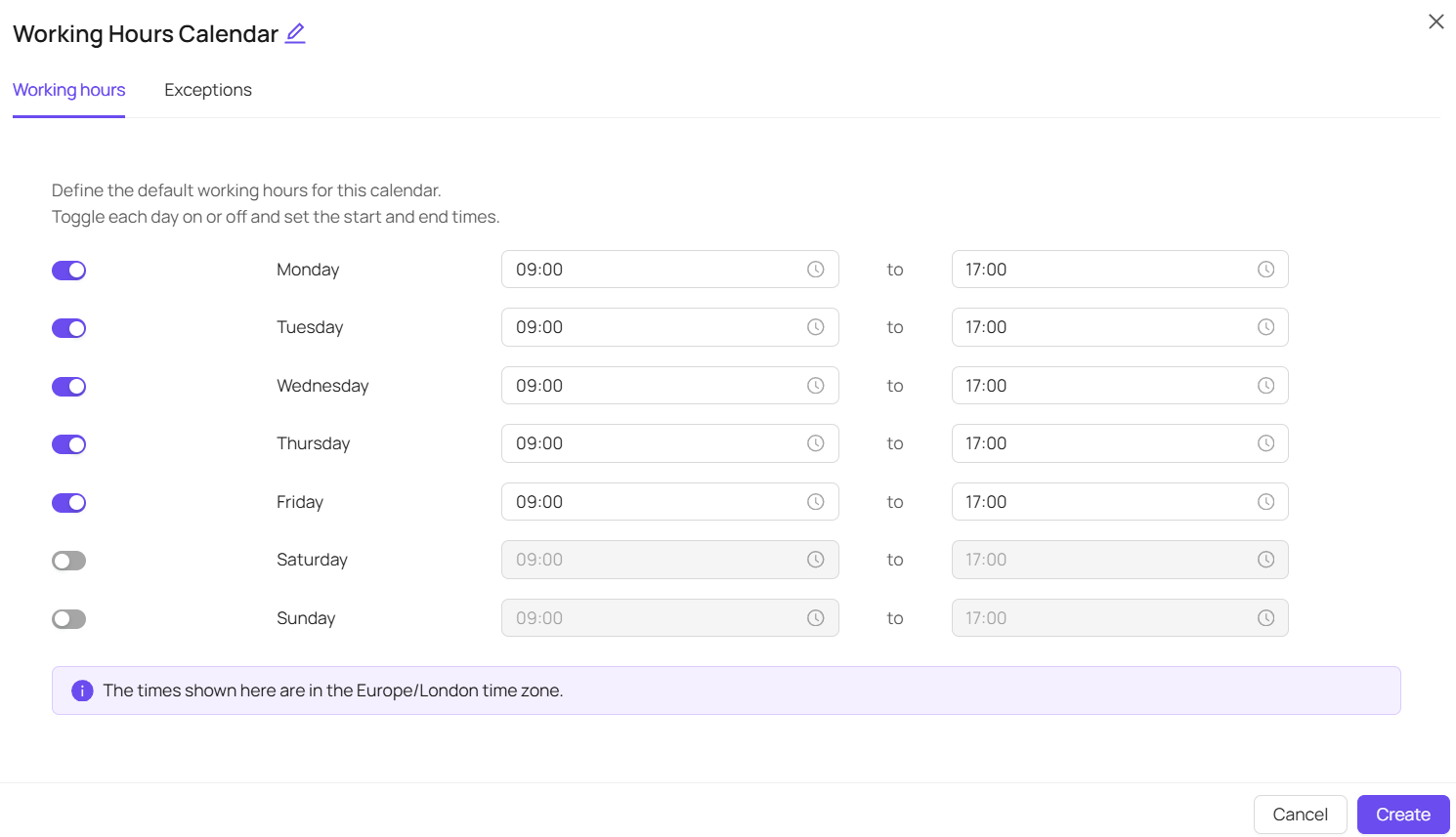
This will open a pop up where you can input your standard working hours - Please note these times are set for GMT
You can then click on the 'Exceptions' tab to create Holiday opening times
Adding an Exception, will then bring up further information, where you can name the exception, create a date range, setup a specific Voicemail message and choose the working hours for that time
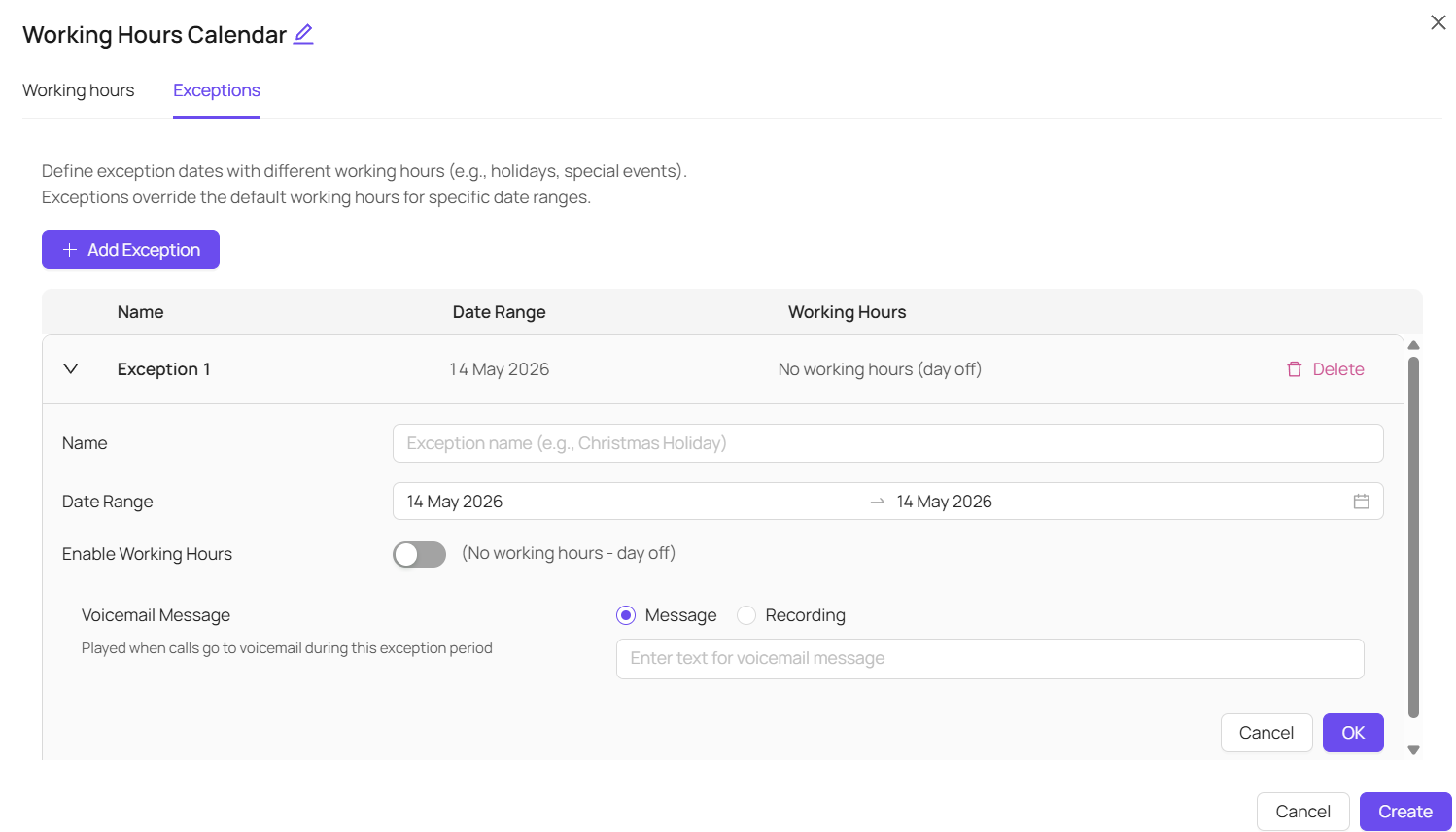
Once you have done this, you can click 'ok' and even add multiple options, and delete and edit them as needed.