How to turn on manual Sync to CRM
Last updated: February 5, 2026
Navigate to https://softphone.devyce.io/ and navigate to the settings page

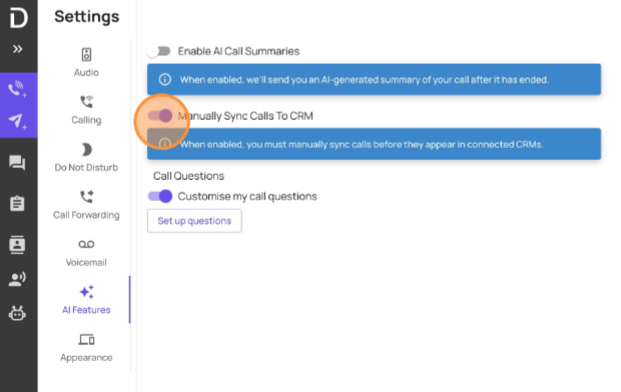
Select AI features and then ensure that the setting "manually sync calls to CRM" is toggled on
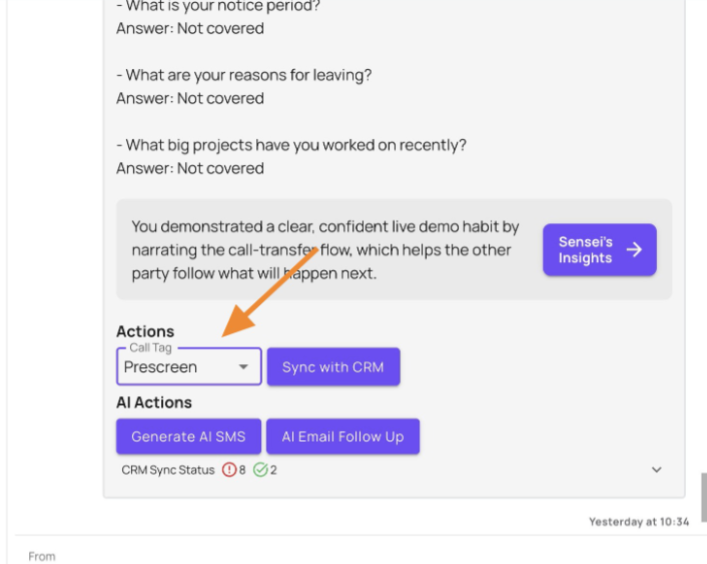
Once your call is complete, ensure you have selected a call tag/note action type
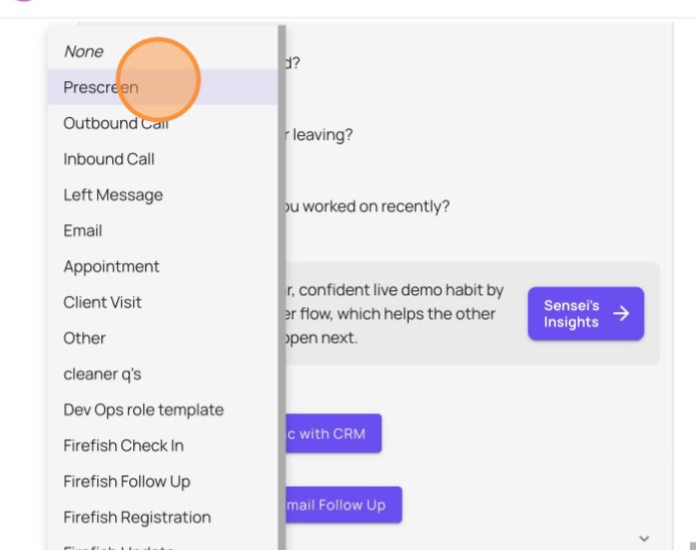
You will be able to select the call tag/note action type based on the tags configured in your CRM or within the Devyce Portal
When you have selected the call tag, click "sync with CRM"
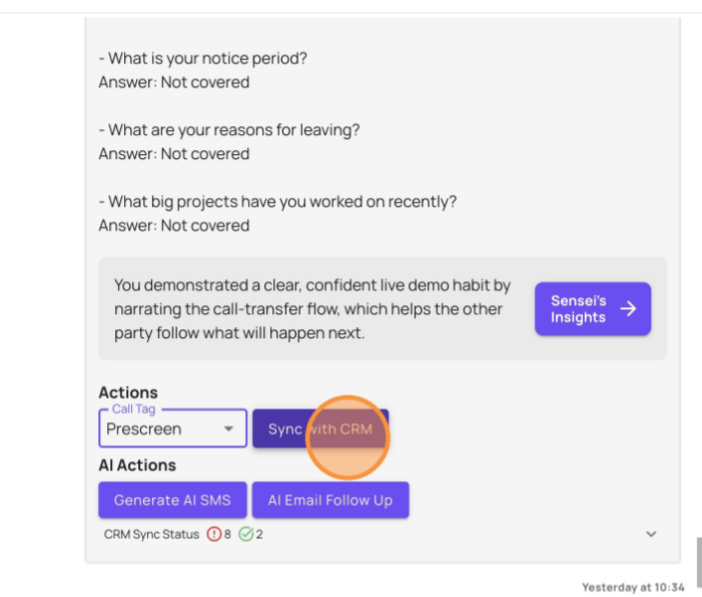
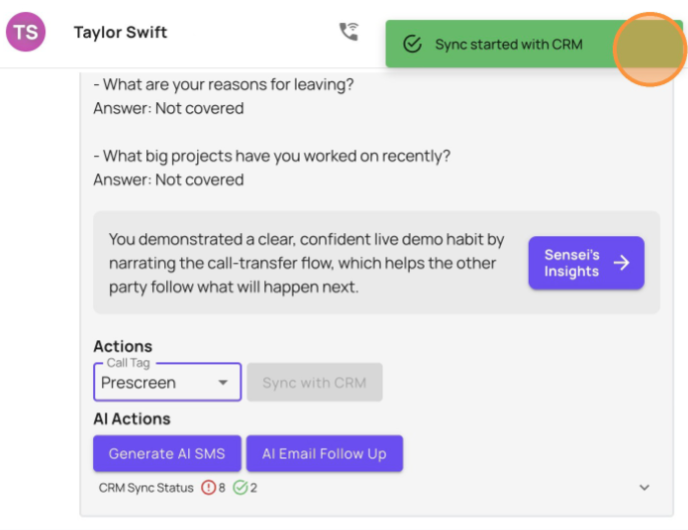
You will then see a confirmation message in the top right hand corner that your AI call summary is being synced with your CRM