How to use Enhanced Calling
Last updated: July 2, 2026
If you are unable to see the details below or use the warm transfer function you may need to upgrade your plan, please reach out to support@devyce.com for further assistance
When you are on a call with a customer, you can transfer a call to a colleague and use something that we refer to as 'enhanced calling' this is where you are able to transfer a call internally and have the caller on hold to be able to provide details to your colleague of the call or check they're available to take it without the caller being aware - you can also utilise this function for conference calls.
Once you are on a call, you need to put your caller on hold (if you don't do this they will still be able to hear yourself and the colleague you transfer into the call)
You can do this by clicking on the 'pause' button
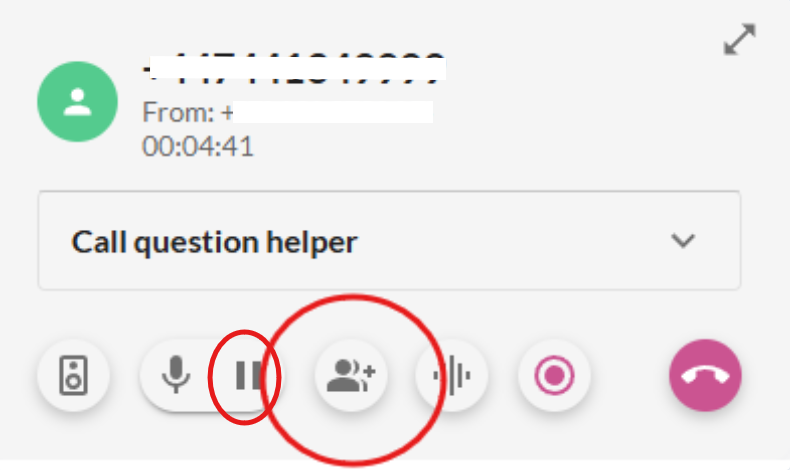
You can then navigate to the button below
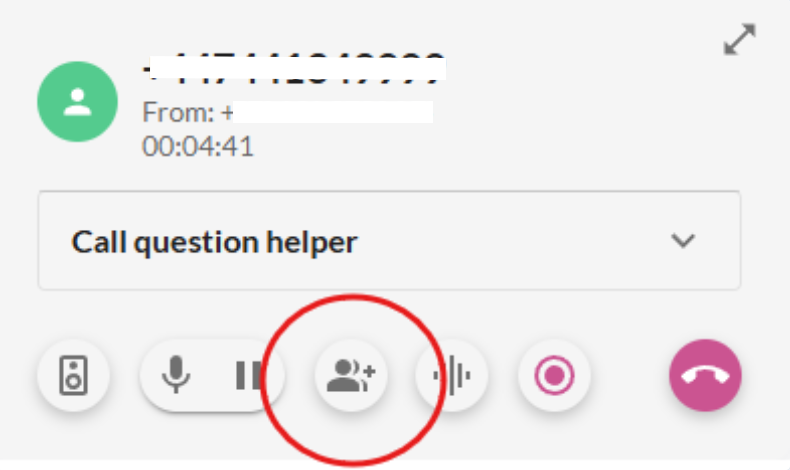
This will then open up a search bar and list of your colleagues, you can choose the colleague you wish to transfer to within this list
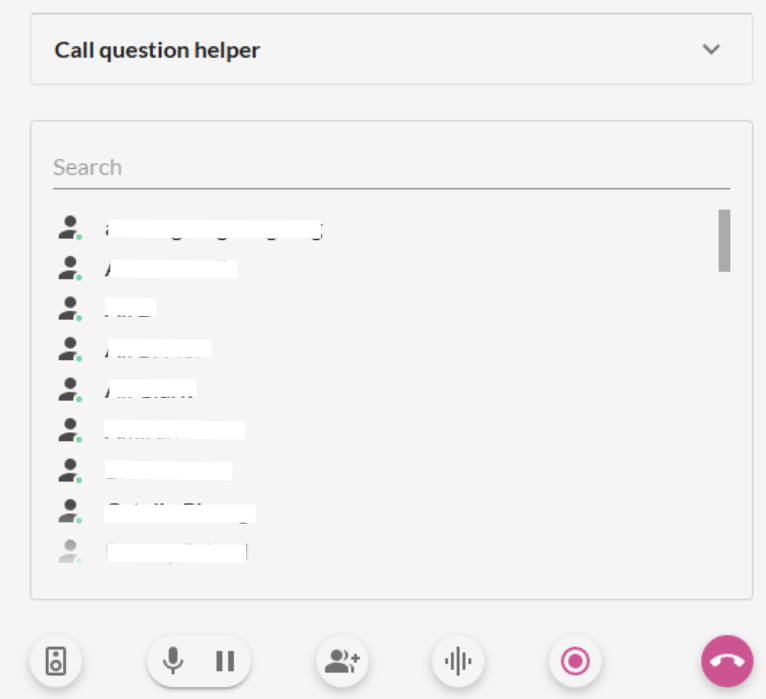
Once you select the user you wish to transfer the call to, the below model will open up and the phone will ring before your colleague answers
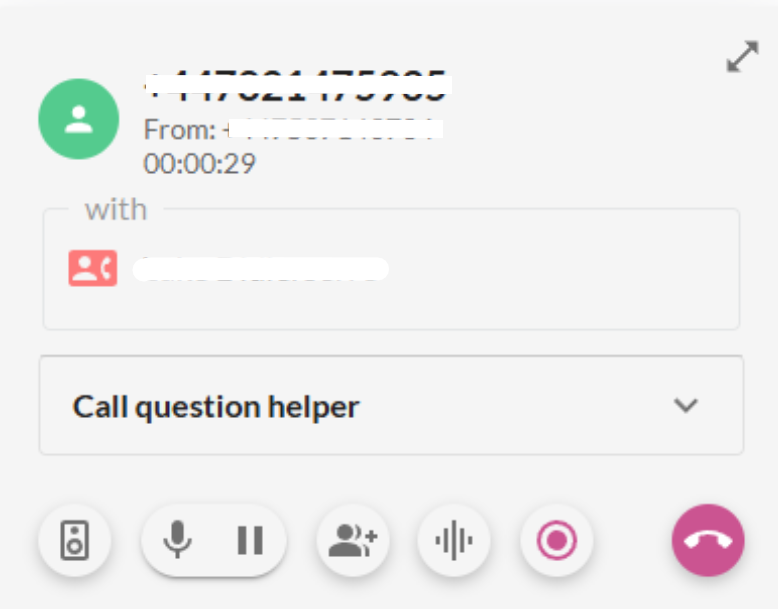
The above symbol will show when the call is ringing and once answered it will show the below layout for the call
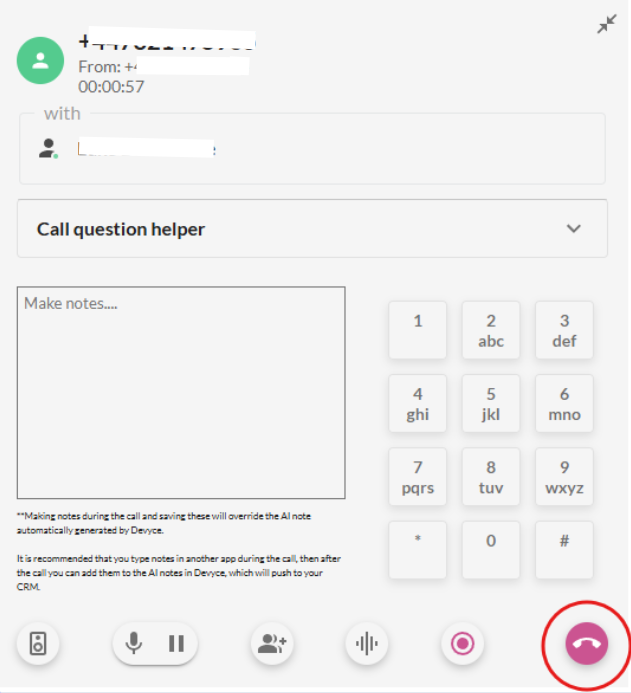
During this call you can either unclick the hold button to have the original caller bought into the call, and use this as a conference option/3 way call or give an introduction before leaving the call by hanging up.
Alternatively you can keep the user on hold and disconnect the call after speaking with your colleague, and this will then remove you from the call, but allow the caller to be taken off hold and for them to continue speaking with your colleague.
If you would like to Cold Transfer whilst using the Enhanced Calling Feature, you can see how to do so here: https://devyce-knowledge-base.help.usepylon.com/articles/2786206801-how-to-cold-transfer-whilst-using-enhanced-calling
If you experience any issues with this please reach out to our support team at support@devyce.com