How to ReSync a CRM record for a voice call
Last updated: September 22, 2026
You can now re-sync a voice call by searching for the relevant contact number, name, CRM ID or URL from the CRM page.
Navigate to your call history within the softphone.
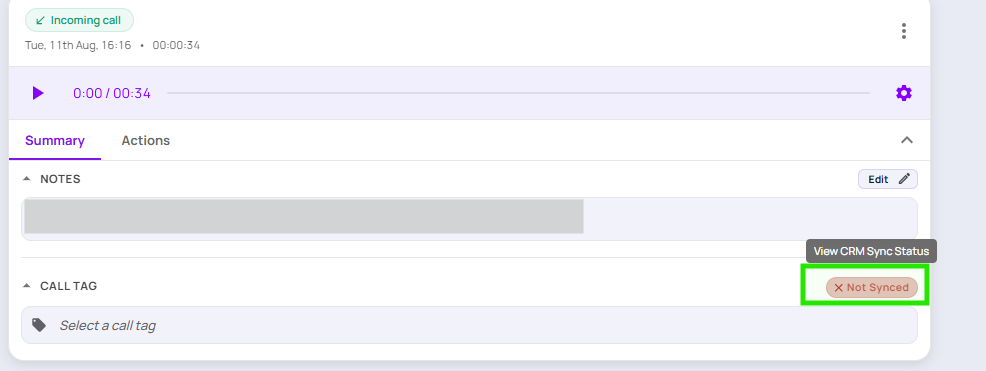
Click on the call you would like to sync and then the sync status.
Search for the contact to sync by name, CRM ID or URL or contact number.
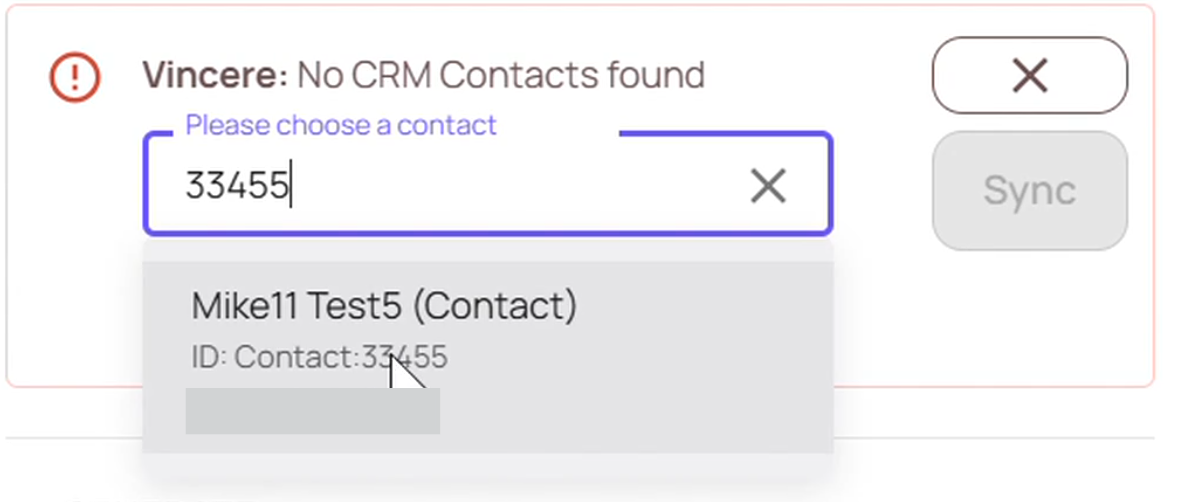
Select the relevant contact and re-sync the call.
Remember: Take note of the contact you have selected for this sync, and use the same contact for any future calls.
This also allows you to sync older calls that previously failed to sync.