How to install the PWA, Devyce Desktop App
Last updated: August 6, 2026
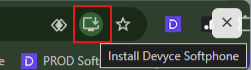
To download the PWA app, navigate to your Softphone in your Browser https://softphone.devyce.io/ and click the install softphone button in your browser search bar
Then go into your Windows > Settings > Apps > Default Apps > Search for 'TEL' > Set the Devyce Softphone to handle Tel links.
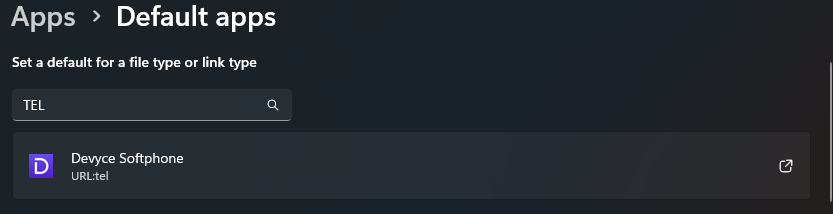
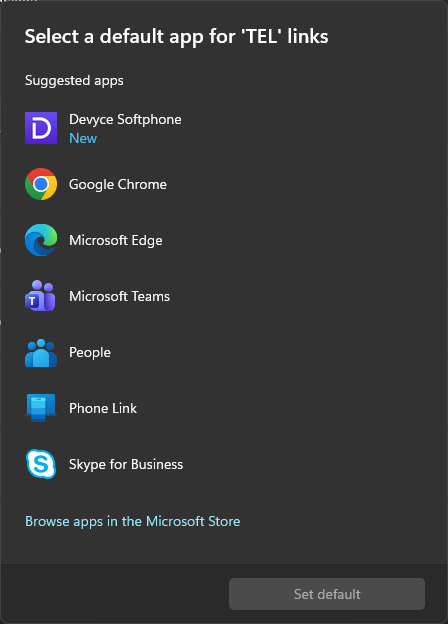
This will ensure that any telephone links you click automatically open in Devyce Softphone Desktop App, providing the expected calling experience.
Quality of life settings:
1) Pin the PWA to the Task Bar
Search for "Devyce Softphone" in your apps, open it
When running you will see an icon in your taskbar
right click the icon and select "Pin to Taskbar"
2) When placing a call, "remember this choice"
When you click to dial always select the checkbox to "remember" this choice on the confirmation modal.
3) Start on startup
This setting means the softphone starts up when you log into the computer resulting in fewer missed calls.
Go to the app settings in chrome: 3 dots > app info > settings
Enable "Start app when you sign in"
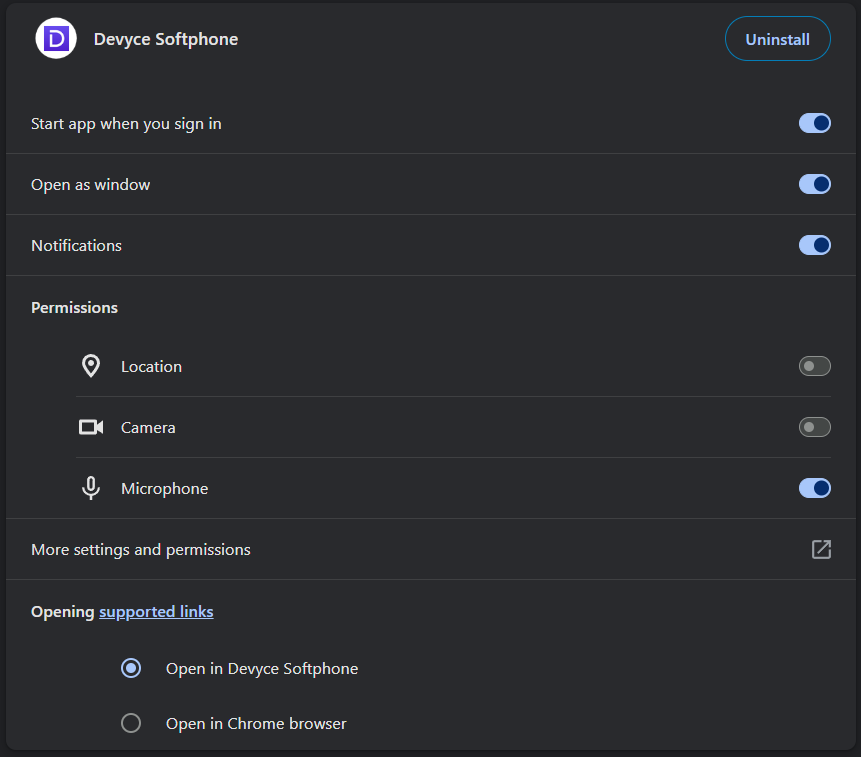
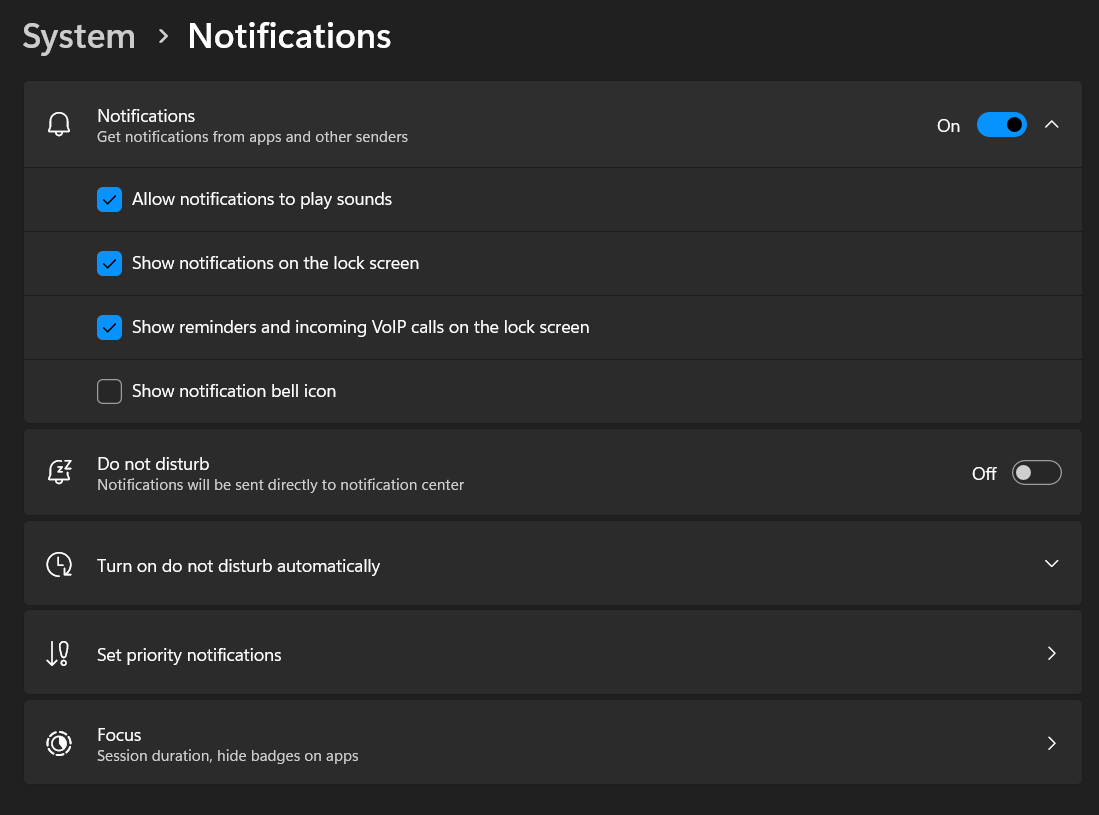
4) Allow windows notifications
This setting means you will receive a windows notification and noise on incoming calls which you can click to focus on the Softphone App.
Search for Notification settings on your operating system:
Notifications should be "On"
Do not disturb should be "Off"
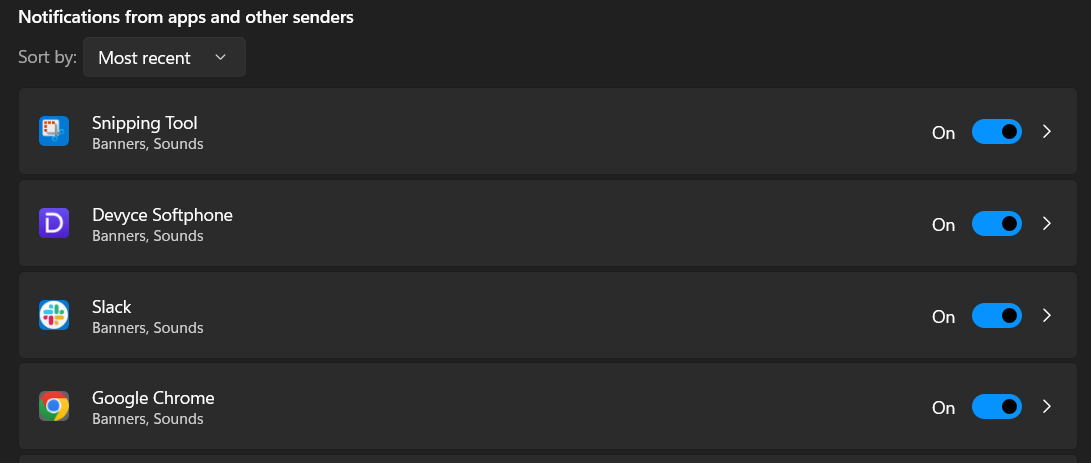
Scroll down to the Notifications from apps and other senders, ensure both Google Chrome and Devyce Softphone are "On"