How to improve your Call Quality
Last updated: March 3, 2026
After running a network test or speaking with our support team regarding call quality issues, the call in question may show an issue - you can see below what sort of issues you may experience and how you can resolve/improve these
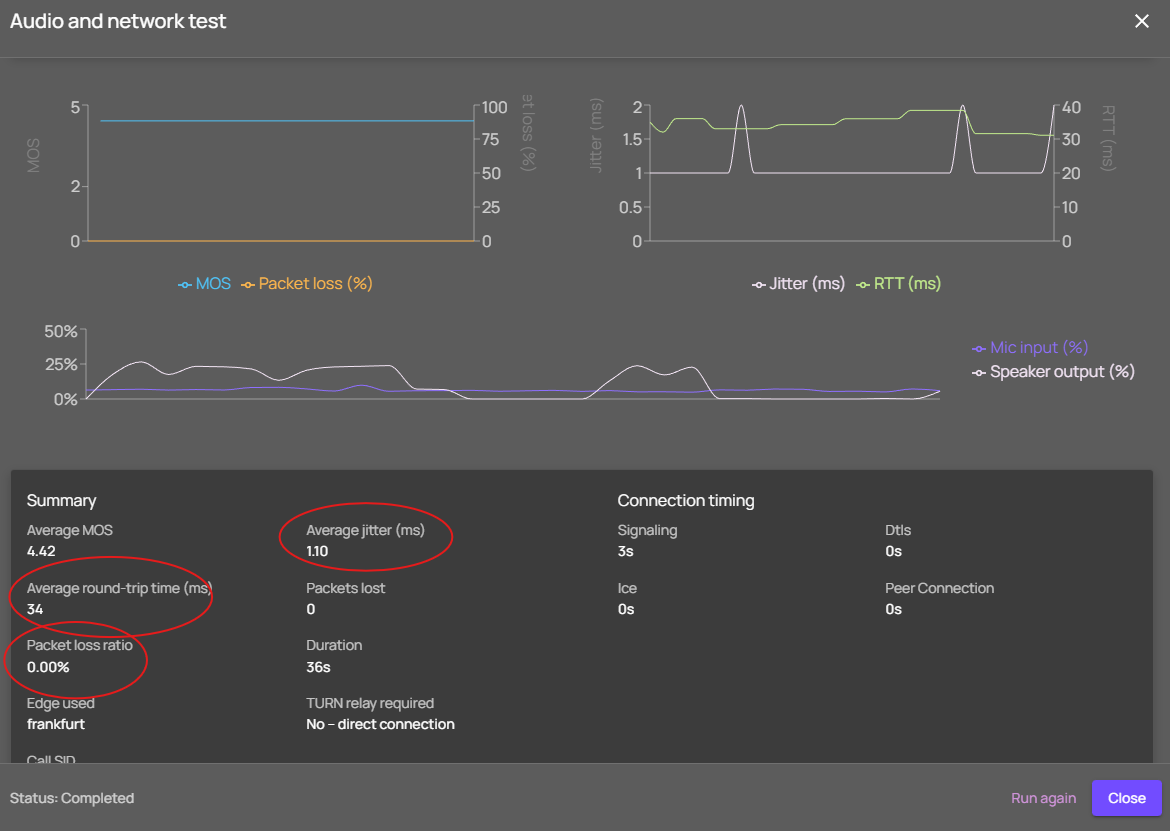
Multiple things can cause issues on your calls, this can be due to the below:
Jitter – Jitter can cause call audio to sound choppy or robotic, with words cutting in and out, gaps in speech, speed changes, or echoes. This happens when voice data packets do not arrive smoothly and evenly, but instead reach the destination at inconsistent times.
Latency – Latency is the delay between when someone speaks and when the other person hears it. High latency can make conversations feel slow or awkward, causing noticeable pauses, people talking over each other, or delayed responses. It is usually caused by long network distances, congestion, or processing delays as voice data travels between callers.
High Round-Trip Time (RTT) – High round-trip time can cause noticeable delays in calls, making conversations feel slow or out of sync. It occurs when voice data takes longer than normal to travel to the destination and back, often due to network congestion or long distances.
Packet Loss – Packet loss can cause call audio to sound choppy, garbled, or have missing words. It happens when voice data packets fail to reach their destination, often due to network congestion, faulty equipment, or poor connection quality.
You can see how to run your own network test within the softphone here: https://devyce-knowledge-base.help.usepylon.com/articles/2101628669-call-quality-issues
How to Improve Your VoIP Call Quality
Ensuring clear and reliable calls requires a combination of good network setup, device optimization, and proper equipment. Follow these tips to reduce delays, choppiness, and other call quality issues.
1. Optimize Your Network
Why it matters: A busy or unstable network can cause delays, jitter, or dropped audio.
What to do:
Use a wired Ethernet connection instead of Wi-Fi when possible. Wired connections are more stable and reduce packet delays.
Close bandwidth-heavy apps like YouTube, or Spotify during calls.
Limit your upload speed to about 90% of your plan to prevent congestion.
Enable QoS (Quality of Service) on your router to prioritize VoIP/voice traffic. This ensures your calls take precedence over other activities like streaming or large downloads.
Upgrade your internet plan if your network is regularly congested or your team size is growing. More bandwidth means fewer delays.
Run regular speed tests to check:
Ping/latency < 150 ms
Jitter < 1.0 ms
Packet loss < 1%
Avoid heavy network traffic during calls. Schedule large downloads or streaming outside peak calling hours if possible.
2. Use the Right Equipment
Why it matters: Outdated or wireless devices can add delay and affect call clarity.
What to do:
Try a wired headset instead of Bluetooth if and when possible
Keep your router, modem, and cables up to date. Modern equipment ensures smoother voice traffic - think of it like driving a Ferrari on a smooth road instead of dirt.
3. Use a Jitter Buffer
Why it matters: Jitter can make audio choppy or robotic.
What to do:
A jitter buffer temporarily stores incoming voice data to ensure it’s played back smoothly and in the correct order. It acts like a network “shock absorber,” reducing the impact of uneven packet delivery - we have this available on our Enhanced Calling Feature, if this is something you think would benefit you please reach out to support@devyce.co.uk or to your account manager
4. Keep Software and Devices Updated
Why it matters: Outdated apps, operating systems, or drivers can cause delays or poor audio quality.
What to do:
Update your Devyce App, your browser and your windows/mac/personal device.
Update audio drivers on PCs or laptops.
5. Adjust Device Power Settings
Why it matters: Power-saving modes can slow your device and affect call performance.
What to do:
Set Power Mode to High Performance on laptops.
Keep laptops plugged in during calls for consistent performance.
6. Configure Router & Firewall Settings
Why it matters: Certain settings can block or interfere with voice traffic.
What to do:
Allow VoIP ports: UDP 10000–60000.
Disable SIP ALG, which can cause dropped or distorted calls.
7. VPN Considerations
Why it matters: VPNs can introduce additional delays and affect call quality.
What to do:
Use split tunneling to bypass the VPN for calling apps.
If you must use a VPN, connect to the closest server to reduce latency.
8. Ensure System Performance
Why it matters: Low memory or high CPU usage can negatively impact calls.
What to do:
Keep 20–30% of RAM free during calls.
Close unnecessary background applications.
9. Conduct Routine Network Checks
Why it matters: Proactive maintenance prevents small issues from affecting call quality.
What to do:
Regularly run speed tests and signal checks.
Keep firmware up to date on all network equipment.
This should help improve some call quality issues you may be experiencing - although please note if the other caller is having bad connection this will still impact your calls.
You can also see additional information on Network requirement here: https://www.twilio.com/docs/voice/sdks/network-connectivity-requirements