How to set a default area code
Last updated: June 10, 2025
Navigate to your portal https://portal.devyce.io/dashboard?days=7
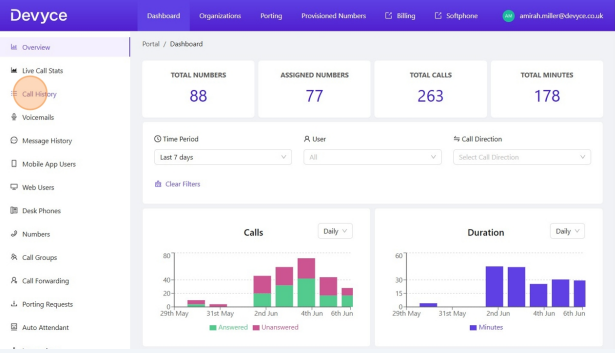
Click on the 'Call History' tab in the lefthand side toolbar
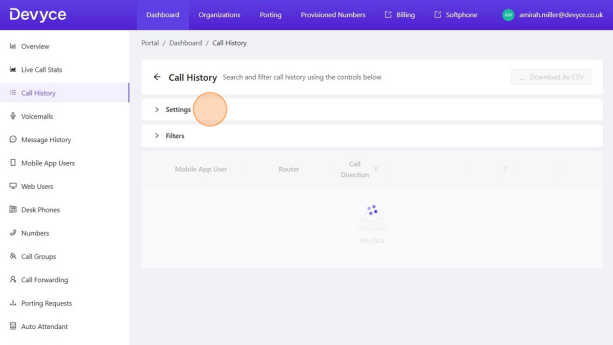
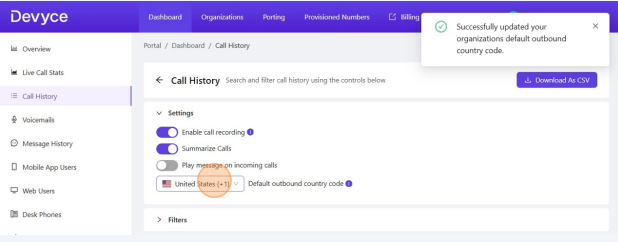
Click on the 'settings' option near the top of the screen to expose the dropdown menu
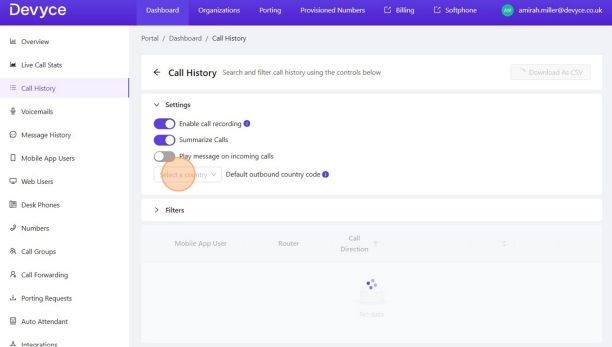
To set a default for the whole organisation click on the 'select a country' dropdown and choose the country and corresponding area code you need
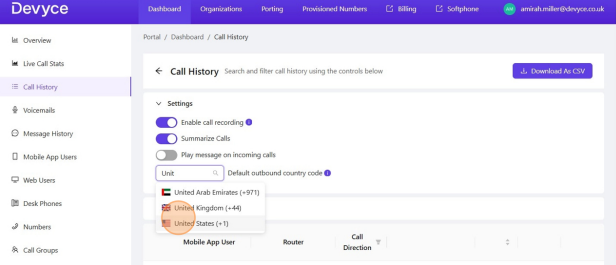
Once you have done this you, you will be shown a confirmation message in the top right hand corner that the changes have been updated.
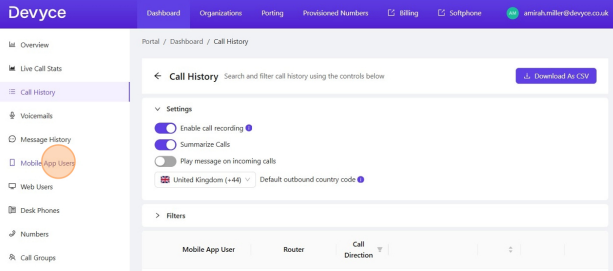
Alternatively you can edit an individuals default area code via the mobile app users tab
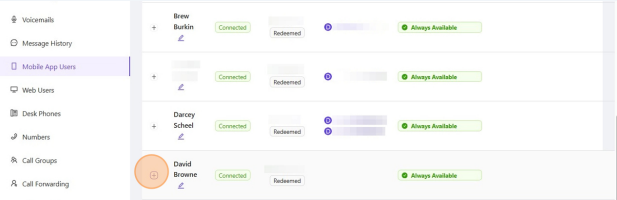
Scroll to find the user you are wishing to update, and click the + button to expand their settings
You can then update the custom section listed within the default outbound country code section, and type in the desired country and area code
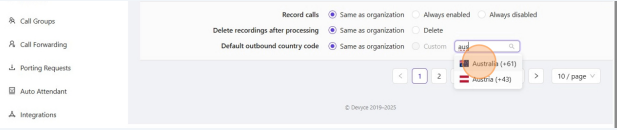
Once you have done this, you should receive a confirmation notice in the top right hand corner of the screen confirming these changes have been made.
If your users are setup with the correct default area codes, but need to make the occasional international outbound call, please ensure they use the + format when dialling out or your default area code will automatically be added at the beginning of the number.
If you experience any further issues with this, please reach out to our support team.