How to setup your DND (Do not disturb) hours
Last updated: May 14, 2025
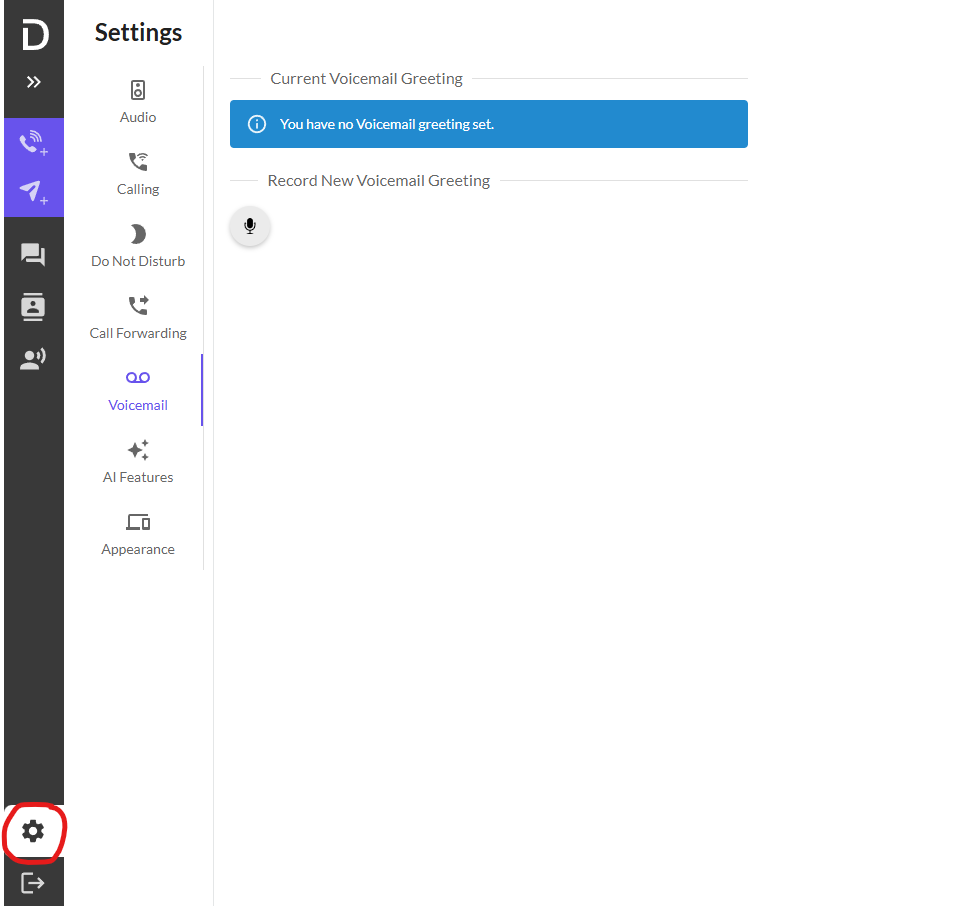
Navigate to your Devyce Softphone and click on the settings cog in the bottom left hand corner of the toolbar
You then click on the Do Not Disturb option, which will open the next section
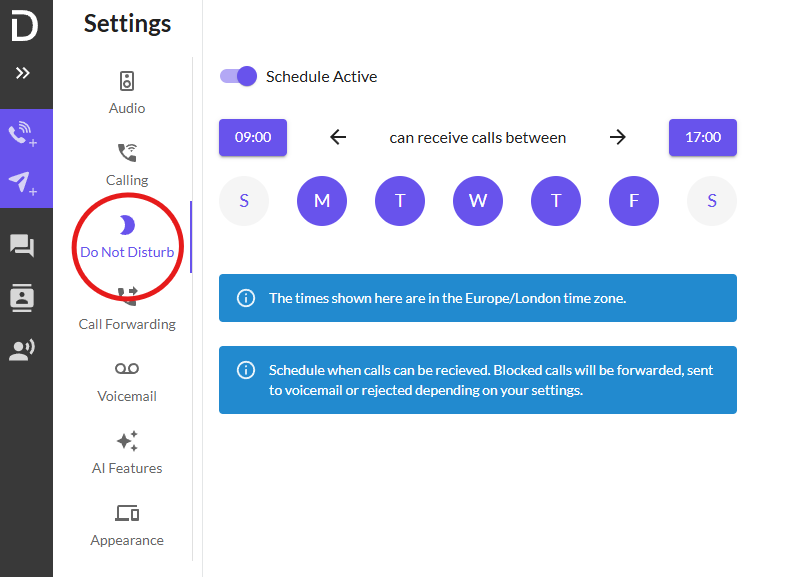
Here you can schedule your active call time, the letters depict the day of the week and highlighting these indicates you are active on these days with the times shown above being the opening hours.
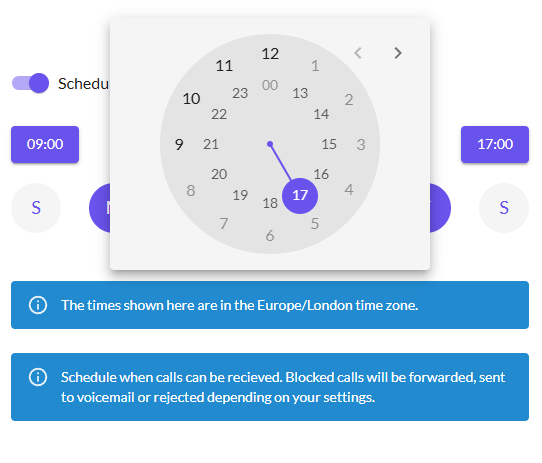
Clicking on the purple timings shown above, will bring up the clock dial where you can edit your working hours.
If you are not located in a European/London time zone, please alter this accordingly.