Tracker Integration - Microsoft Edge
Last updated: May 20, 2026
Tracker integration requires some setup to allow click to dial functionality.
Step 1:
Please navigate to your laptop/windows search function and search 'Run'
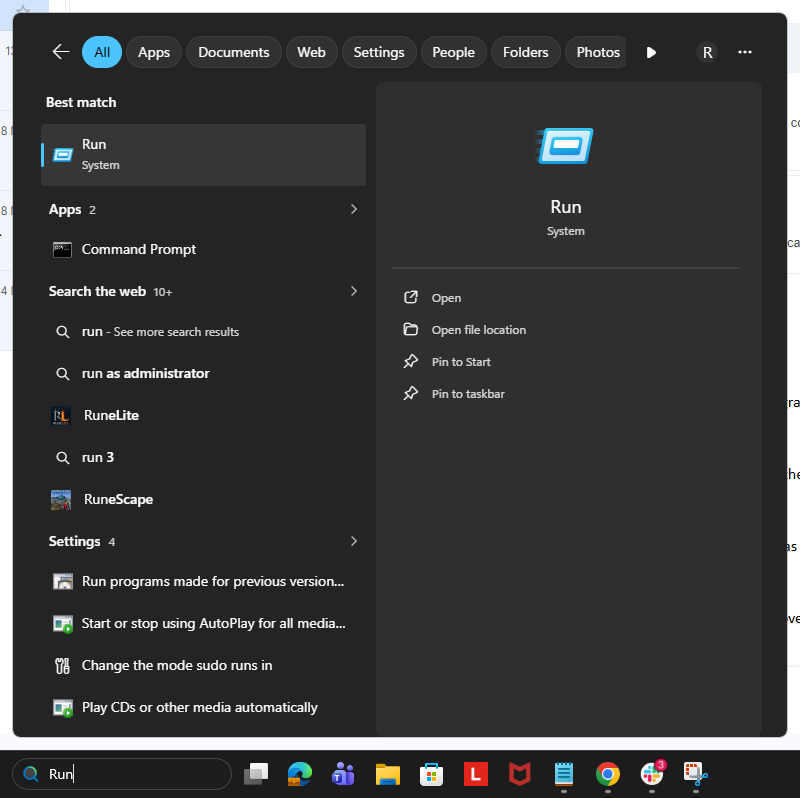
Clicking the 'Run' system option will open up a small pop up
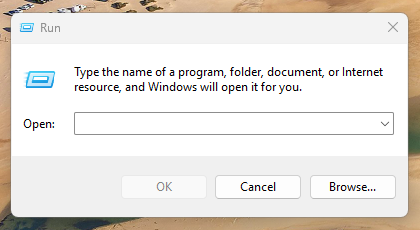
In the 'Open:' drop down option please type in tel:+123 and click 'OK' this will then open the current tel link option your computer is utilising, this should be set to Microsoft Edge, if this is the case please skip to Step 3.
Step 2:
If your default is not set to Microsoft Edge navigate to your window settings, please go to your laptop settings
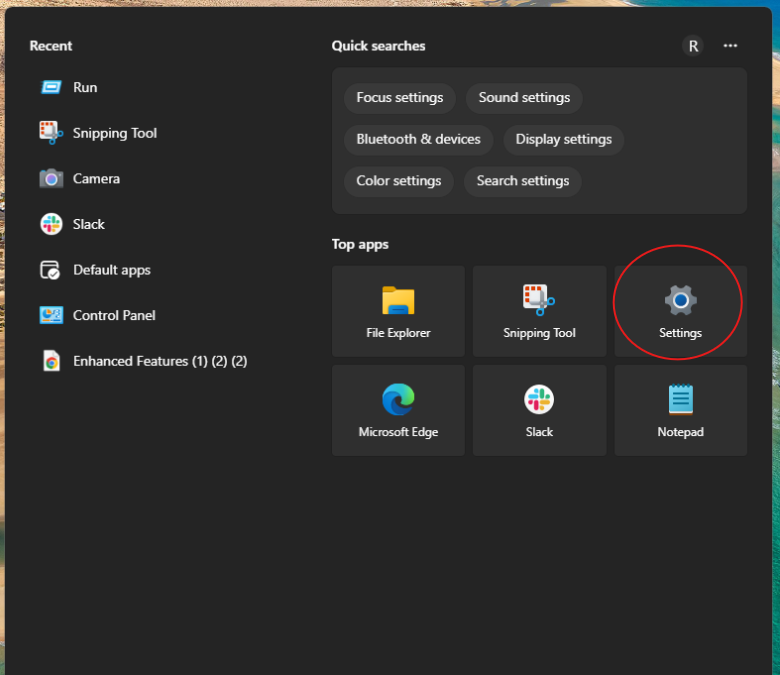
Here you can search for 'Default apps' in the search bar and within the Enter a file type section, type in TEL
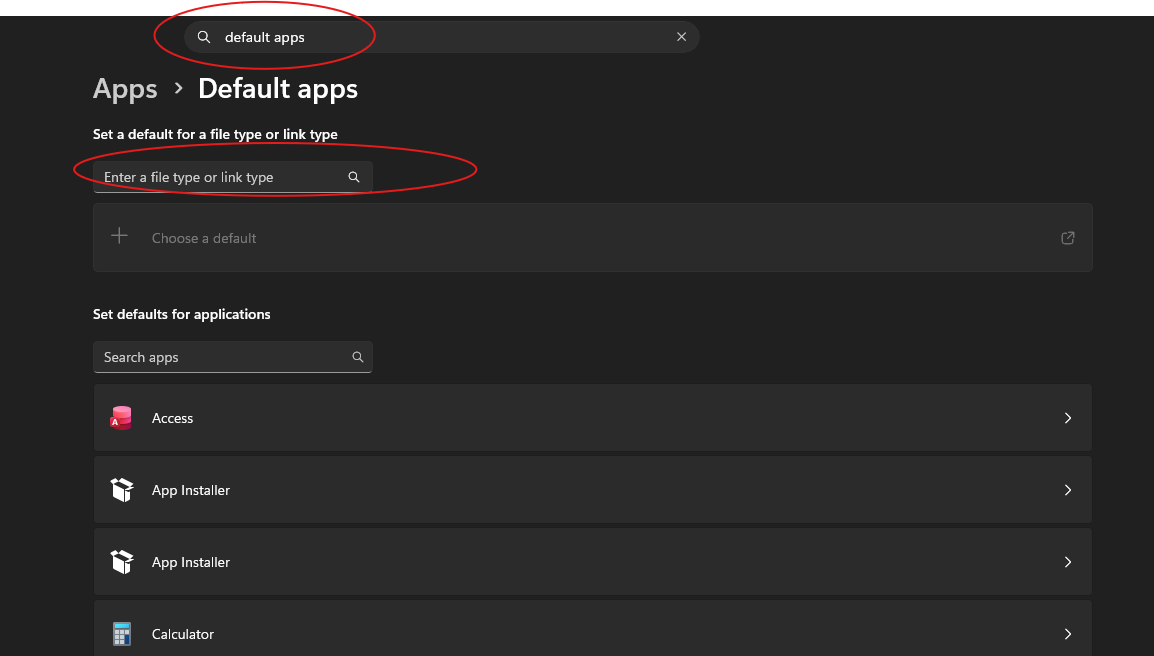
This will then present a Tel Link option, where you can click the below button
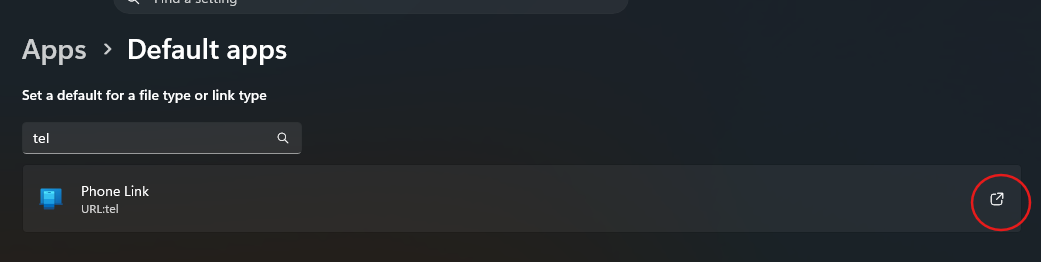
This will then open up additional options, where you can choose Microsoft Edge and set as default
Step 3:
Navigating to your Microsoft Edge Browser, enter https://softphone.devyce.io into the address bar, this should then open your Devyce Softphone
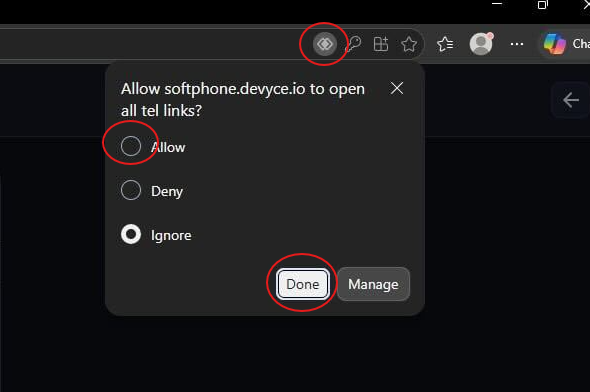
Clicking the highlighted overlapped diamond symbol in the search bar, click allow, and done.
Step 4:
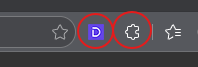
Then navigate to the Devyce Extension, either through the pinned icon if you have it, or by clicking on the puzzle piece icon in the top right hand toolbar. Right click on either icon > manage extensions
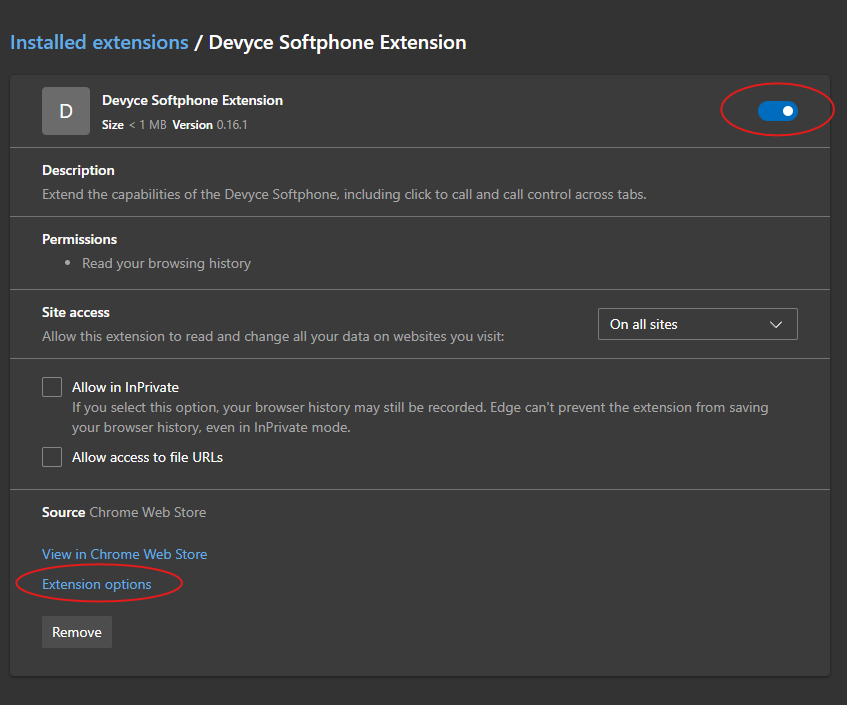
This will then open a new tab, with all your chrome extensions listed, ensure the toggle is set to on
Then click details, and navigate to extension options
Ensure that 'Enable Generic Softphone Routing' is clicked, you should then get confirmation once this is completed
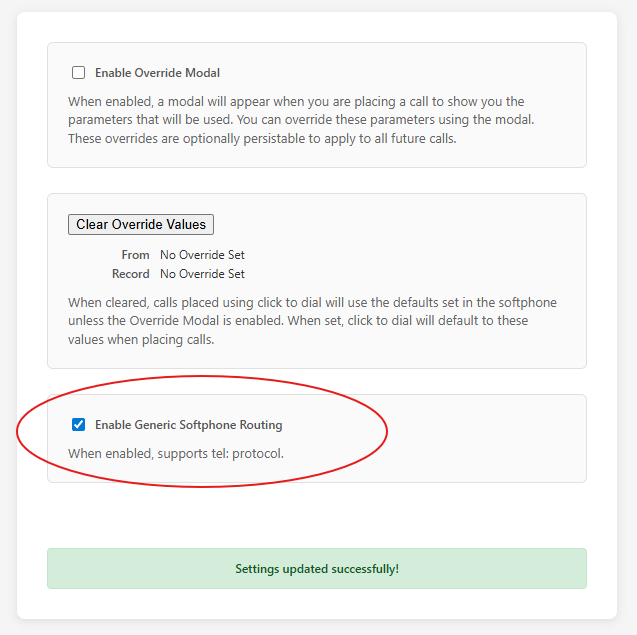
This should now attach your Devyce Softphone, with your Tel Link allowing for Click to Dial
Step 5:
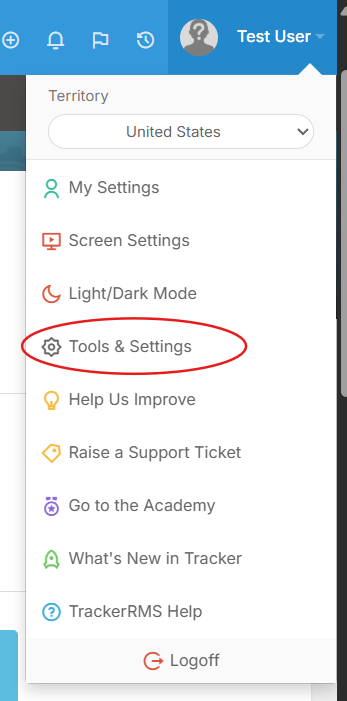
Within your Tracker integration, please click on your profile > Tools & Settings
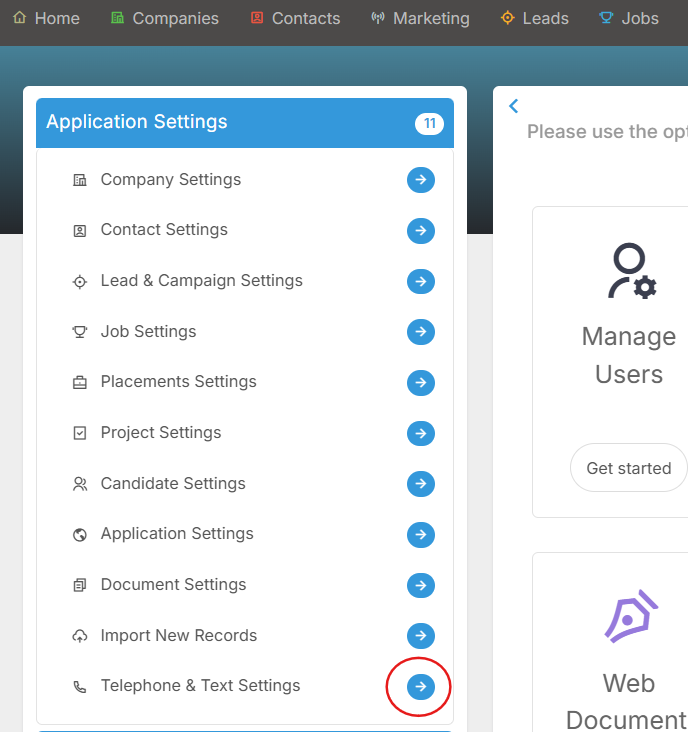
Click on the arrow next to 'Telephone & Text Settings'
Then choose 'Automatic' as your Telephony System option
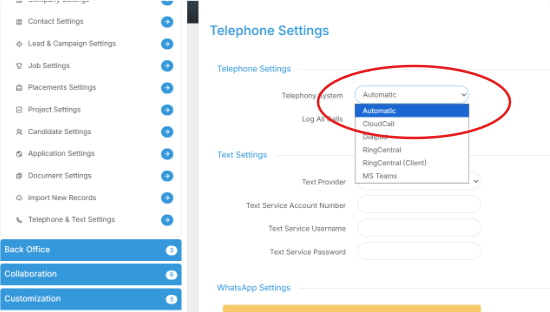
Please then save your settings
Step 6:
Tracker functionality when using click to dial will open up the Devyce Softphone in the same tab, replacing Tracker - to avoid this, we advise using Tracker within Google Chrome and your Devyce Softphone in Microsoft Edge, opening Tracker within Google Chrome will give you a pop up on your first call attempt
Asking permission to use Microsoft Edge for Call Attempts, please click "Always allow" and this will then keep Tracker open and active, and divert the call to your Softphone within Microsoft Edge.