Getting setup on Bullhorn
Last updated: June 24, 2026
You can download our PDF Guide or follow the below steps:
You need to raise a ticket with Bullhorn Support requesting "a REST API for the developer partner Devyce NOT a standard REST API."
You will receive an email with the credentials above and can move onto the next step. Note that if you get the standard REST API instead the following steps will not work.
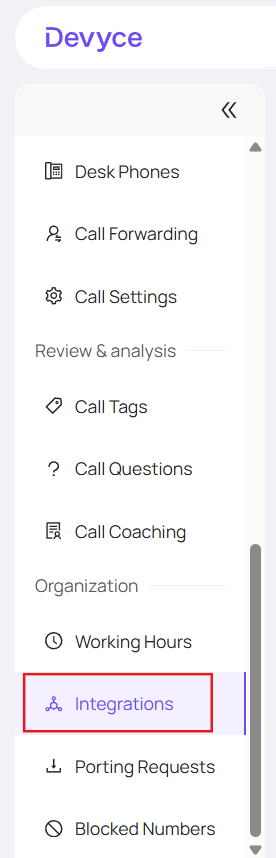
You then need to navigate to the ‘Integrations’ page in the Devyce Portal: https://portal.devyce.io/dashboard/integrations
Click on the ‘Configuration’ dropdown under the ‘Bullhorn’ integration and input the values provided from Bullhorn
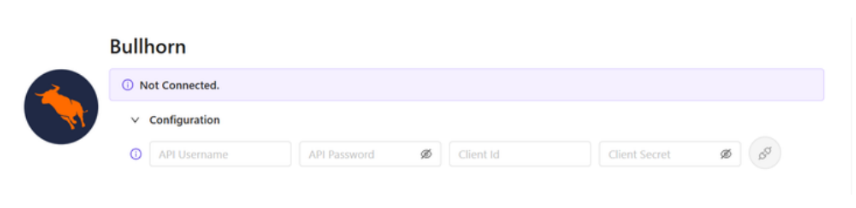
Click on the ‘Connect’ button.
The Integration should show as ‘Syncing’ and eventually then show as 'Connected'.
Please note this can take up to 24 hours

Once synced you will be able to:
Click to dial from Bullhorn
View all of your Bullhorn contacts within the mobile app & Softphone
View all calls and SMS History within Bullhorn
View all AI call summaries in Bullhorn
View call tags in Bullhorn Analytics