Teams Integration - Connecting your calendar via the Softphone
Last updated: June 15, 2026
The new External interactions tab in your soft phone streamlines how you manage and record Microsoft Teams meetings. Here’s how it works, why it’s useful, and how to get started.
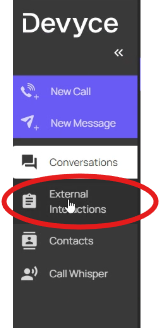
Step 1: Open the External interactions tab in your soft phone. View a list of all past Teams meetings directly in one place.
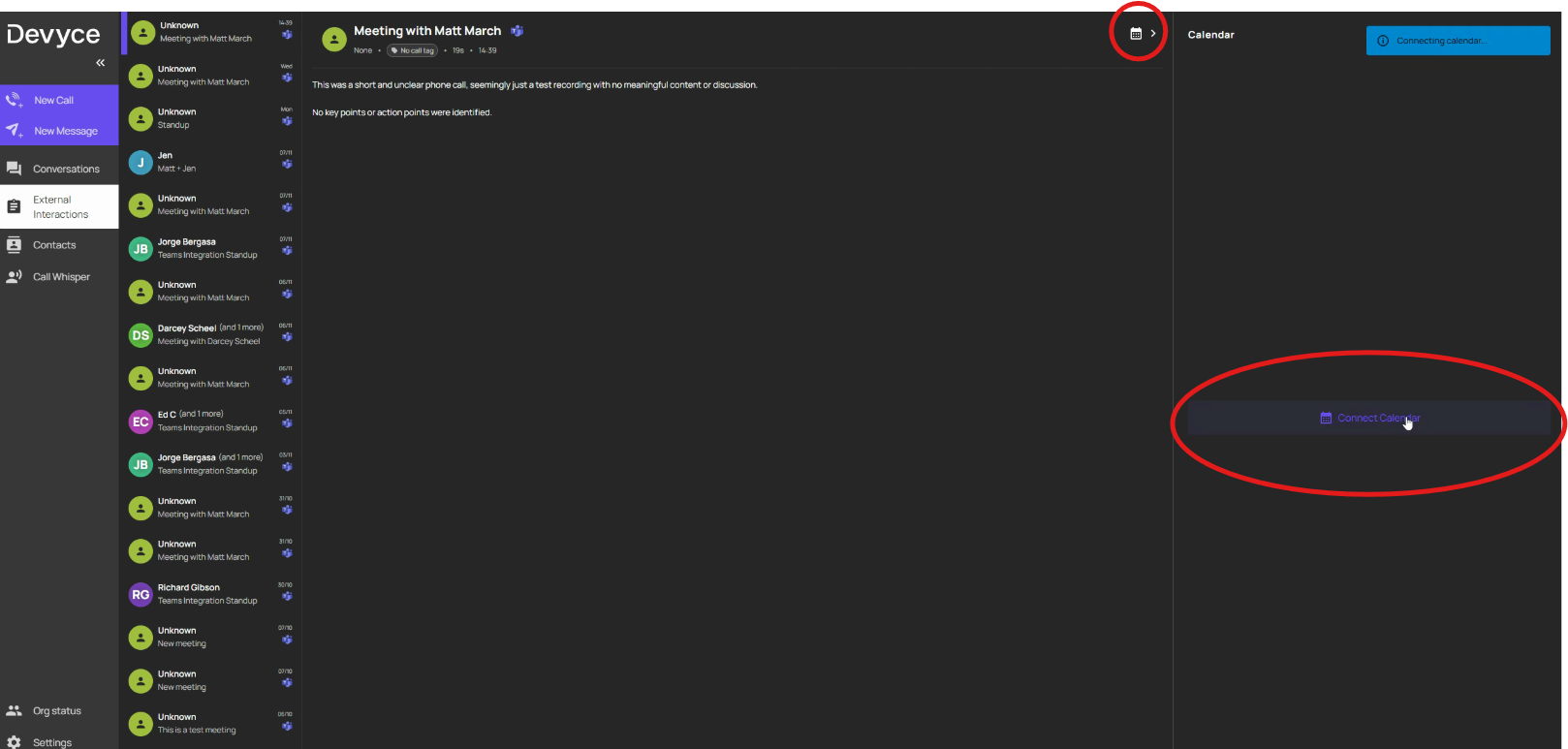
Step 2: Connect your calendar for seamless integration. Click the calendar option and sign in with your Microsoft account to approve access. (The first user setting this up may see a message from Microsoft stating that admin approval is required - to fix this follow this guide:📄 Connecting calendars requires admin approval)
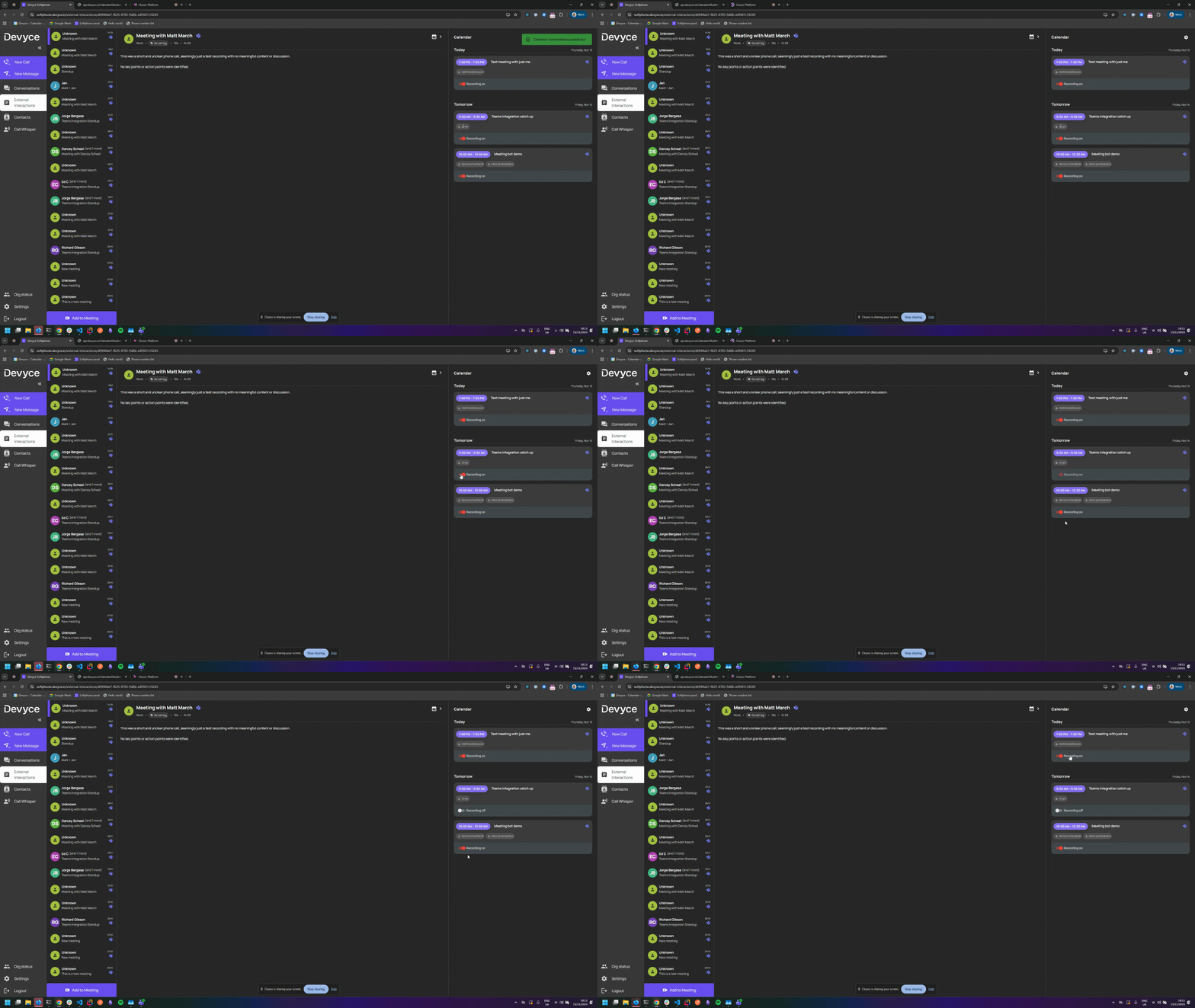
Step 3: Once your calendar is connected, see all your upcoming meetings and attendees within the soft phone. Toggle the recording feature on or off for each meeting, depending on your needs.
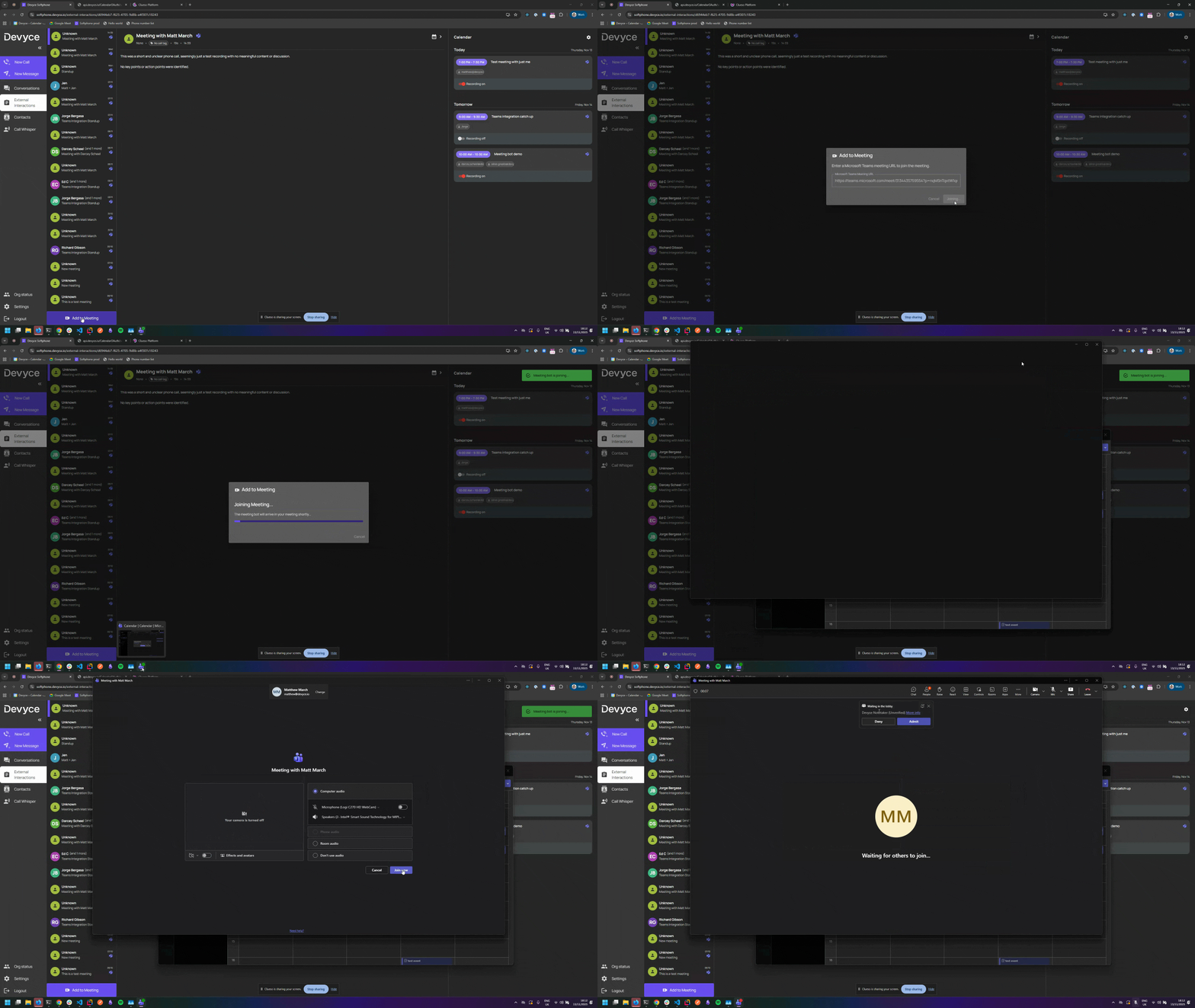
Step 4: When a scheduled meeting starts, a bot automatically appears as a participant. Accept the bot into the meeting to enable features like note-taking and automatic summaries.
Step 5: For ad hoc meetings, find the meeting's shareable link. Paste this link into the “Add to meeting” dialog, and invite others.
Step 6: When you start the meeting, the Devyce Notetaker will request to join. Admit it to enable automated notes and summaries.
Step 7: After the meeting ends, find your recorded and summarized meeting in the External interactions tab—just like your phone calls.
Managing Teams meetings directly from your soft phone saves time and ensures all your important interactions are organized and easy to review. Connecting your calendar and using the meeting bot for your next Teams call to capture summaries effortlessly.
If this is something you would be interested in using, but don't already have access please reach out to your Account manager or to our support team at support@devyce.co.uk to upgrade