How to Offboard/Remove a User
Last updated: May 28, 2025
Staff turnover means sometimes you need to remove a user from your Devyce account.
You need to go to your admin portal https://portal.devyce.io/dashboard?days=7
You need to reassign the users allocated numbers, to do this you will need to go to the numbers section in lefthand toolbar.
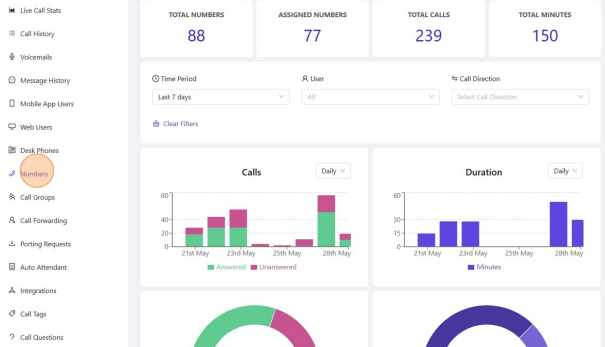
Once you have clicked this, you can use the search function to find the user and all there allocated numbers
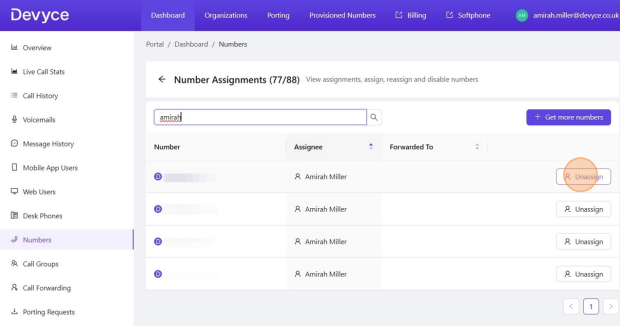
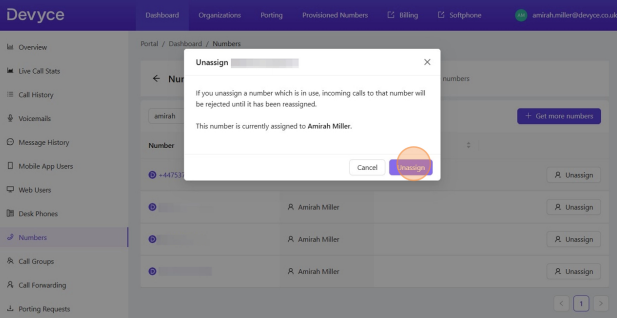
You can then click 'Unassign' on all the numbers allocated to the user you are offboarding. You can then click 'Unassign' again to save the changes
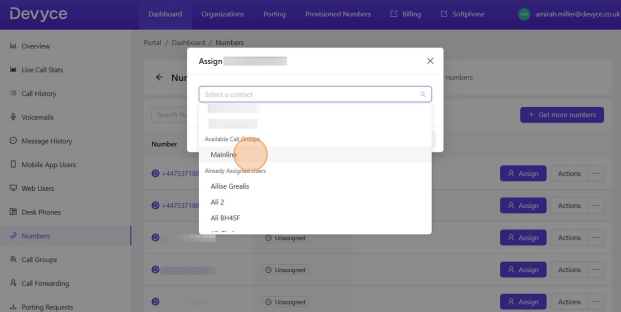
You can then assign those numbers to another user, or a calling group to ensure any incoming calls to that user now redirect as needed
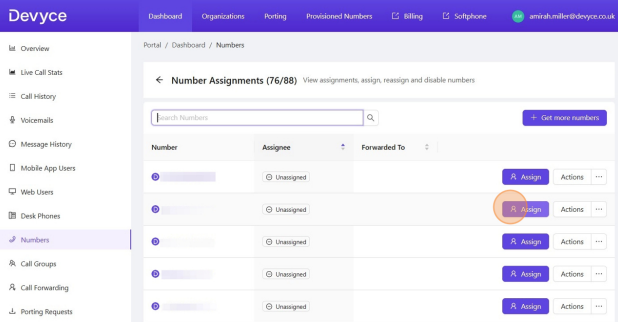
You can use the dropdown menu to reassign the number and then click assign to save your changes.
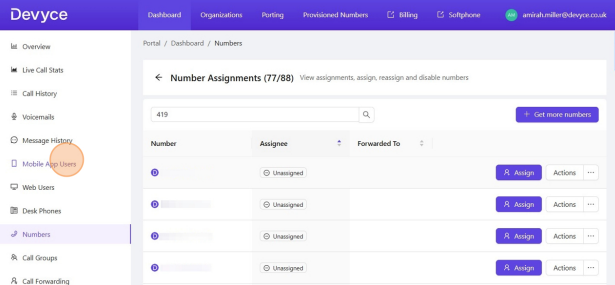
Once you have reassigned the numbers as you require, you can then go to the 'mobile app users' tab in the lefthand column.
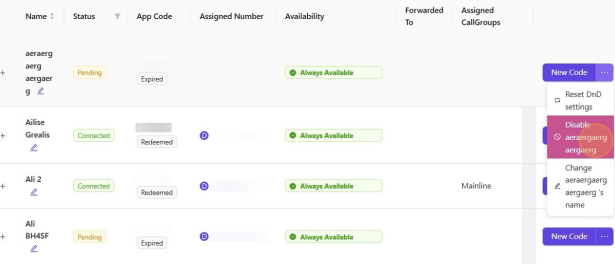
Scroll to the user you wish to remove, and click on the three dot symbol to expose the drop down menu, and click to disable the user.
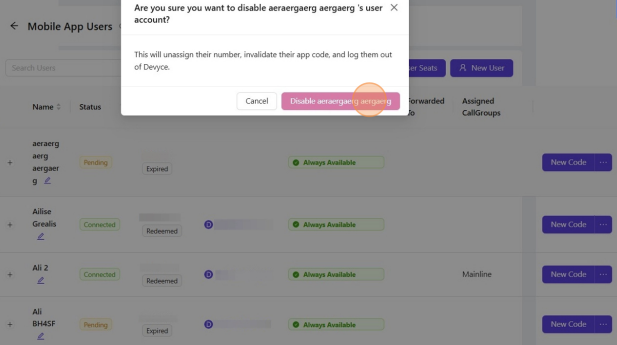
You can then confirm via a pop up
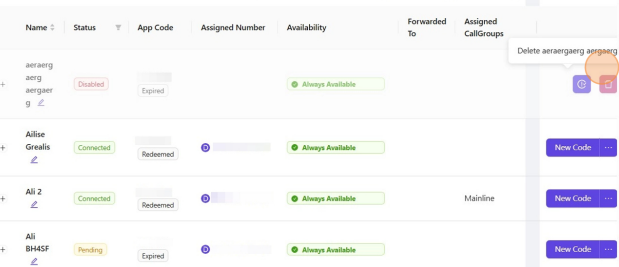
You can then click on the bin icon to remove the user from the mobile app field completely
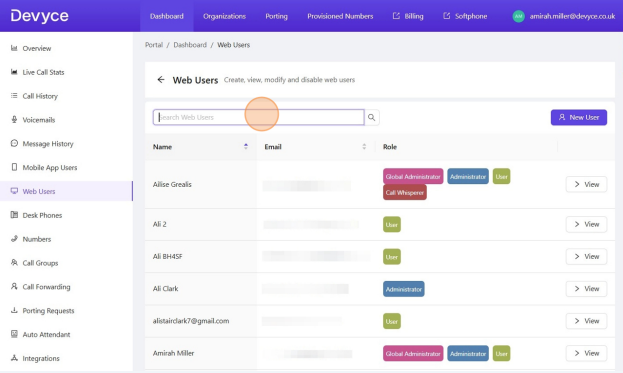
You can then go to the Web User tab in the lefthand column, and find the user you are removing
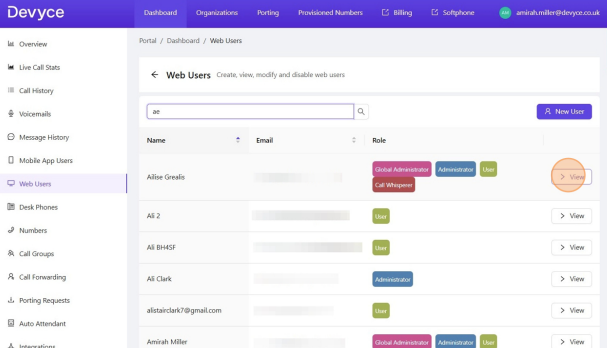
Click 'view' on the user
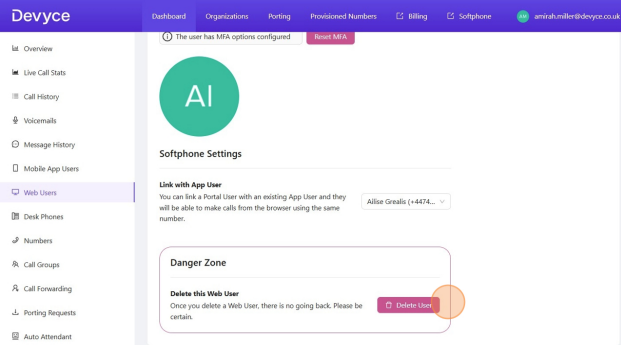
This will then open further details on this user, where you can then scroll down and delete the user within the web users section
If you experience any issue doing this, please reach out to our support team for further assistance at support@devyce.com