How to setup Observer roles
Last updated: February 4, 2026
Admins can assign the Observer role in two ways, depending on whether the user should have organisation-wide visibility or visibility limited to a specific user group.
Option 1: Assign Observer at the Organisation Level
Use this option when the user should have read-only visibility across the entire organisation.
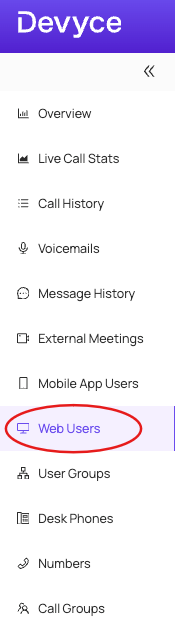
Navigate to Web Users from the left-hand menu
Select the user you want to update
Click Edit in the top-right corner
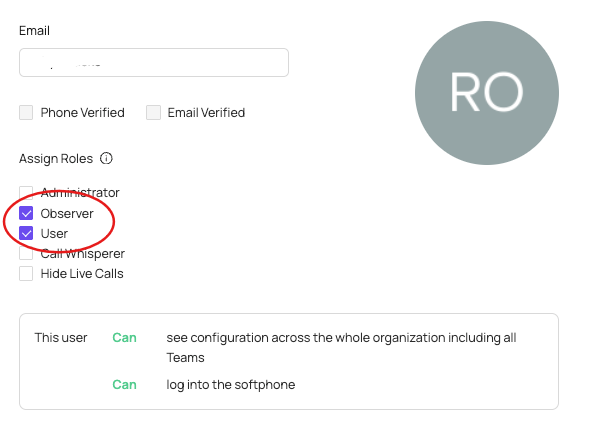
Under Assign Roles, tick Observer
Click Save
Once saved, the user will have read-only access to organization configuration and user data across all teams.
Option 2: Assign Observer at the User Group Level
Use this option when the user should only observe a specific group, rather than the full organisation.
Navigate to User Groups from the left-hand menu
Create a new user group or select an existing one
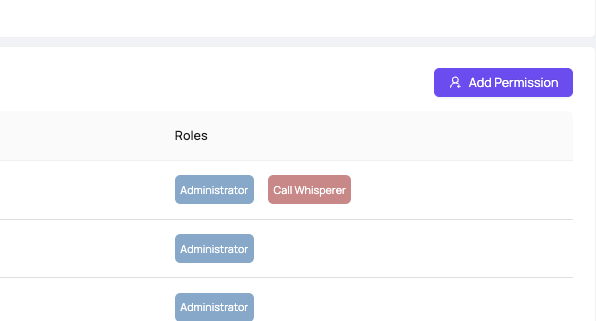
Click Add Permission
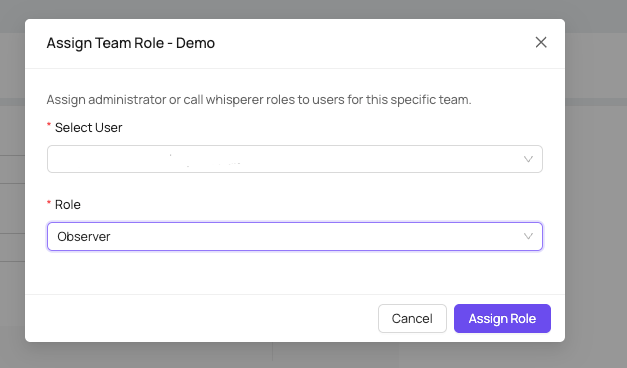
Select the user you want to assign
Choose Observer as the role
Click Assign Role
The user will now have read-only visibility limited to that specific group.
Notes & Behaviour
Observer access is view-only at both organisation and group level
Observers cannot change settings, manage users, or interact with live calls
Observer can coexist with other roles, but will never grant write or call-control permissions