Missing calls in the Softphone, even when you're online
Last updated: May 14, 2025
Are you experiencing missing calls in the Softphone? Calls 'Not coming through' for some users? Please follow the instructions below to try to resolve the issue.
Please ensure you have Chrome notifications turned on
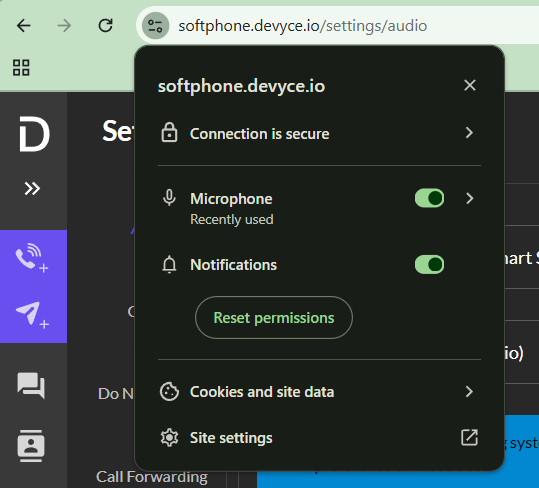
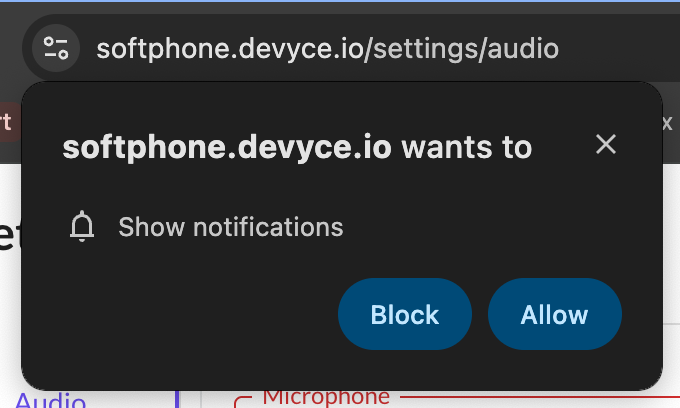
You may be asked to refresh the browser after updating these settings for them to take effect.
If you are still not receiving notifications, please try restarting your browser or device.
Please ensure that the Chrome application is allowed to display notifications in your System Settings.
Please make sure to keep the Softphone tab open
Whenever you want to receive calls, please keep the Softphone tab open in your browser. If you close the tab, you will no longer receive notifications.
Try not to minimise the browser as this might tell Chrome to send the tab to sleep.
Try to refresh the Softphone tab if your device goes to sleep for extended periods of time, ie: after lunch or first thing in the morning.
Use our Chrome Extension
Even if you do not have Chrome notifications enabled for the Softphone, our Chrome extension will enable you to see a call popup when you are on another tab in your browser.
See instructions on how to get setup with out Chrome Extension here: 📄 Getting setup with our Chrome Extension - Soft Phone
Check your working hours settings
Please ensure that your do not disturb/working hours settings are not interfering with you being able to receive calls.
Go to the Softphone settings: https://softphone.devyce.io/settings/dnd
Ensure that if your working hours are set, that they are correct and that they don't overlap with when you missed the call
Configure your Chrome Memory Settings
In some cases, Chrome will 'kill off' a tab to improve performance, especially if you haven't actively been using that tab for a while. You can try configuring your Chrome settings to turn off memory saving for the softphone, to see if this helps.
Go to this url in your Chrome browser:
chrome://settings/?search=always+keep+these+sites+activeClick the 'Add' button on the right of 'Keep these sites active'
Either select 'softphone.devyce.io' from the 'Add current sites' tab
Or go to the 'Add sites manually' tab and enter softphone.devyce.io in the input, then click 'Add'

If you are still experiencing issues please try doing a hard refresh on the Softphone and clear the browser cache.
If the issue still persists after taking these steps please contact our support team for further assistance.