Microphone & Audio Troubleshooting - Softphone
Last updated: March 12, 2026
If your microphone isn't working or showing up in the Softphone settings, follow these troubleshooting steps:
Wireless Headset Users
If you are having issues with a wireless headset, try plugging it in or trying a different wired headset to see if bluetooth connection is the problem.
You can also try testing the microphone with another platform to ensure it's working properly.
If using a wireless headset that can connect to multiple devices, disconnect it from other devices (like your phone) as they may take priority and make the headset unavailable to your computer.
Check Browser Permissions
Please check Microphone Chrome permissions are enabled for the tab
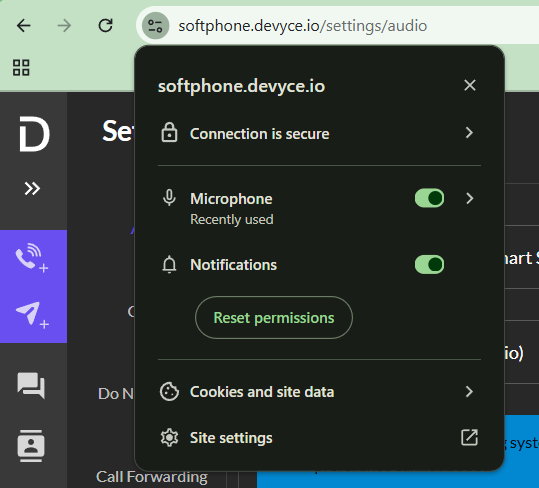
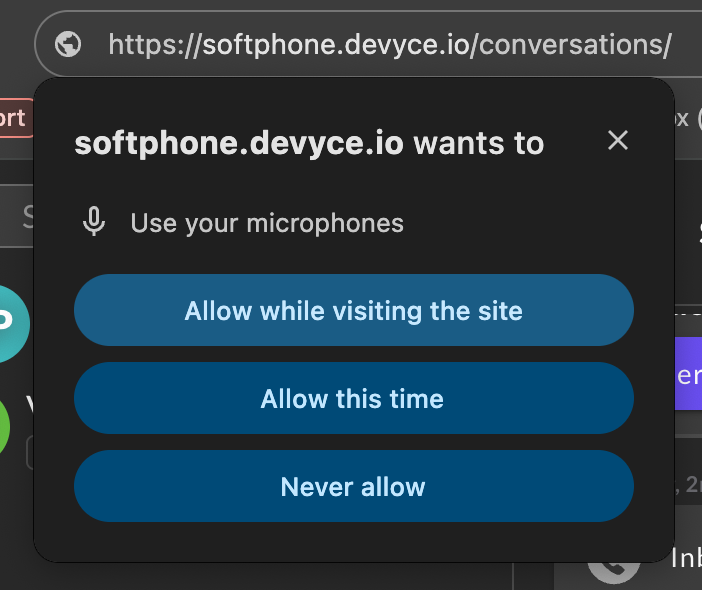
Once this is updated and microphone still isn't working, please ensure to refresh or restart the browser
If using a wireless headset, please ensure this device is not being used by another device. If this is the case, disconnect the headset from all other devices.
Ensure you have enabled Chrome to use your microphone
On Windows:
Go to your Settings application
Click Privacy & Security, then click Microphone
Find 'Allow desktop apps to access your microphone', and enable the toggle to let Chrome access your Microphone
On Mac:
Go to your System Settings application
Click Privacy & Security, then click Microphone
Enable the toggle for Google Chrome
You will need to restart the Chrome application in order for the settings to take effect
Please note that your device might be displaying within the 'Audio Devices' settings on the Softphone, however this does not mean we have access to use it
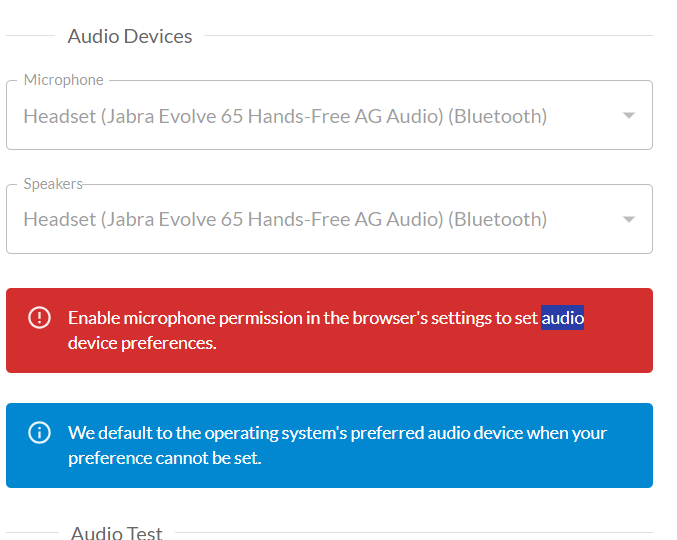
Verify Audio Device Settings
Avoid selecting 'Default' or 'Communications' options in the Softphone audio settings
Choose your specific microphone device from the dropdown menu
Ensure your operating system recognises the audio device you want to use
Try refreshing the Softphone after making any changes
If the issue still persists, please contact our support team for further assistance