Sidekick - Your AI Assistant
Last updated: July 7, 2026
Navigate to your softphone https://softphone.devyce.io and go to the conversation you wish to use sidekick with
And click "Chat with Sidekick"
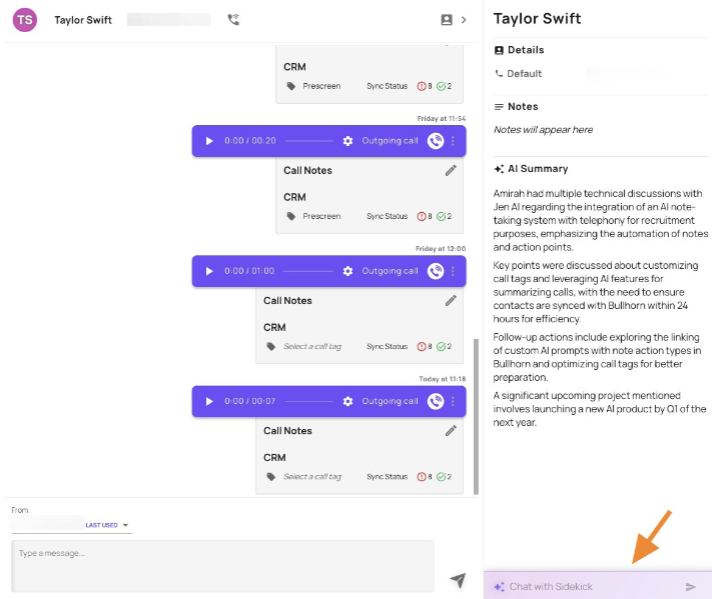
This will expose the text box, where you can then prompt Sidekick based on all conversations and specific contact.
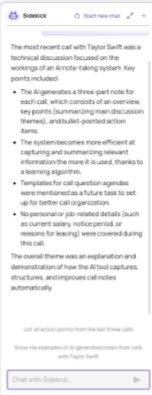
You can then type in a prompt question to request into the chat box. E.g "Create me a candidate profile" or "Generate a follow up email to Taylor Summarising our Call"
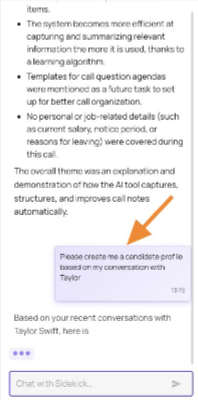
Sidekick will then publish the response within the chat thread for you to utilise
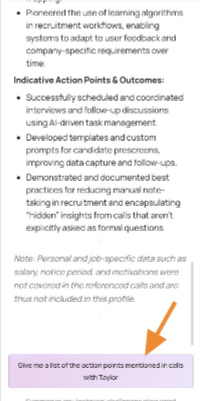
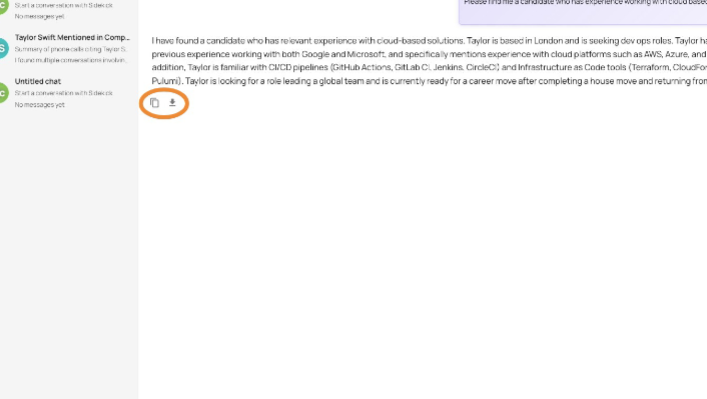
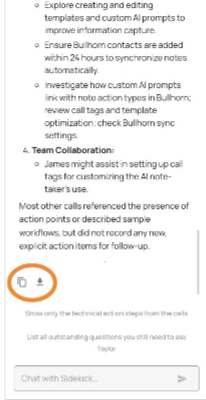
Sidekick will then also offer suggested follow up actions, and you can download or copy the responses
You can also utilise Sidekick and create a chat based on all conversations with all contacts within your Devyce Softphone, by navigating to the Sidekick menu on softphone.
Type in a prompt question or request into chat box. You can use prompts to search within your entire call history.
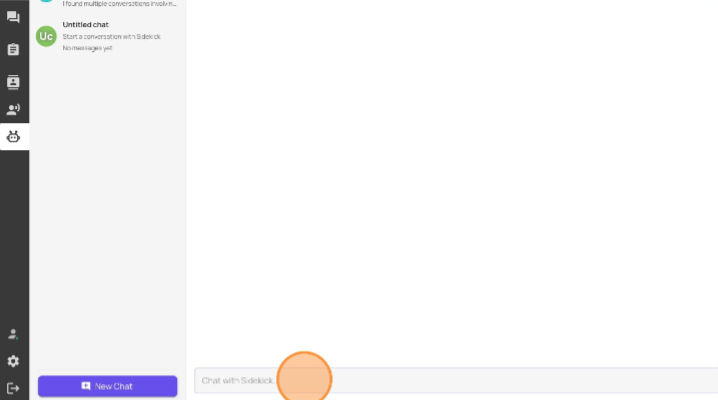
You can use prompts such as "Please find me a candidate who has experience working with cloud based solutions"
Sidekick will then find this information for you and provide it in a format that can be copied or downloaded