CRM Data Link - How to set it up
Last updated: September 30, 2026
Data Link needs a little setup by an account Admin before your team gets the full benefit:
Standard CRM fields are enabled as soon as Data Link is added to your account, so your users will start seeing suggestions for those straight away.
Custom fields — and any other non-standard fields — stay switched off until an Admin enables them. Until an Admin ticks them, your users will not see any suggestions for those fields.
Custom fields also need Custom CRM Fields to be included on your account. If you are not sure, speak to your account manager or email support@devyce.co.uk
Configuring your fields
You will need Admin permissions in the Devyce Portal for this.
Go to the CRM Data Link section of the Devyce Portal -https://portal.devyce.io/dashboard/crm-data-link
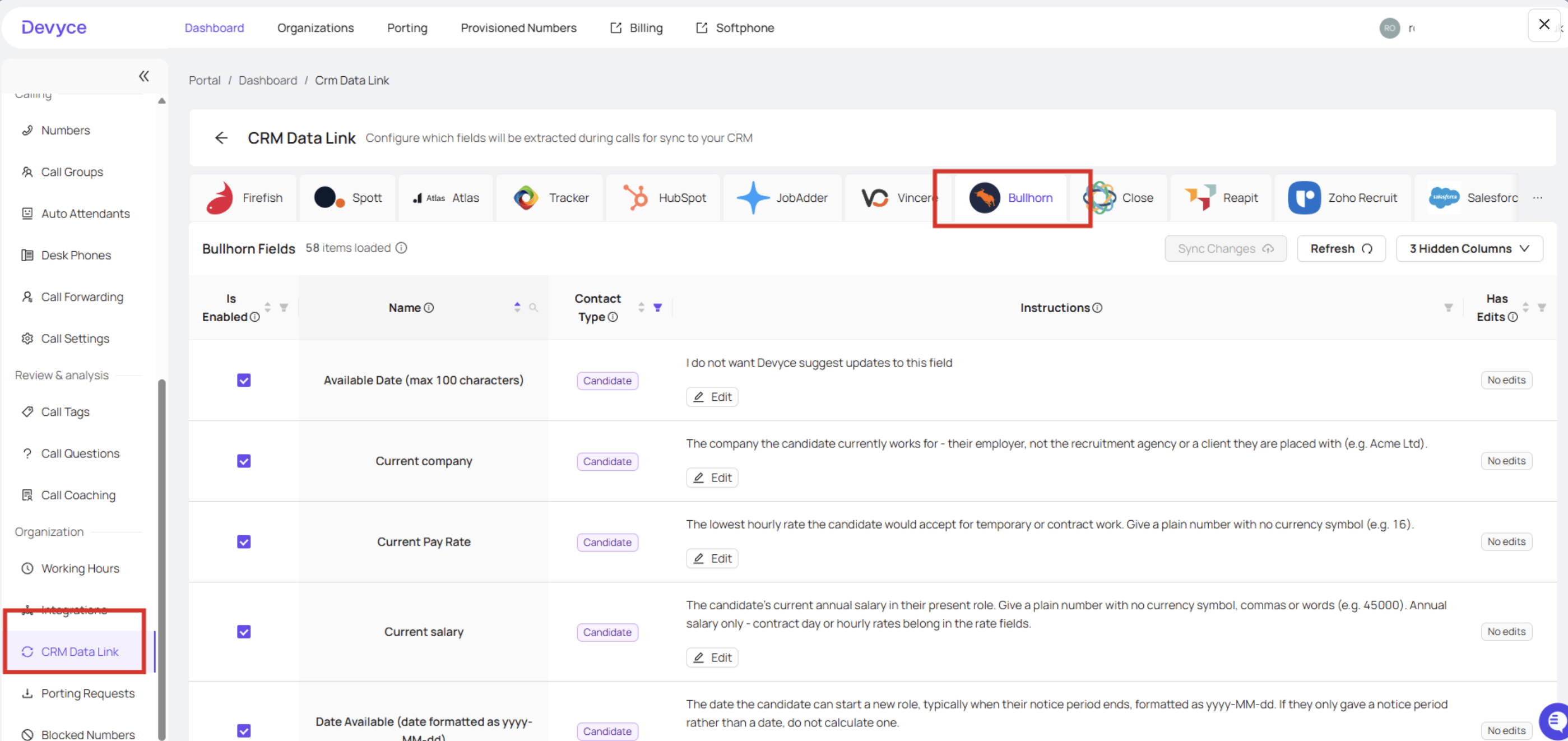
On the Configure your Data Link Setup banner, select Settings to open the CRM Data Link Configuration page.
Choose the tab for the CRM you want to set up — only the CRMs connected to your account will show here.
The field table opens filtered to a single contact type (Candidate, where your CRM has it). Change the Contact Type filter to see the fields for your other contact types.
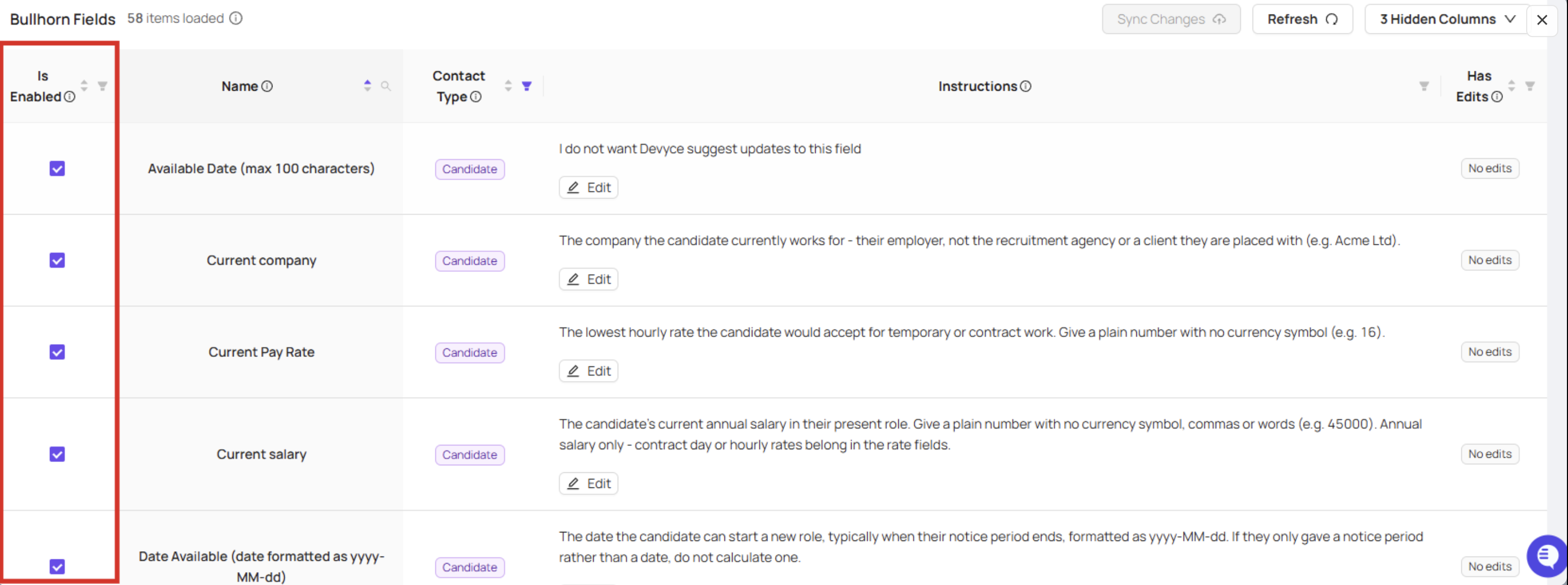
Use the Is Enabled tick box to choose which fields Data Link can suggest updates for.
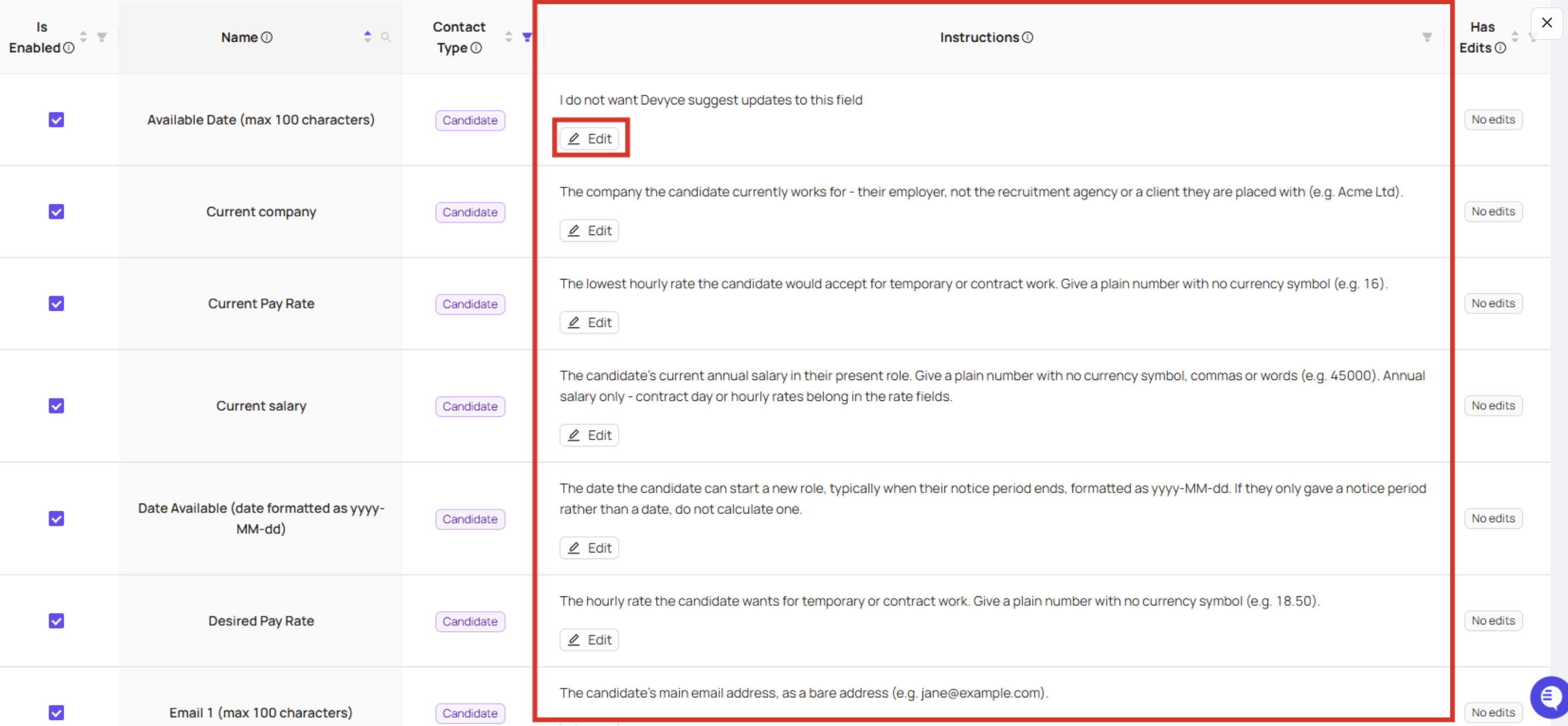
If you want to, add Instructions against a field (up to 500 characters) to give our AI more context on what to pull out, or how to format it.
Select Sync Changes to save. This saves the tab you are on, so if you have made changes on more than one CRM tab, select Sync Changes on each of them.
You can also search, sort and filter the table, and show or hide columns. Your column choices are remembered for the next time you visit, and only affect your own view — not anyone else in your organisation.
Data Link statistics
The main CRM Data Link page shows you how Data Link is being used across your team, so you can see what is being suggested and what your users are accepting. It is reporting only — nothing on this page changes your CRM. Access is for organisation Admins.
Across the top you will see overview tiles: Suggestions Total, Avg. Suggestions, Accepted Suggestions, Calls with Suggestions, Calls Reviewed, Pending Suggestions, Users Accepting and Custom Field Suggestions. You can reorder these, or hide the ones you do not need — how many show at once depends on the size of your screen.
The page shows the last 30 days by default. You can filter by User, Other Party and Date Range, and tick Show calls without suggestions to include calls where we had nothing to suggest.
Underneath the tiles there are three tables:
Users — how each of your users is getting on with Data Link
Fields — which fields are being suggested and accepted (collapsed until you open it)
Call History — the individual calls, and the suggestions made on them
A couple of things worth knowing when you are reading the numbers:
Pending Suggestions is everything we have suggested that has not been accepted. That includes suggestions a user has seen and chosen not to apply.
Calls Reviewed counts calls where at least one suggestion was accepted.
Where our suggested value matches what is already in your CRM, we do not show it or count it.