Do not Disturb Button
Last updated: July 7, 2026
Within Devyce you can set your Do not disturb in two ways
Your working hours allow you to set the times you are available to ensure you do not get incoming calls outside of these hours, to set these up please see this knowledge base: https://devyce-knowledge-base.help.usepylon.com/articles/6671248591-howtosetupyourdnd?lang=en
The second option is the toggle on button, we understand that sometimes during the working day you may be in a meeting, or completing an admin task and wish to go on DND for a moment, to do this we have a button within your Softphone

Toggling this on, will highlight the button in orange to alert you that you are in DND, along with a pop up that you can exit
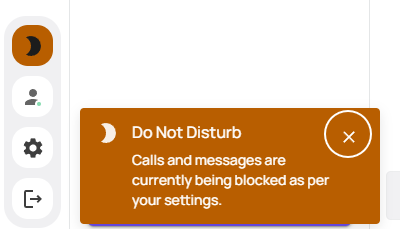
If you do exit the larger notification, the DND button will remain orange until you have turned this off - allowing you to slip in and out of DND as needed.
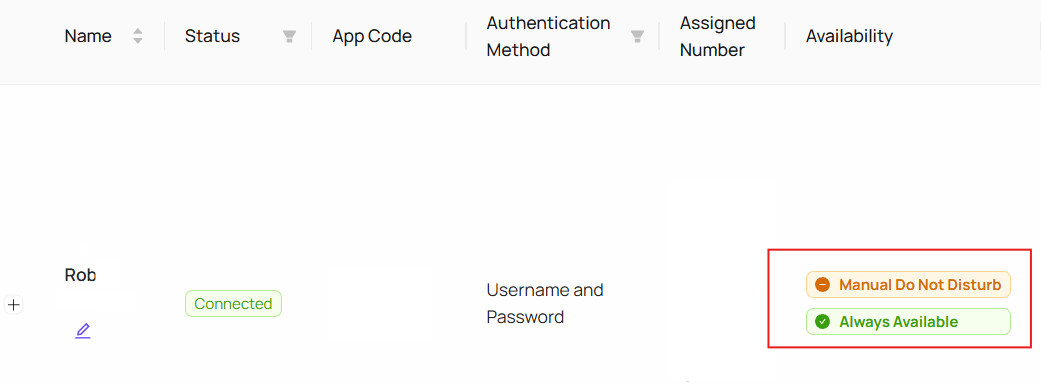
DND settings can be seen for working hours, and the manual DND within the Devyce Admin Portal, by going to Mobile App users
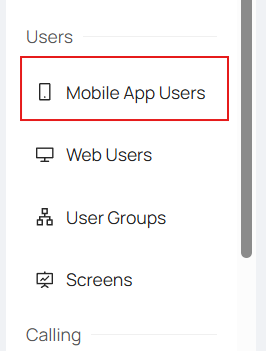
You can then view if a user is on manual DND, within the availability section