How to Warm Transfer a Call on the Mobile App (iOS)
Last updated: August 18, 2026
When you're on the go, you may have the need to transfer a call to a colleague - just like on the softphone, you can do this via the mobile app.
During a call, you can select the Hold button to place the caller on hold while you prepare to transfer them.
This gives you a moment to speak with your colleague, provide any relevant context about the caller, and make sure they are ready to take the call before completing the transfer.
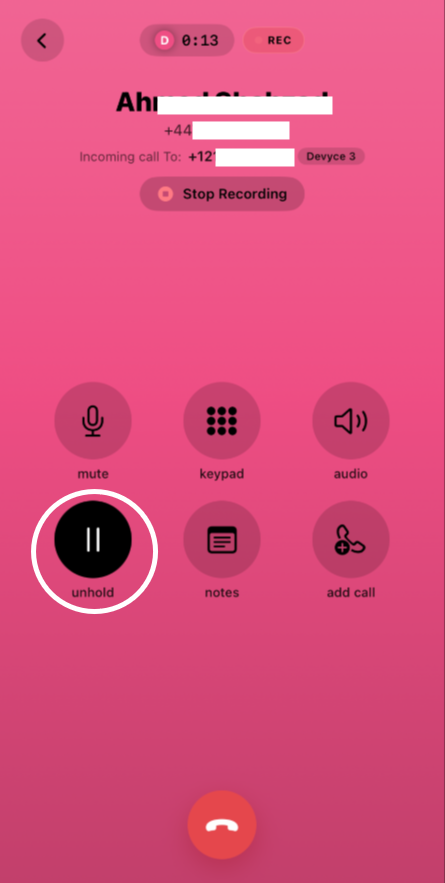
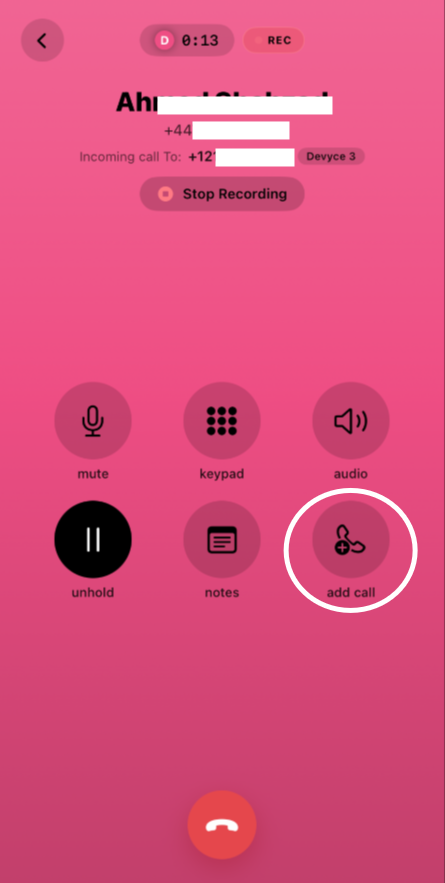
Once the caller is placed on hold, and you are ready to transfer the call, click on the 'Add Call' button
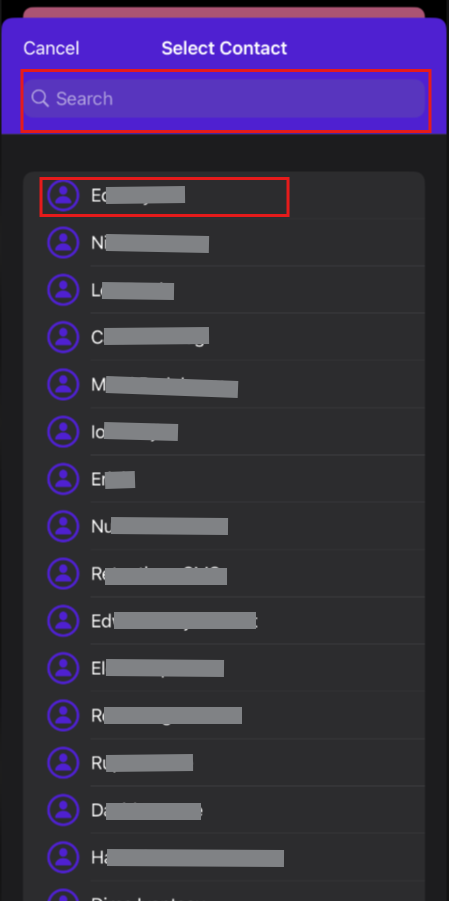
This will then bring up a new screen, with a list of your colleagues to choose from, you can either scroll through the options or use the search bar. You can then click on the user you wish to transfer to.
This will then show the screen below, and you will be able to hear a dial tone as it attempts to connect to your colleague (please note if they are unavailable you can cancel and go back to the original caller)
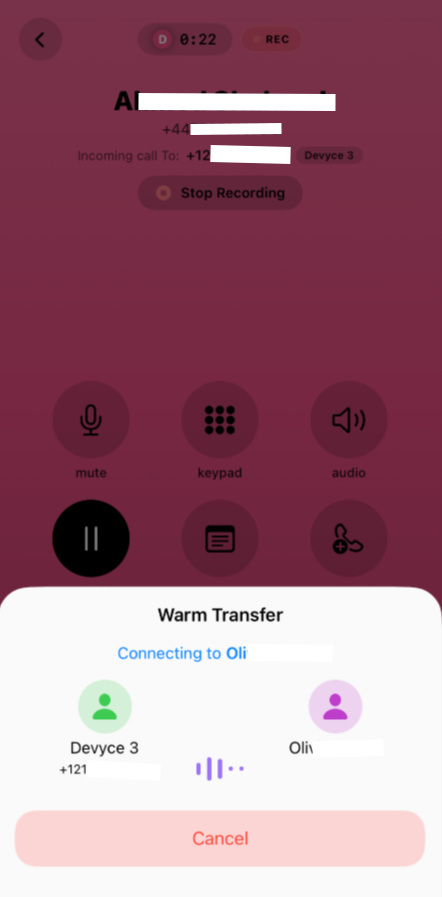
Once connected yourself, and your colleague can discuss the call without the original caller hearing - this is good for providing context to the call.
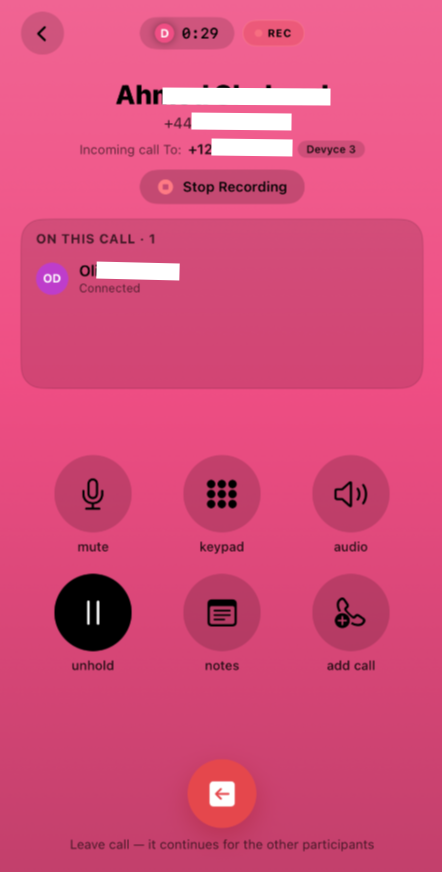
You can then, unhold the original caller and have a 'conference' call to discuss/introduce if required
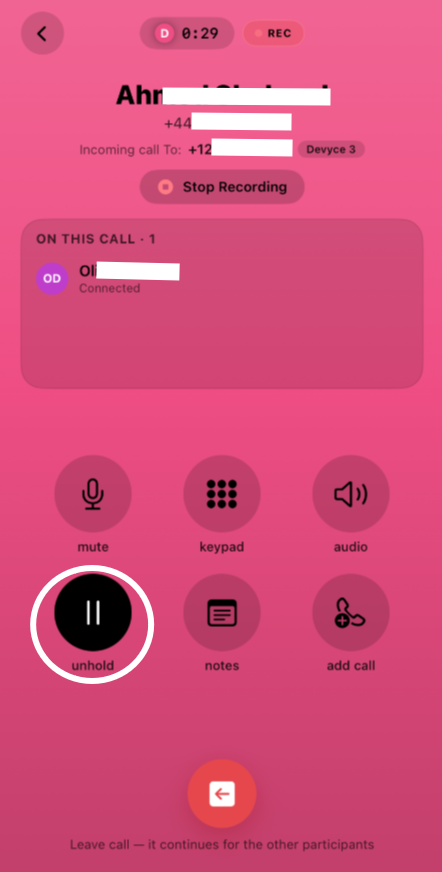
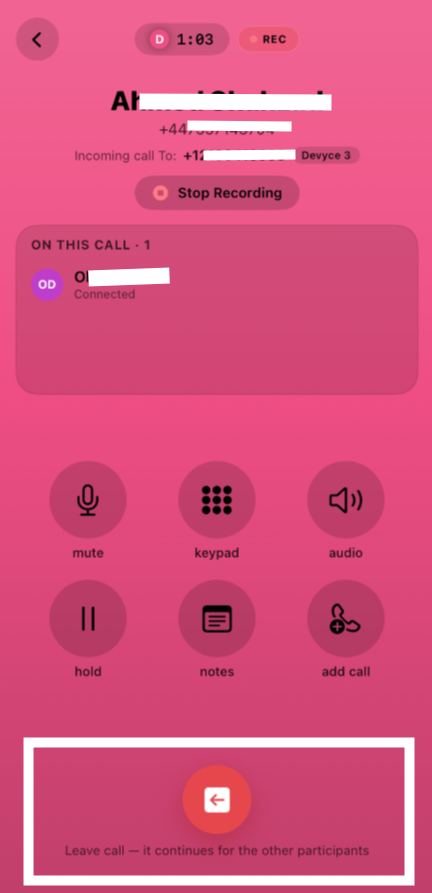
You can then use the 'Leave Call' button, leaving your colleague and the original caller to continue the call