Manually Syncing to CRM
Last updated: June 16, 2026
Navigate to https://softphone.devyce.io/conversations/
Choosing the call you are wanting to manually sync, you can click on the drop down to assign a call tag
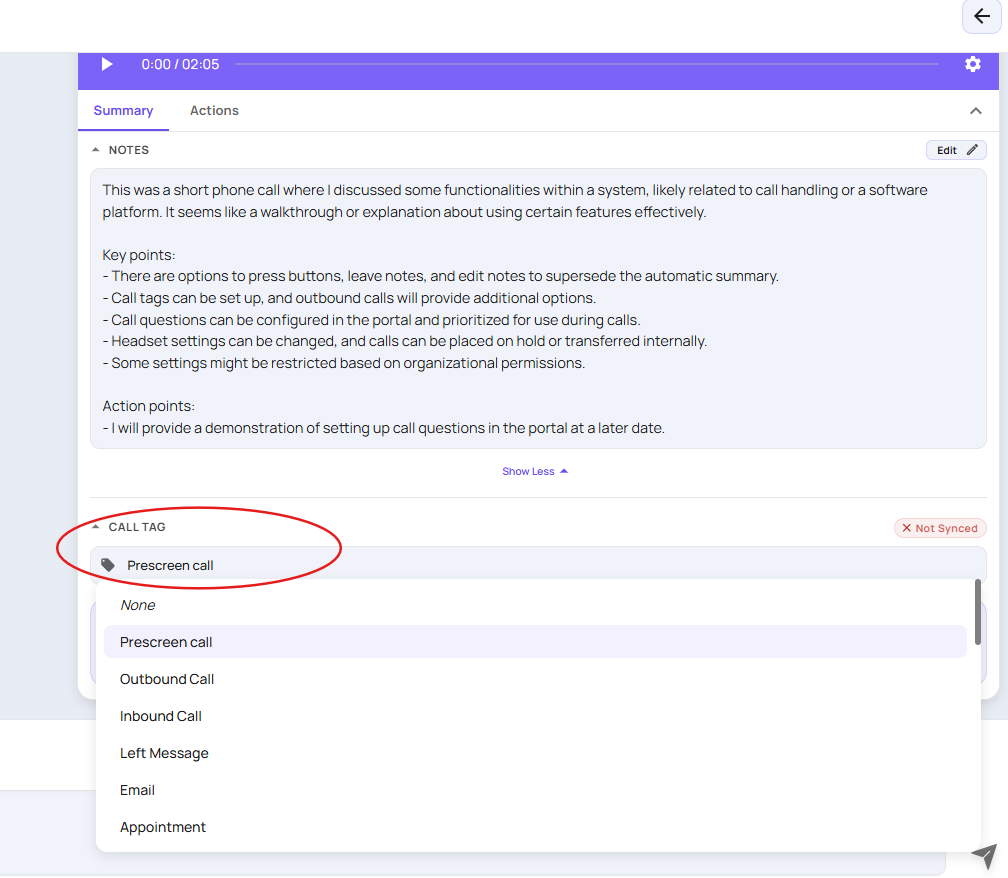
Select the desired call tag/note action type from the drop down, before clicking the sync button

This will then take you to your CRM sync option where you can select a contact as needed.
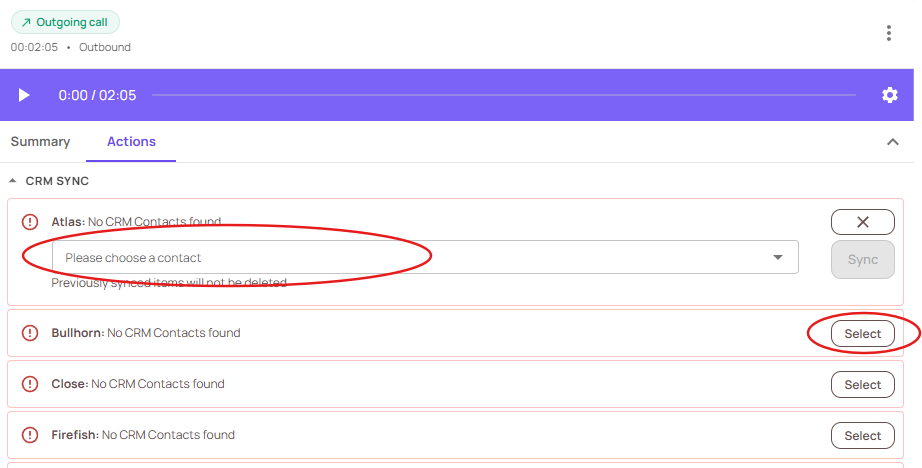
Please note only your CRM will show as an option here
Once you have done this, you can choose the relevant contact record, and the CRM sync should state 'synced' and turn green
If you receive any error messages, you can troubleshoot them here: https://devyce-knowledge-base.help.usepylon.com/articles/6090009780-crm-sync-status-how-to-resolve-them