Awh Snap! Issue - Clean Update of Google Chrome
Last updated: August 7, 2025
Do all of the steps in the order below you can then see the additional sections for more details on these steps.
1) Remove the chrome extension
2) Clear cache, cookies and service workers
3) Reload the Softphone tab
4) Update chrome browser settings
5) Re enable the chrome extension
6) Restart the browser
1) Remove the chrome extension
navigate to chrome://extensions/ using the address bar
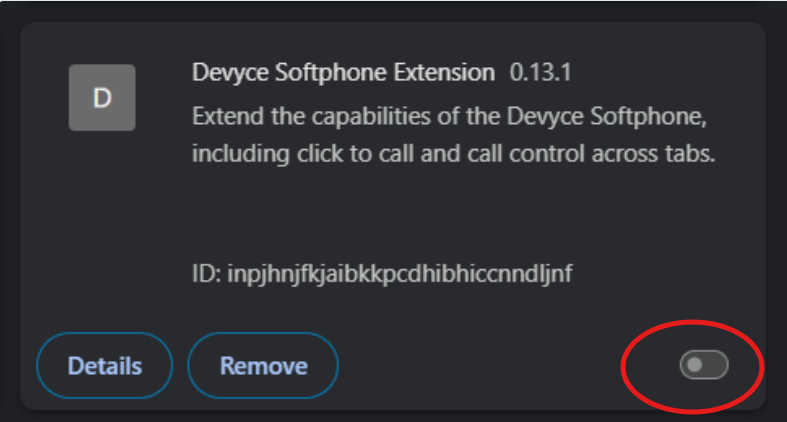
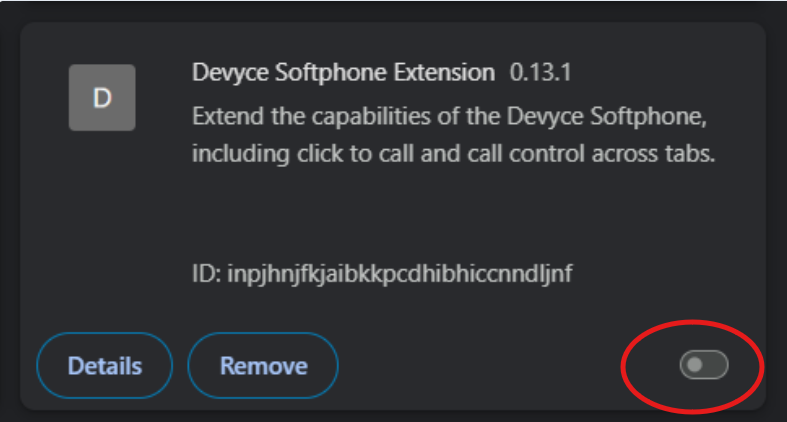
Locate the Devyve Chrome Extension card and toggle the switch on the bottom right to the disabled position like shown in the screenshot.
2) Clear cache, cookies and service workers
navigate to the softphone tab: https://softphone.devyce.io
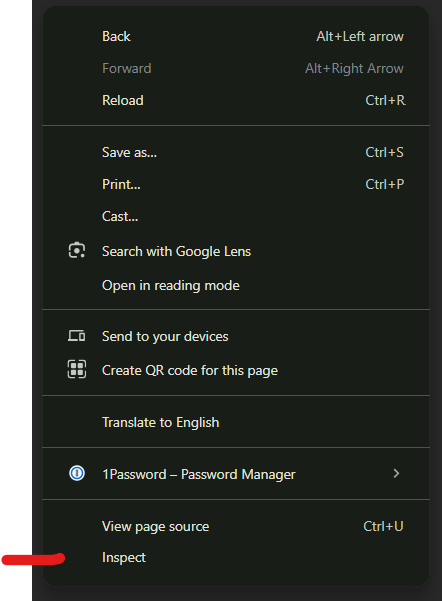
Bring up the developer console by pressing F12 or right click anywhere on the screen and click "Inspect" from the context menu
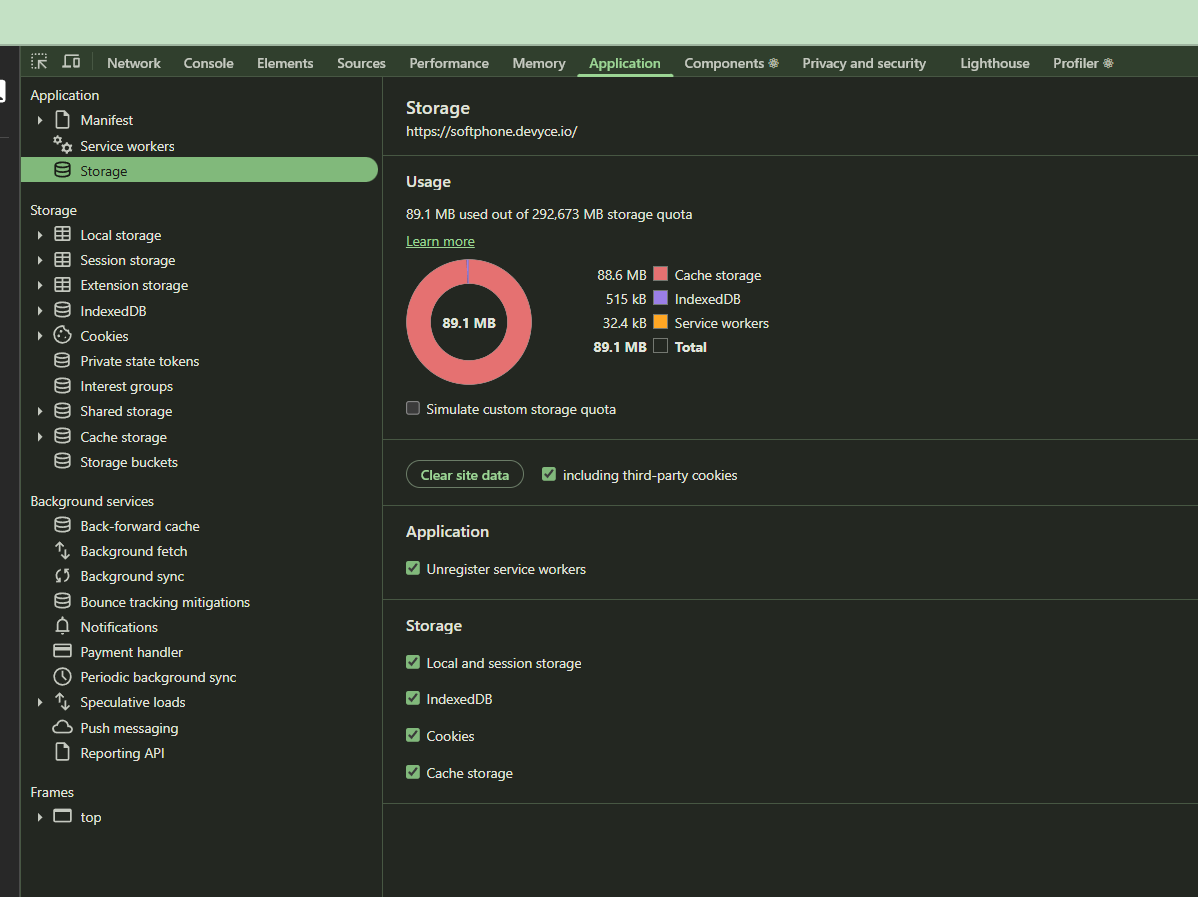
Within the developer console navigate to the Application tab (on the top) and the Storage section (on the left). Select all of the checkboxes as shown in the screenshot and then press the "Clear site data" button
3) Reload the Softphone tab
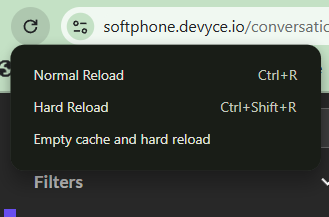
With the developer console still open, right click on the refresh arrow and select "Empty cache and hard reload"
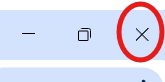
Close the developer console by clicking the X in the top right hand corner of the developer console.
4) Update chrome browser settings
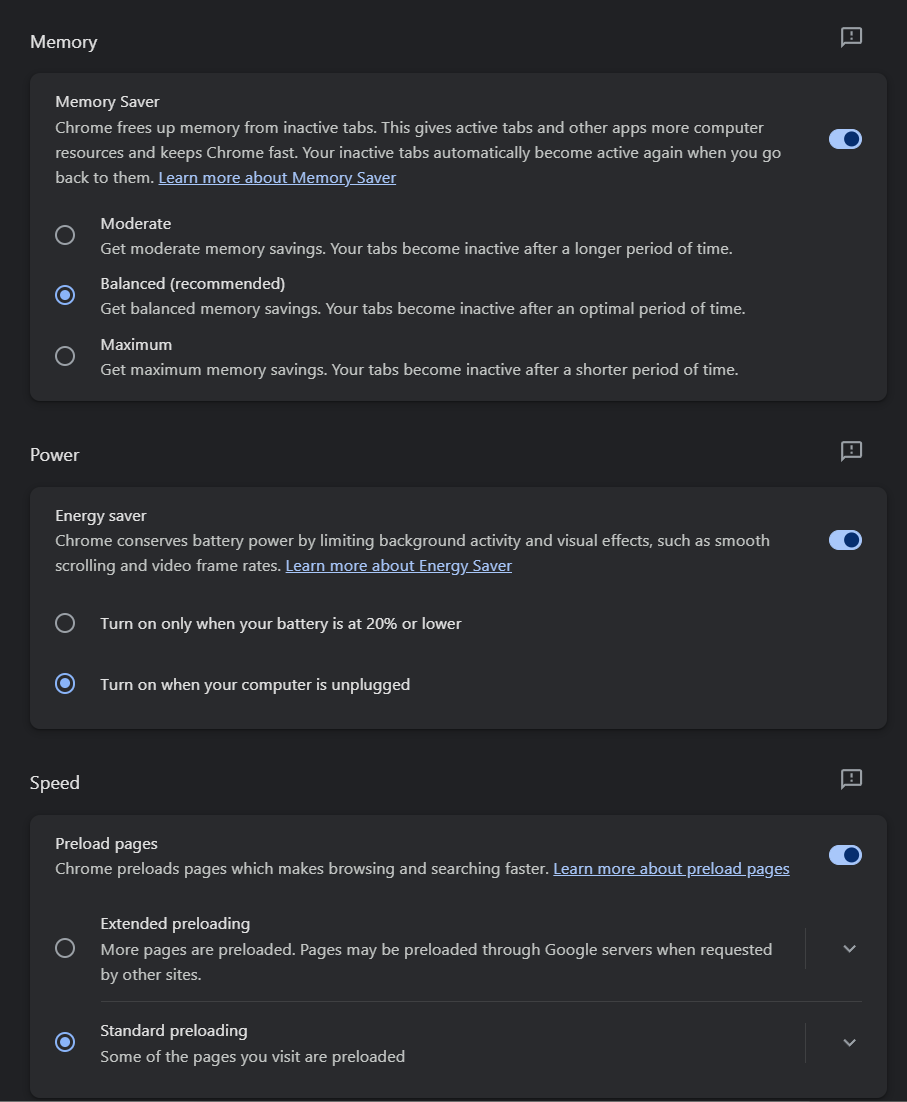
navigate to the performance section of the browser settings: chrome://settings/performance
Add the softphone to the "Always keep these sites active" by clicking on the "Add" button and selecting the softphone tab from the list of open tabs. Once selected the setting should appear as shown.

In that section set the following settings as shown below:
5) Re enable the chrome extension
Follow the steps in section 1 but set the toggle to the enabled position.
6) Restart the browser
Close the browser by clicking the X in the top right hand side of the browser window. Wait 60 seconds and then re open the browser window.