How to Click to Dial using Bullhorn CRM
Last updated: June 24, 2026
Navigate to https://app.bullhornstaffing.com/
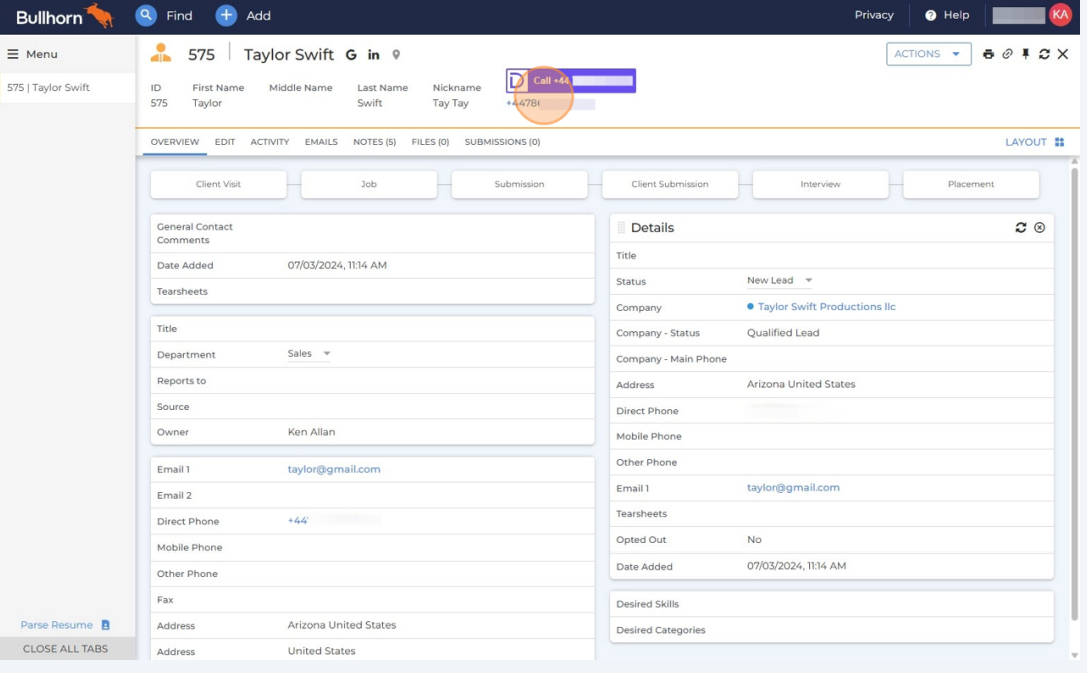
Hover over the number of your choice until the Devyce Chrome Extension pop up is shown. Click on the number - not on the purple extension
Clicking on the number via the chrome extension will bring up the call modal in the bottom left hand corner. You can move the call modal around the screen by using the purple bar
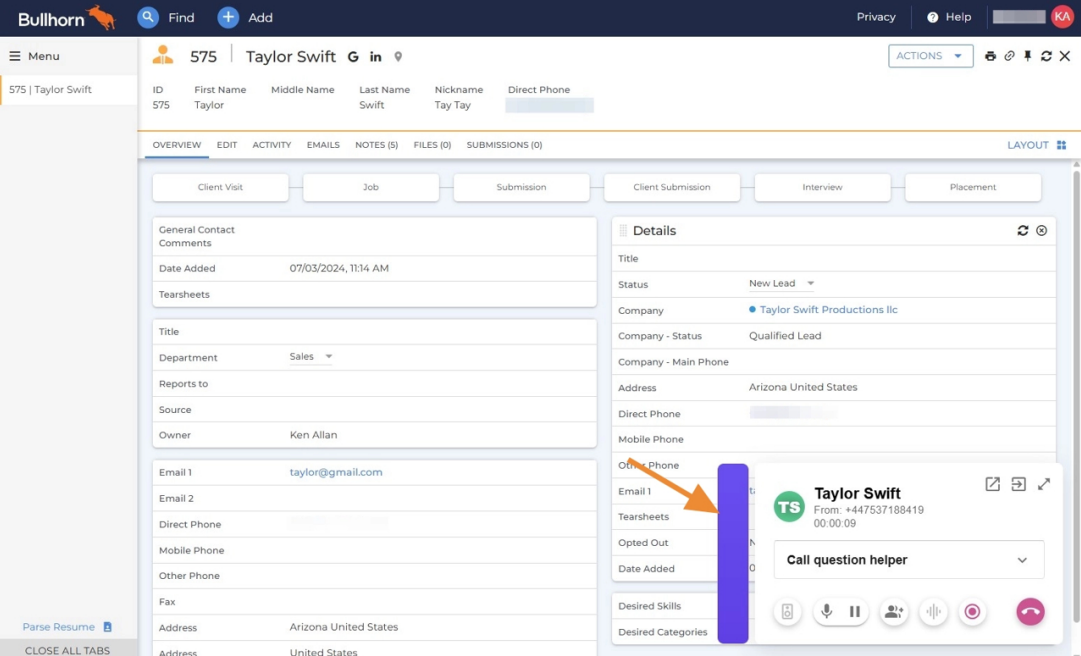
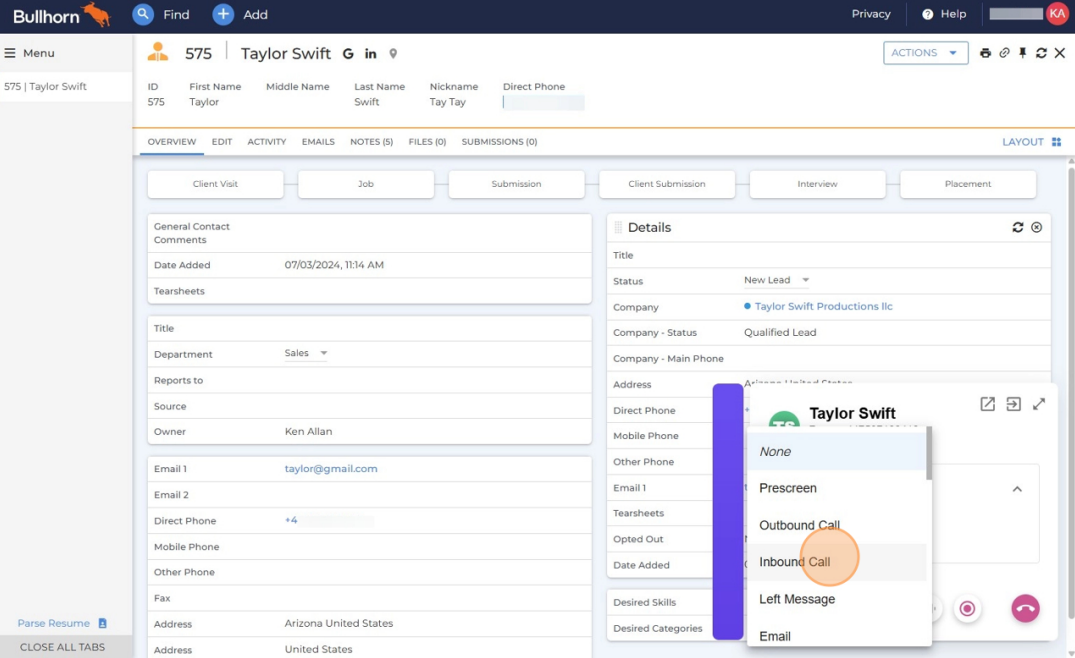
To Select a call tag/note action type click on the 'call question helper' drop down to expose the list
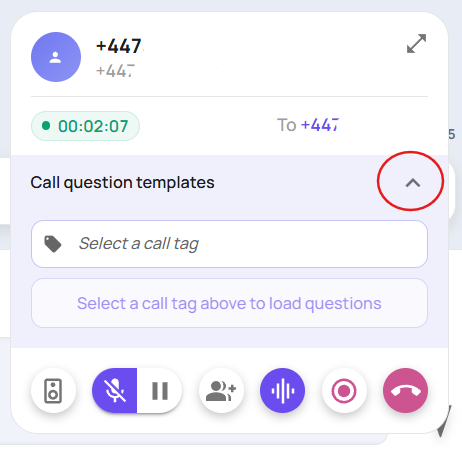
Clicking on the call question helper will expose the full list of call tags/action notes available to you
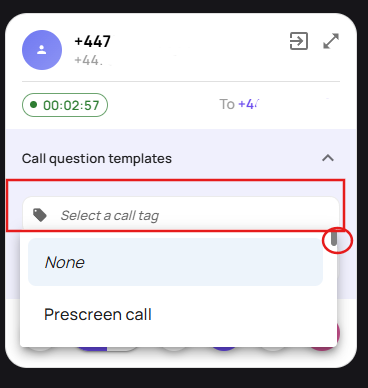
You can then click to select the note action type/call tag
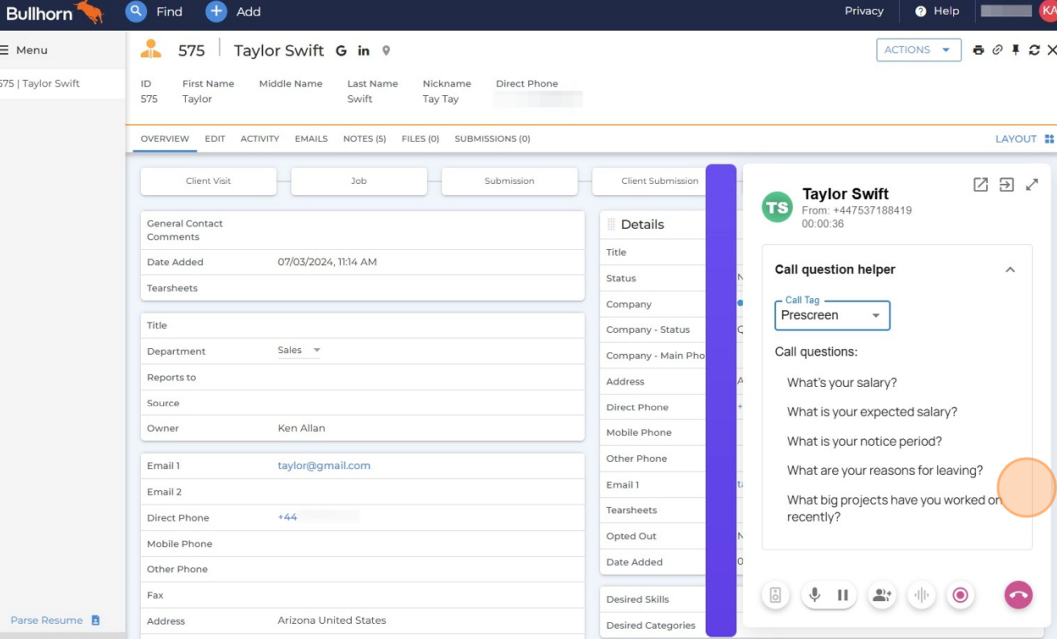
If you have the AI call questions/custom prompts enabled, selecting the corresponding call tag will bring up the questions you want the AI to auto fill responses to.
If you do not have this feature currently, but would like it added please reach out to your account manager or email customersuccess@devyce.co.uk and one of our account managers will be able to assist you further
Please note depending on your current subscription, additional features may be chargeable