Getting setup on Loxo
Last updated: June 24, 2026
To get setup on Devyce and connect your integration, you need three things from your LOXO CRM. You will need a Bearer Token, Agency Slug and your API Domain.
Step 1:
To find these first navigate to your Loxo Integration and go to Settings > API Keys
If you already have these please skip to Step 4
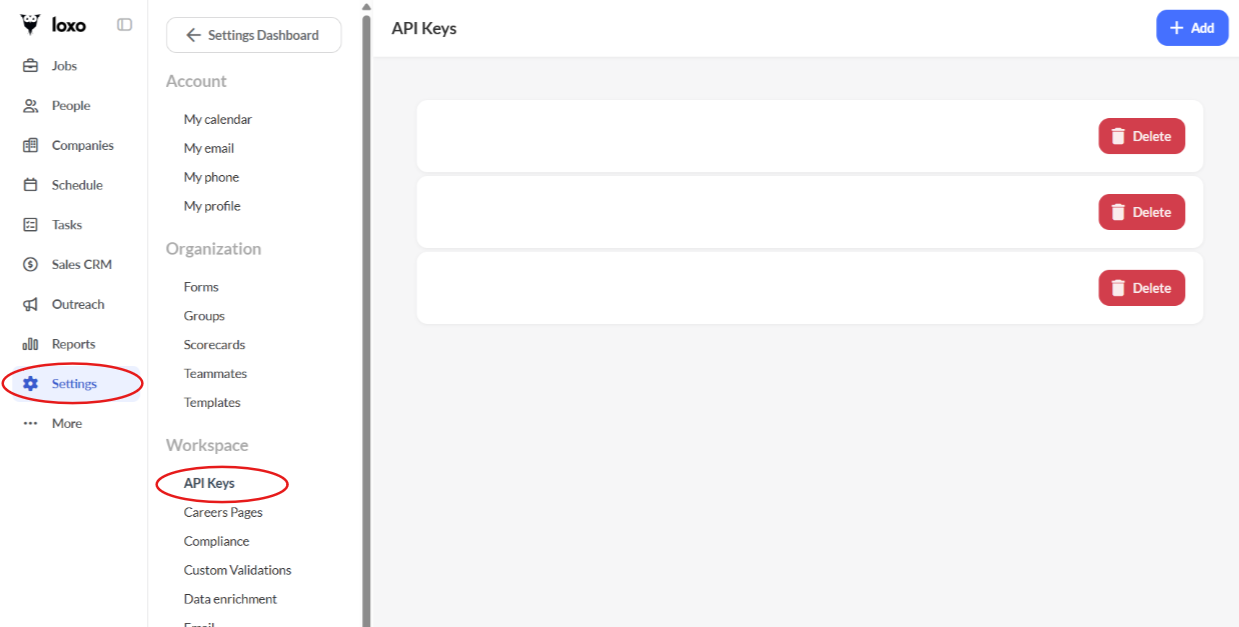
Here you can create an API Key, once this is created, you can highlight the API key, and copy it
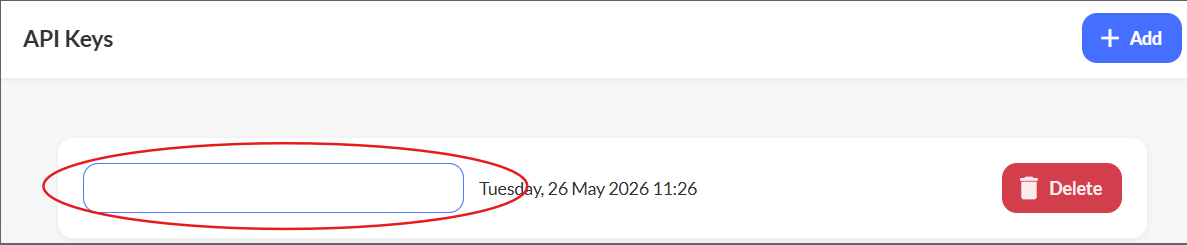
This will be your Bearer Token
Step 2:
Still within Loxo, open your profile menu > Careers Page
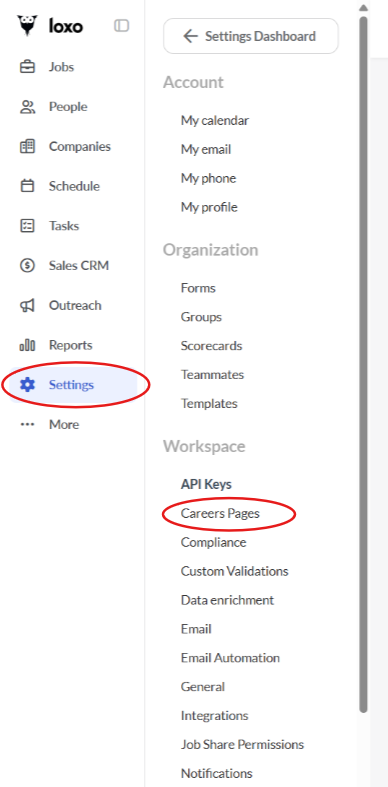
Your search bar should show the below, but with your agency name

The section after the last slash, is your Agency Slug, for example the Agency Slug from the above would be my-agency-name
Step 3:
API Domain is similar and tends to be viewable as a link in Loxo - it should look similar to the below:
https://my-agency-name.app.loxo.co
If you struggle to find any of these details, please reach out to Loxo for further assistance in retaining them
Step 4:
Please then navigate to your Devyce Portal - https://portal.devyce.io/dashboard
Using the menu tab on the left hand side of the portal, scroll down to 'Integrations'
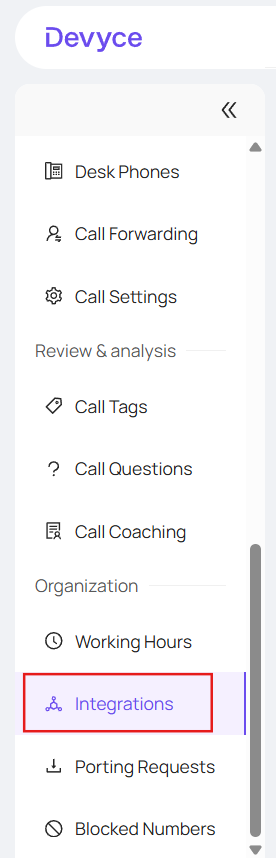
This will then open up all our integration options, where you can scroll to 'Loxo'
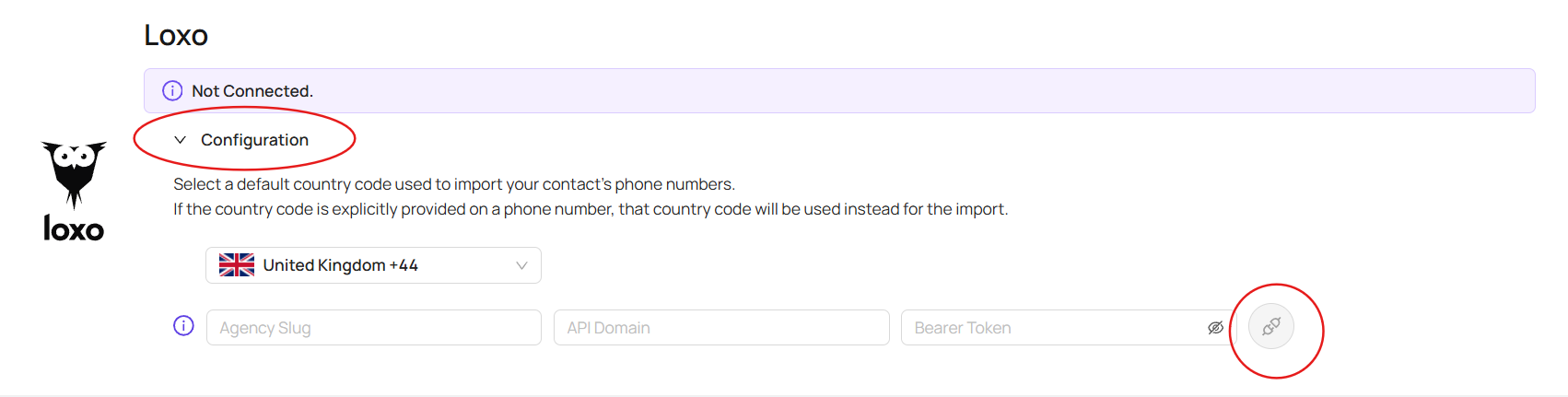
Clicking the configuration drop down button, will allow you to input your Loxo details, and then click the connect button
This should then show as 'Syncing' before showing as connected, and the last contact sync and call sync
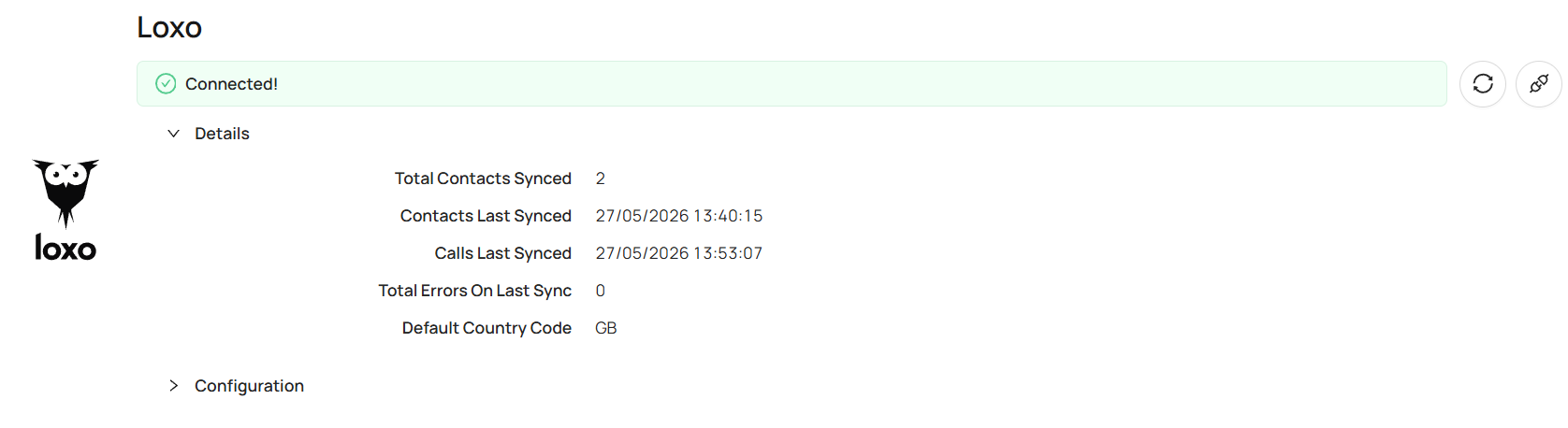
Please note - syncing can take some time to complete