How to setup Click to Dial for Loxo Integration
Last updated: May 26, 2026
To setup your browser to do this please follow the below steps:
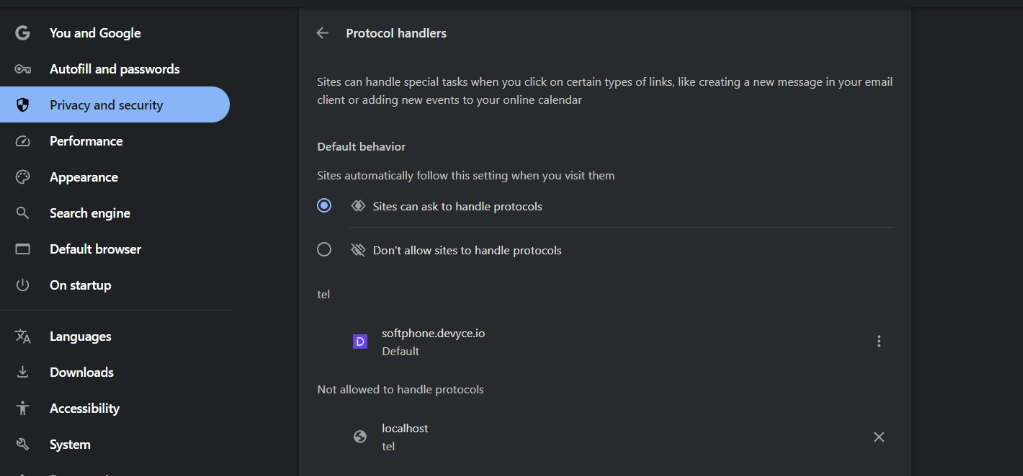
Navigate to your Chrome Browser, and enter this chrome://settings/handlers into the address bar, this should then show the below, please ensure the Devyce softphone URL is showing as the default as per the image. If you have any other handlers registered here, please remove them using the 3 dots to the right hand-side of the it.
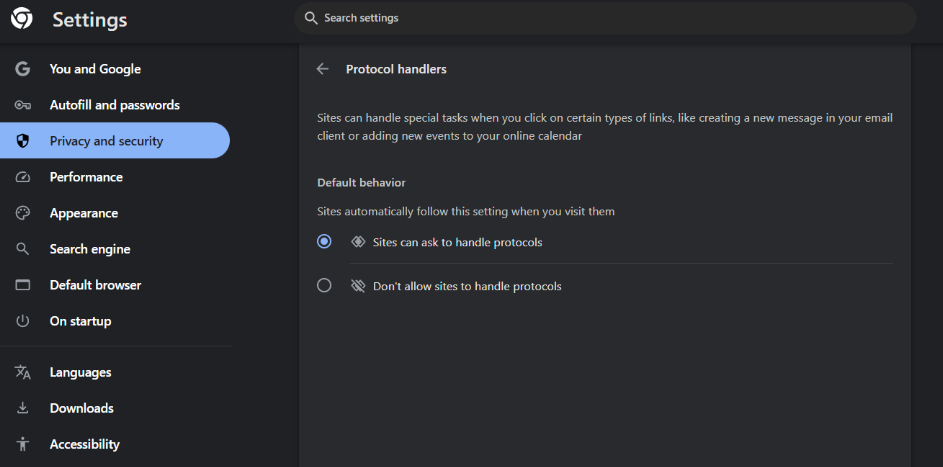
Please ensure that "Sites can ask to handle protocols" is set to true
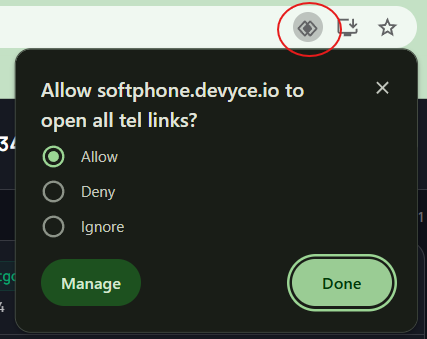
If you then navigate to the softphone, in the address bar, on the right hand-side there should now be a overlapping diamond symbol, clicking on this will open up a pop-up, please ensure you have clicked "Allow" and then "Done"
Once you have completed this, please go back to the Handler tab (chrome://settings/handlers) and it should now reflect the same as our first screenshot.
This should then allow the Softphone to open when a tel: address is encountered, once this setup has been confirmed please close the browser including multiple windows, and then when you reopen it, navigate to https://softphone.devyce.io/tel+12345 and click enter, this should now route through your softphone.