Setting up Click to Dial for Reapit within Windows and GoogleChrome
Last updated: August 5, 2026
To enable click to dial:
Step 1:
Please navigate to your laptop/windows search function and search 'Run'
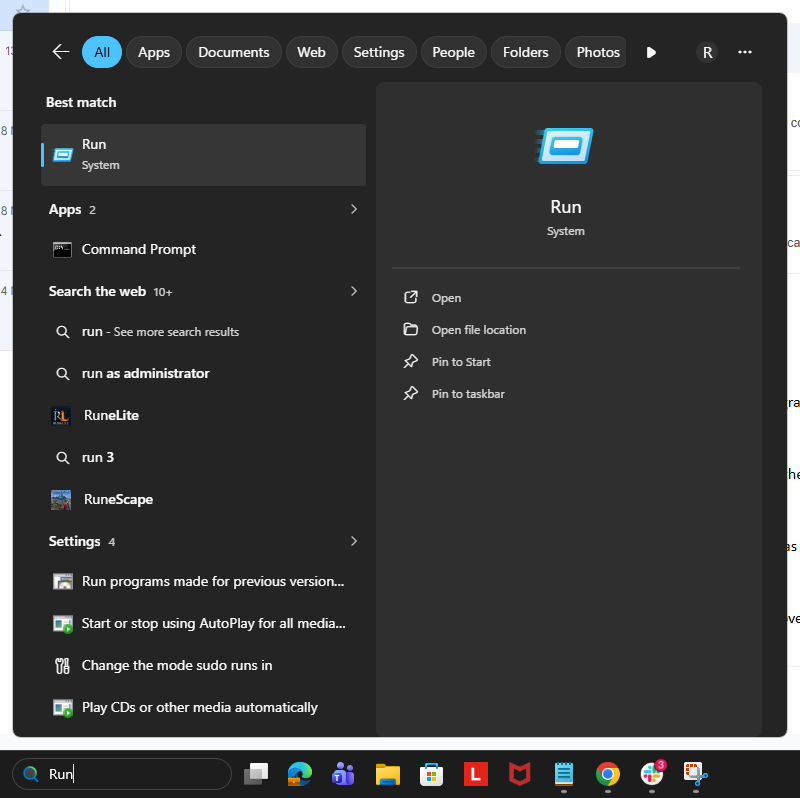
Clicking the 'Run' system option will open up a small pop up
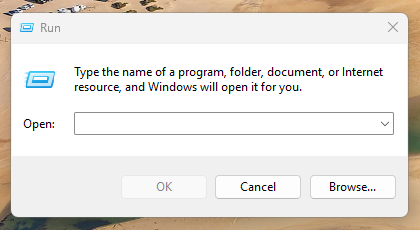
In the 'Open:' drop down option please type in tel:+123 and click 'OK' this will then open the current tel link option your computer is utilising, this should be set to Google Chrome, if this is the case please skip to Step 3.
Step 2:
If your default is not set to Google Chrome navigate to your window settings, please go to your laptop settings
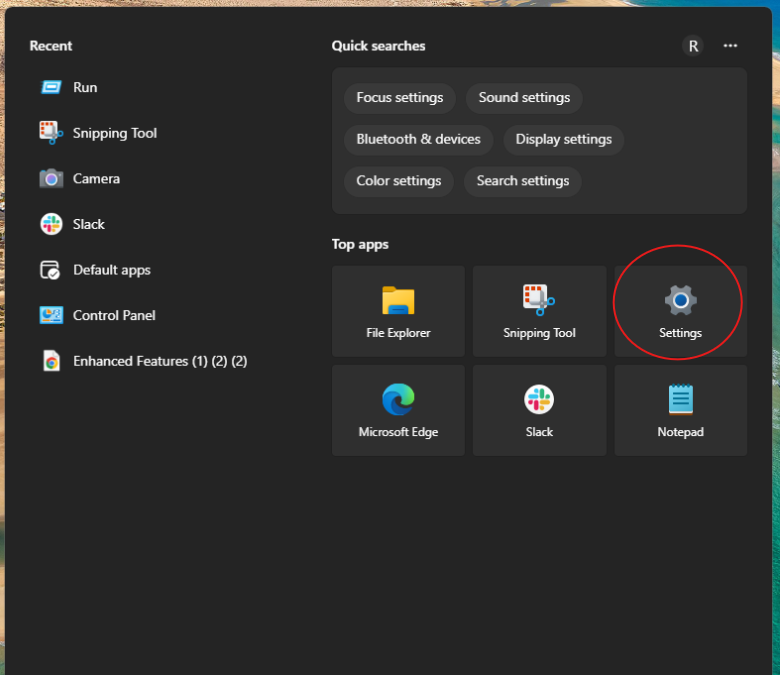
Here you can search for 'Default apps' in the search bar and within the Enter a file type section, type in TEL
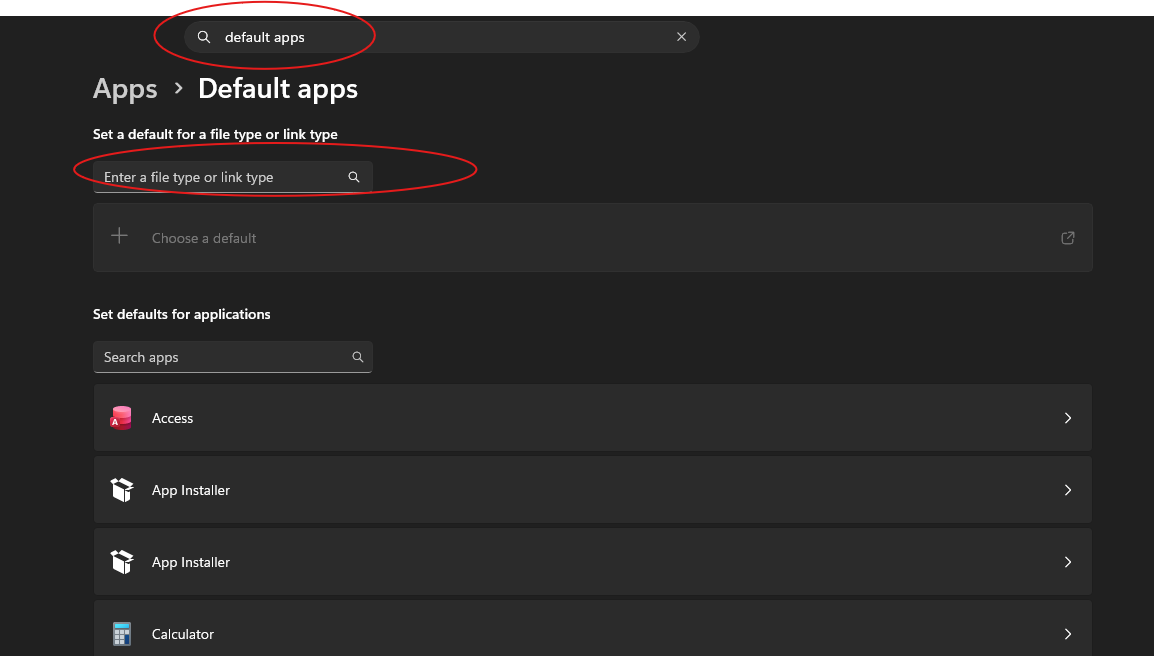
This will then present a Tel Link option, where you can click the below button
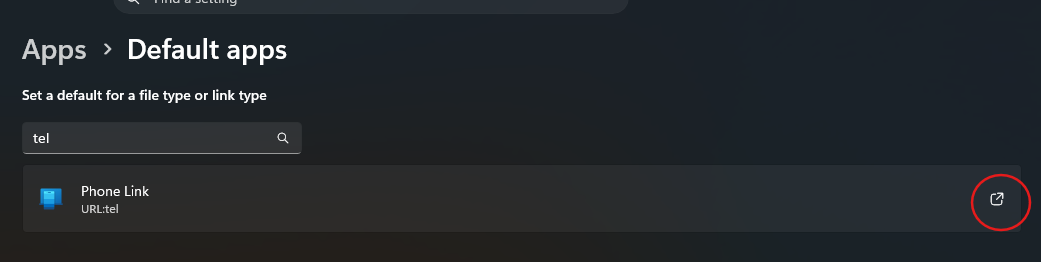
This will then open up additional options, where you can choose Google Chrome and set as default
Step 3:
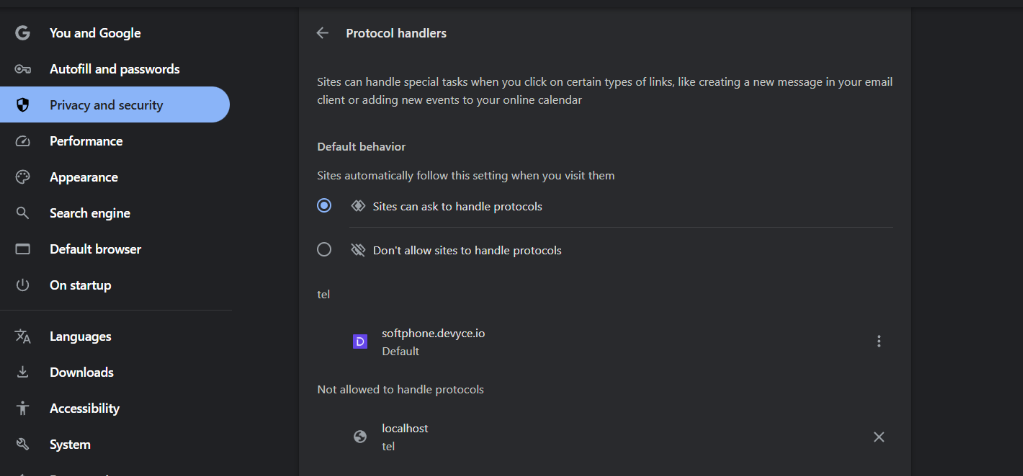
Navigating to your Google Chrome Browser, enter 'chrome://settings/handlers' into the address bar, this should then show the below, please ensure the Devyce softphone URL is showing as the default as per the image.
If you have any other tel handlers registered here, please remove them using the 3 dots to the right hand-side of the it.
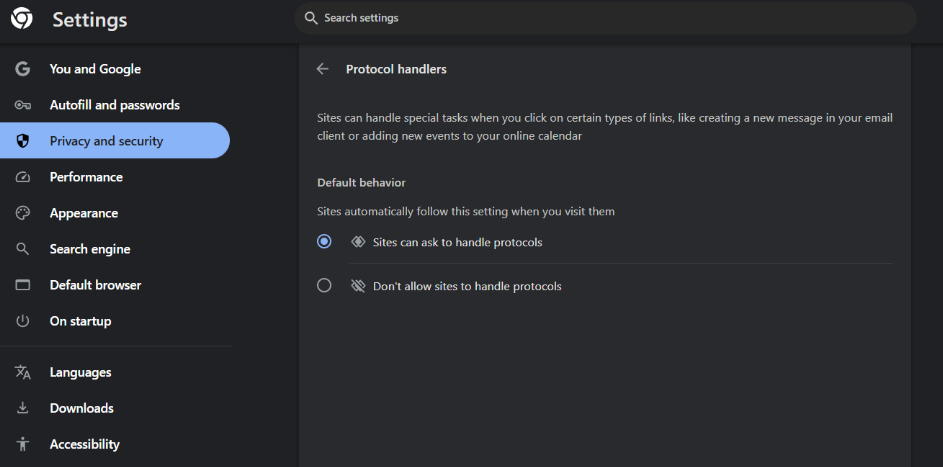
Please ensure that "Sites can ask to handle protocols" is set to true
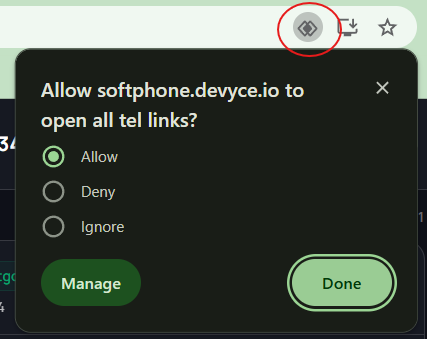
If you then navigate to the softphone, in the address bar, on the right hand-side there should now be a overlapping diamond symbol, clicking on this will open up a pop-up, please ensure you have clicked "Allow" and then "Done"
Once you have completed this, please go back to the Handler tab (chrome://settings/handlers) and it should now reflect the same as our first screenshot.
Step 4:
Then navigate to the Devyce Chrome Extension, either through the pinned icon if you have it, or by clicking on the puzzle piece icon in the top right hand toolbar > manage extensions
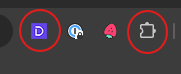
This will then open a new tab, with all your chrome extensions listed, ensure the toggle is set to on
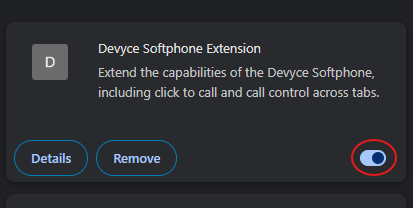
This should now attach your Devyce Softphone, with your Tel Link allowing for Click to Dial.
Test it is working using the process explained in step 1. If call does not place via the Devyce softphone please try the following:
ensure any existing Reapit browser extensions or telephony tools that capture phone links are disabled/removed (to avoid them conflicting)
close the browser and any tab windows and re open it