How to connect to Spott
Last updated: July 10, 2026
Navigate to your Spott integration and open the settings menu.
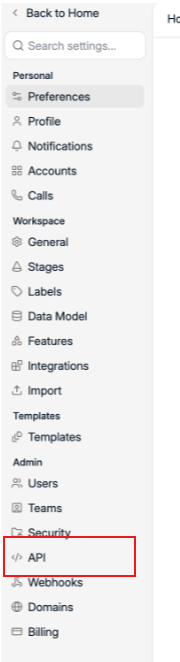
Under the Admin section in the left-hand side toolbar, click API
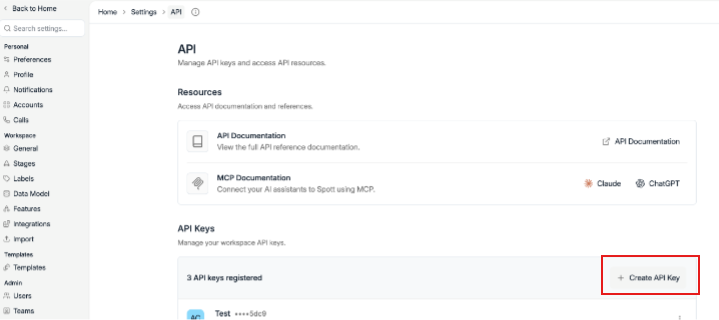
This will then open the API page, where you can scroll down to the API Keys panel. This lists any keys already registered on your workspace. Click 'Create API Key' in the top right of the panel
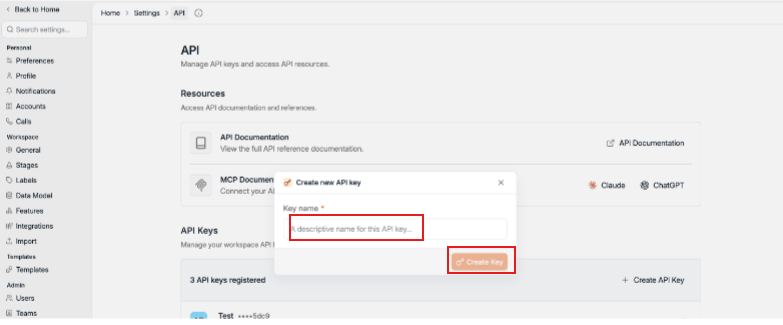
A pop up will appear, in the Key name field, enter Devyce so its easy to identify later, and then click create key. Once you have created your API Key, copy it, and keep it safe - note you may not be able to view the API Key again after so keep it safe.
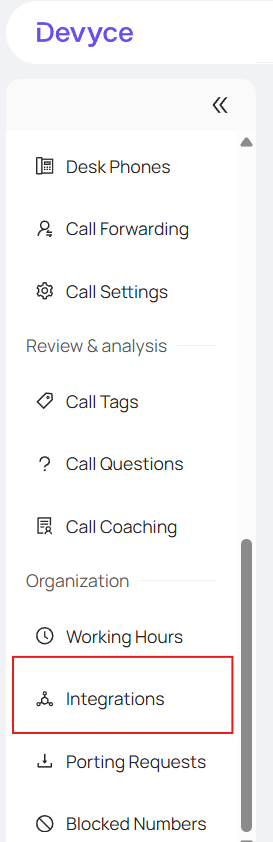
To then connect the key in Devyce, go to your Devyce Portal and click on integrations in the left hand panel
Scroll down until you see Spott, and click on the drop down to open up additional details

This will then open where you can paste your API key, then click the 'connect' icon next to it
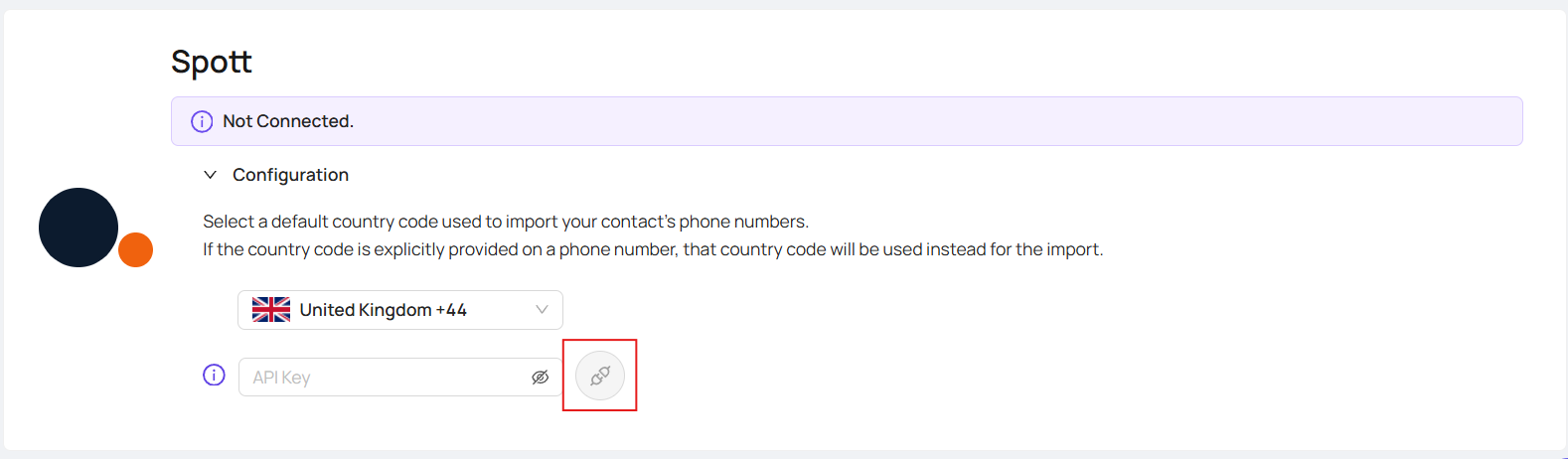
Once this is saved, the status will update from 'Not Connected' to 'Connected' confirming the integration is live - it may show that its syncing in the interval between 'Not connected' and 'Connected'
Please note that if the connection does not succeed, double check the API key was copied in full without extra spaces, and that the key hasn't been revoked in Spott