How to setup Microsoft Entra ID (SSO) - Administrator
Last updated: July 7, 2026
First you need your Devyce and Microsoft admin to navigate to the Devyce Portal - and to the integrations tab
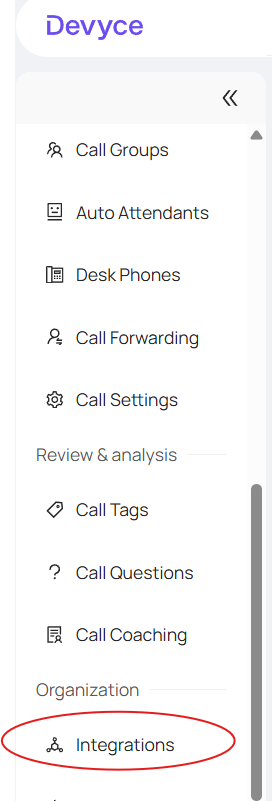
Here you can locate the Microsoft Entra ID integration and click 'Connect' - this will then redirect you to a Microsoft Consent page, where you can review the requested permissions and click 'Approve/Accept' to grant access.
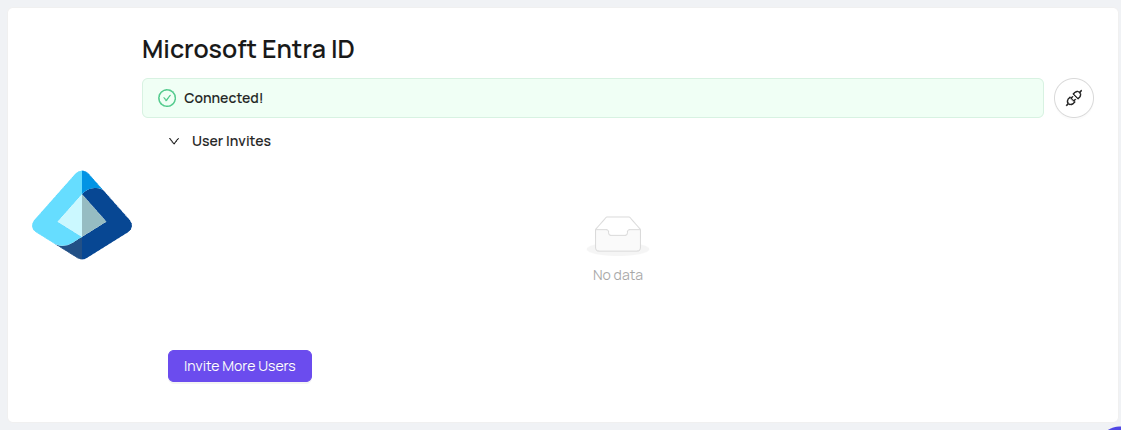
Once approved, you will be redirected back to the Devyce portal and the integration will be connected.
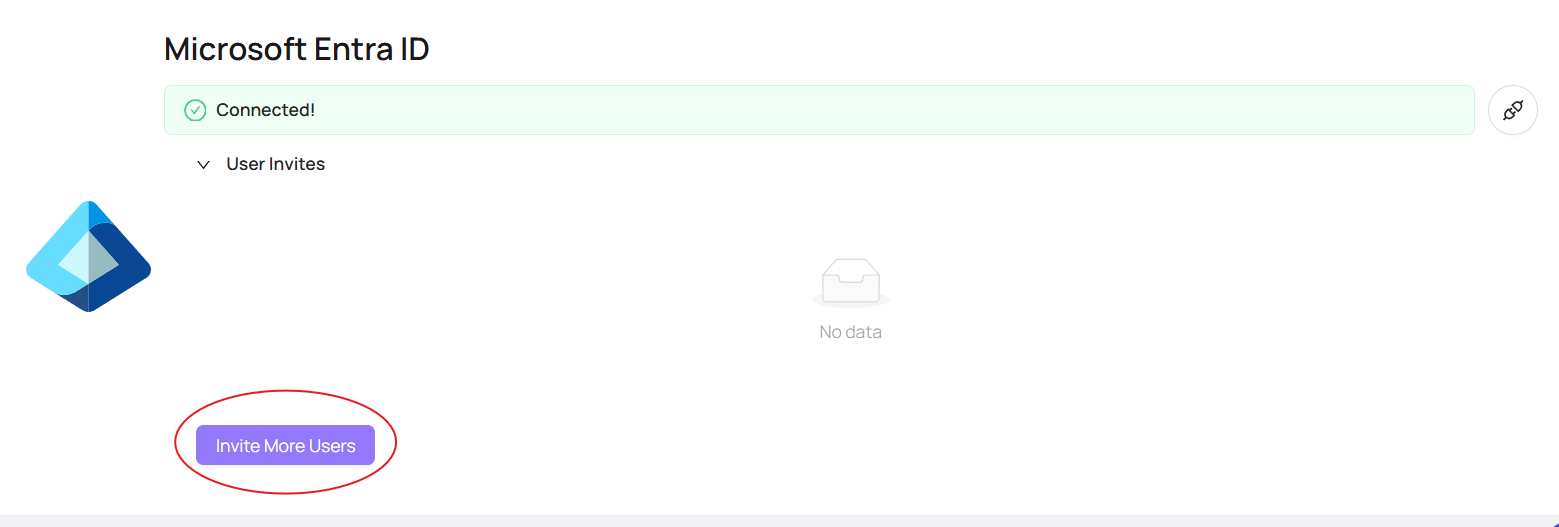
After connecting the integration, you can invite users from your Microsoft Tenant - expand the user invites section, click 'invite more users' and a list of your Microsoft Entra Directory will appear
Select the user you wish to invite by ticking the checkbox next to their name, and sent the invitation(s)
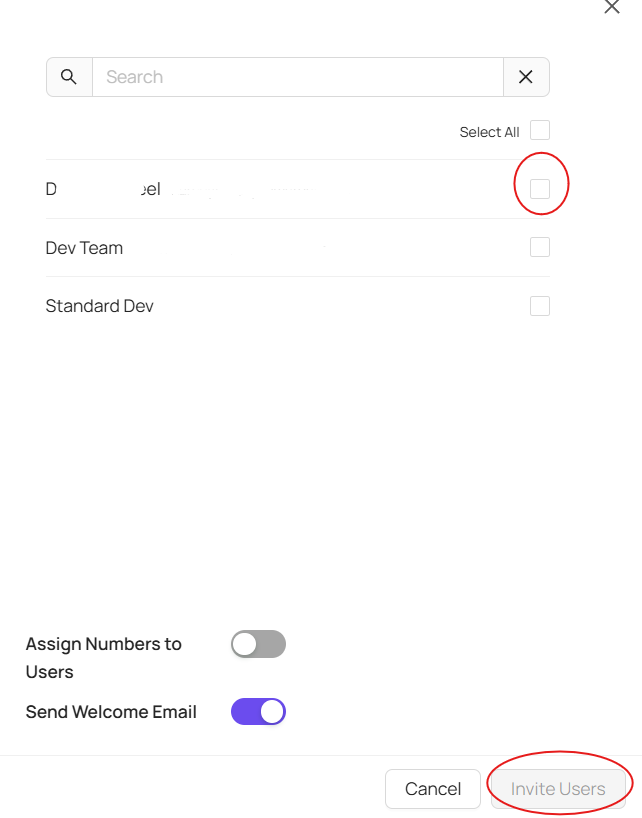
The selected users will then receive an invitation email, the email contains a link directing them to the Devyce Softphone login page, here they will be prompted to sign in using their Microsoft account
Once a user has been invited and linked to Entra ID - go to the Devyce softphone login page > click continue with Entra > Sign in with the associated Microsoft Account
Once the account is linked the user will no longer be able to login using their username and password. Authentication will be handled through Microsoft Entra
You can rollout users gradually, and don't need to action all at once
Mobile App login is not impacted by this, as this uses a code process sent to email