How to setup your Yealink Desk phone with Devyce
Last updated: June 17, 2026
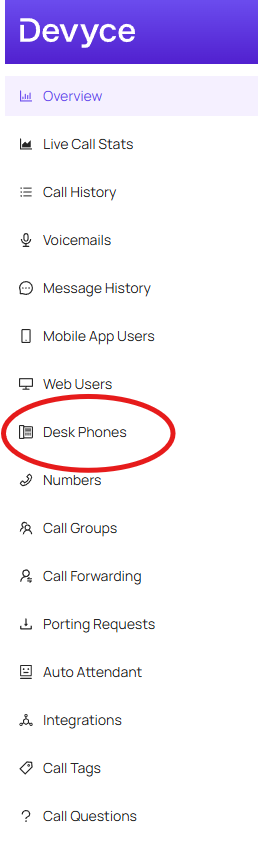
Navigate to your portal https://portal.devyce.io/dashboard and go to the desk phone tab in the lefthand toolbar.
You can then click on the 'assign desk phone' button
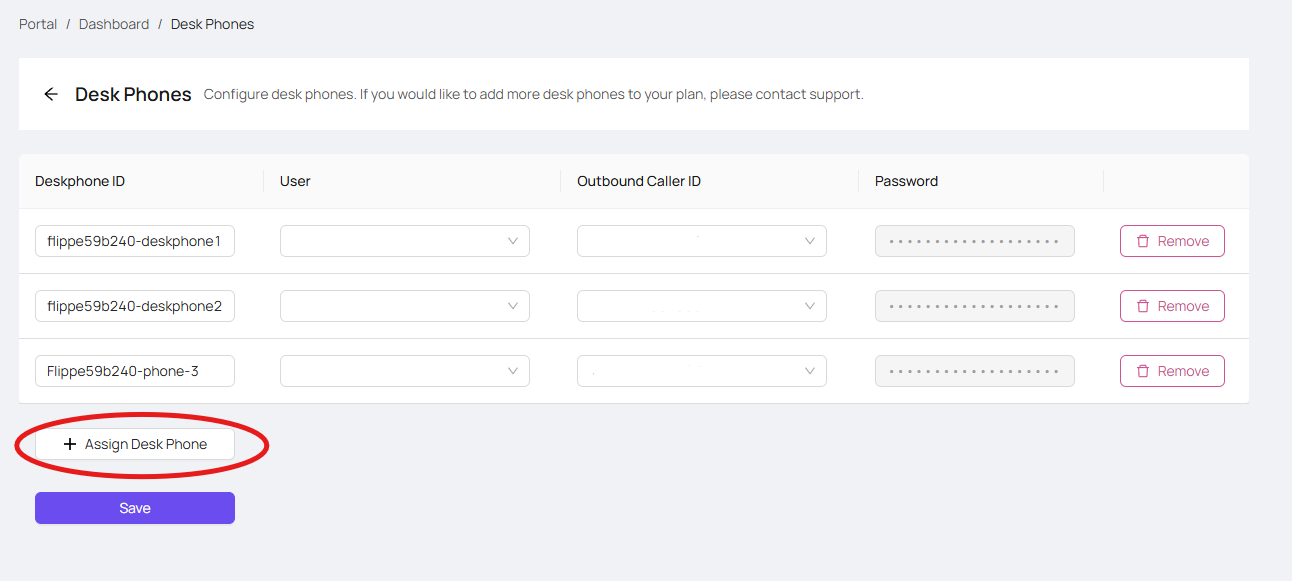
Here you can change the Desk phone ID if you wish, assign a user to the phone, and the outbound caller ID they have when using it, you can also choose your password this must be 12-32 characters long, and include a mix of upper and lower case letters and at least 1 number.

Make sure you keep the password you choose somewhere safe for later, as you won't be able to copy it from the portal once its created.
Make sure you then click save to avoid losing your progress.

Setting up the Desk phone
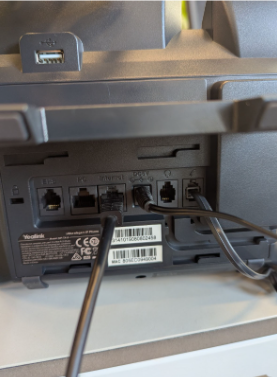
Plug the desk phone into the power, and use the ethernet cable to connect the desk phone to the internet.
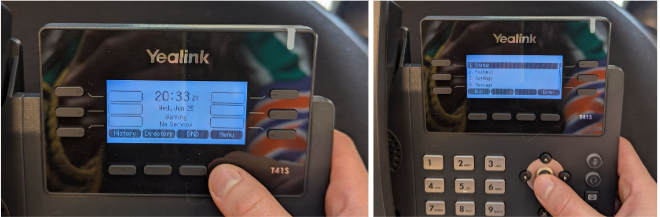
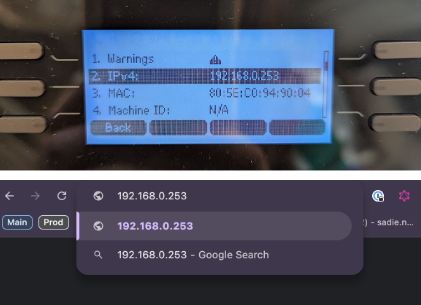
Wait for the desk phone to turn on, once the phone has loaded, select the 'menu' option on the desk phone screen and then select 'status'
Configure Yealink Settings
You need to go to your computer browser and type in the IPv4 address shown on your Yealink into the search bar.
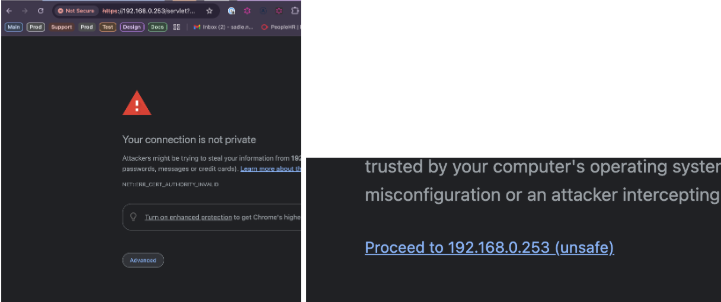
When/If you get an insecure warning, click 'Advanced' and then 'Proceed to..'
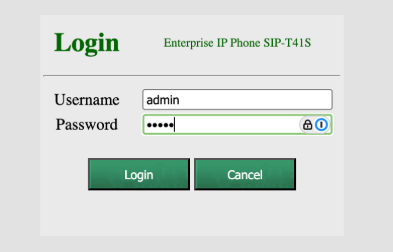
You then need to login to the Yealink Portal with username: 'admin' and password 'admin'
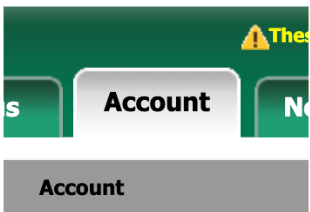
Once you have logged in, you need to click on the 'account' tab
You then need to try to do the following quickly, as the system times out and you then have to start again
On the Yealink website enter the following details:
Line Active - select ‘Enabled’ from the dropdown
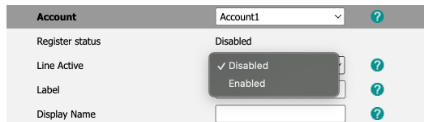
Label - type ‘Devyce’

Display Name - copy the DeskphoneID from the portal and paste it here
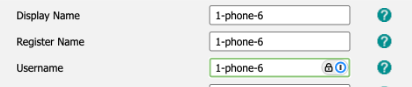
Register Name - copy the DeskphoneID from the portal and paste it here
Username - copy the DeskphoneID from the portal and paste it here
Password - type the address you used earlier on the portal to setup the desk phone

Server Host - paste devyce-deskphone.sip.twilio.com into this field for both the SIP Server 1 and SIP Server 2 sections
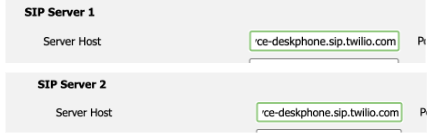
Scroll to the bottom and click confirm, this should then show as successful, however if an error shows and you get logged out, please try again - if the issue persists please let our support team know.
Test the Desk Phone
You can now try testing your desk phone, please try calling your mobile number and it should go through, and then try calling the desk phone to confirm you can now receive calls from it also.