Getting setup on Atlas
Last updated: July 7, 2026
Raise a ticket with our Support team support@devyce.co.uk and request your API Key and Organisation ID
We will be able to provide this to you, you also need Admin Access in Atlas
Within your Atlas CRM
Once you have your OrgID, API Key and Admin Access to Atlas - you can go to your Atlas CRM, click the cog in the bottom left of the page
Once you have done this go to Company Settings > Apps and toggle Devyce ON
A pop up will then appear, allowing you to input your API key and Org ID > Click Authenticate
Within your Devyce Portal
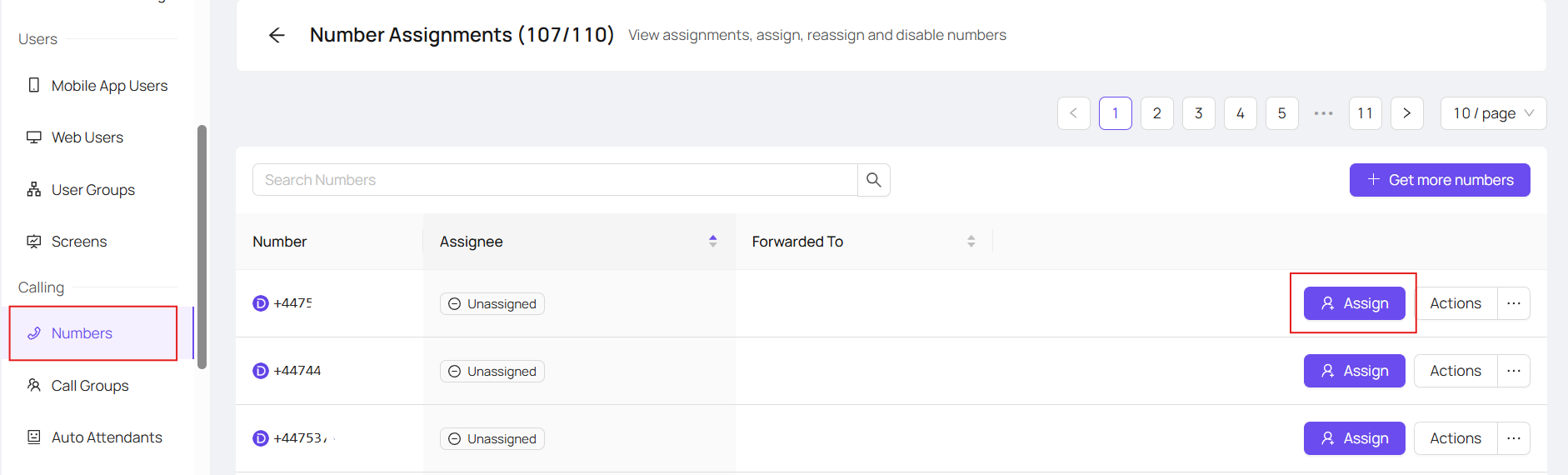
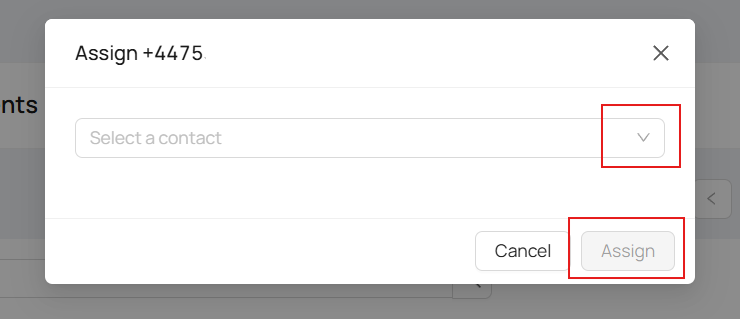
Go to your Devyce Portal, and assign the relevant numbers to your team (if they havent been already) to do this go to the portal > Numbers > Assign as Needed
Then go to 'Call Settings' within the portal and ensure that call recordings, and call summaries are turned on for your organisation
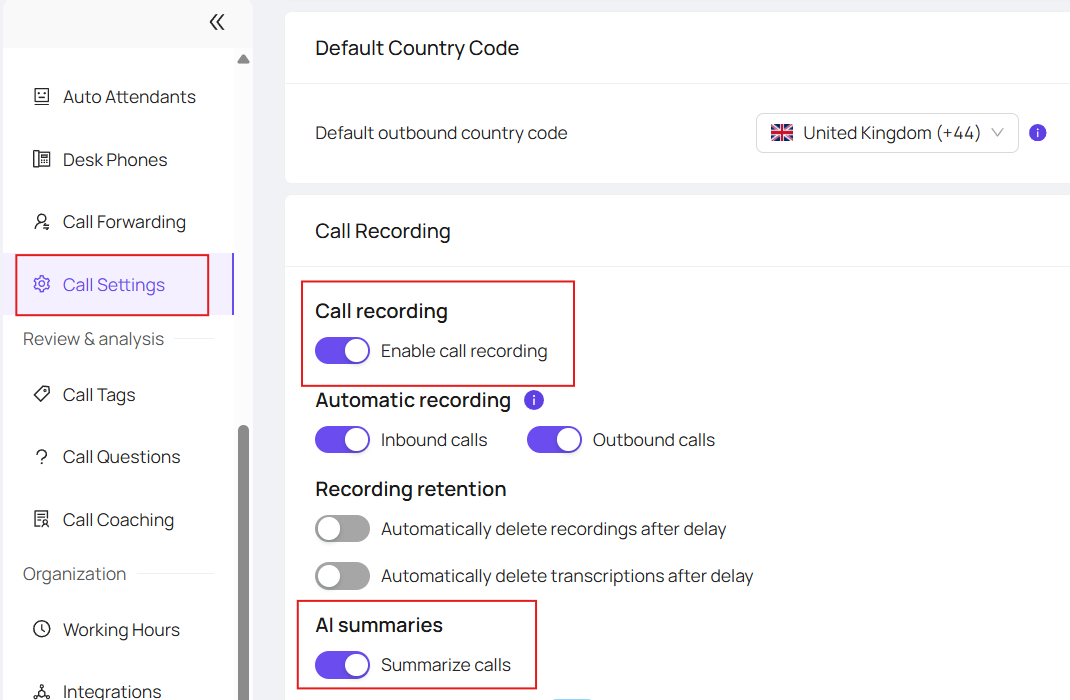
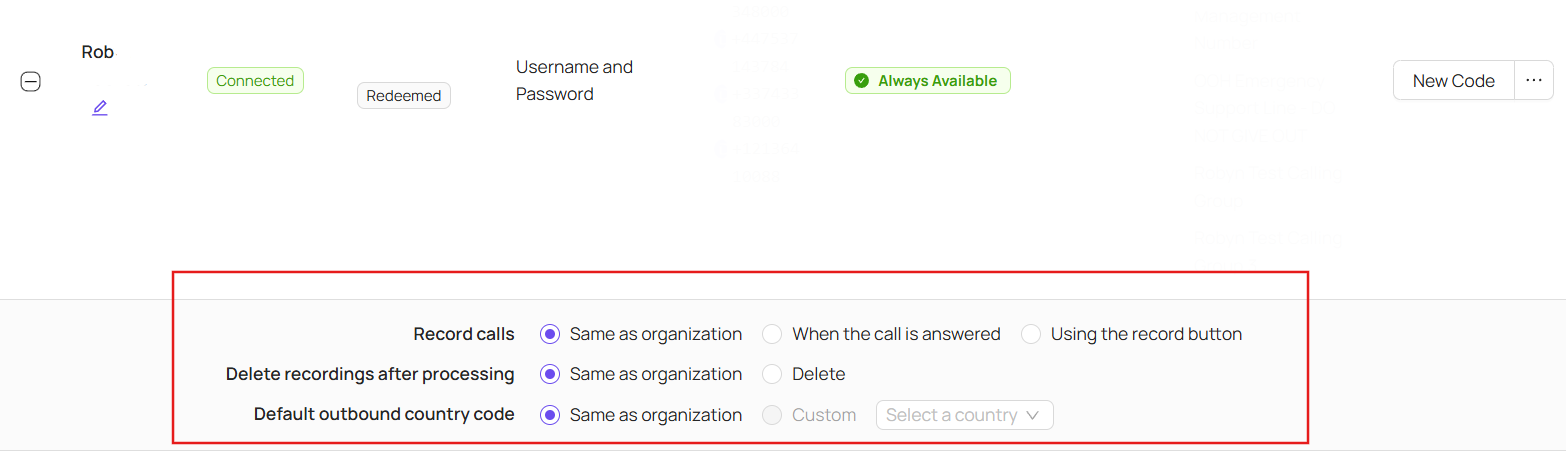
These settings will then apply for all users on the system - if you wish to edit this per user, you can do so via the Mobile App user section of the portal
Once you have found the user, you wish to edit, click the 'plus' sign
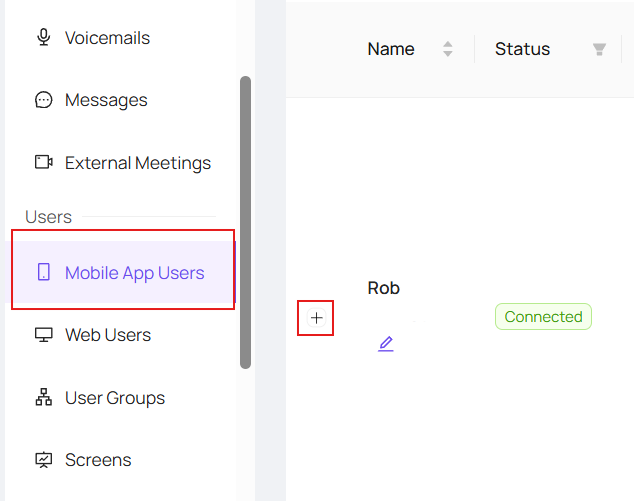
This will then show the user level settings, selecting same as organisation means that the individual is set to the company settings you chose within the call settings section.
This should then allow you to be integrated with Atlas - Alternatively, you can create an API Key within Atlas, and add this into your Devyce by going to your portal > integrations
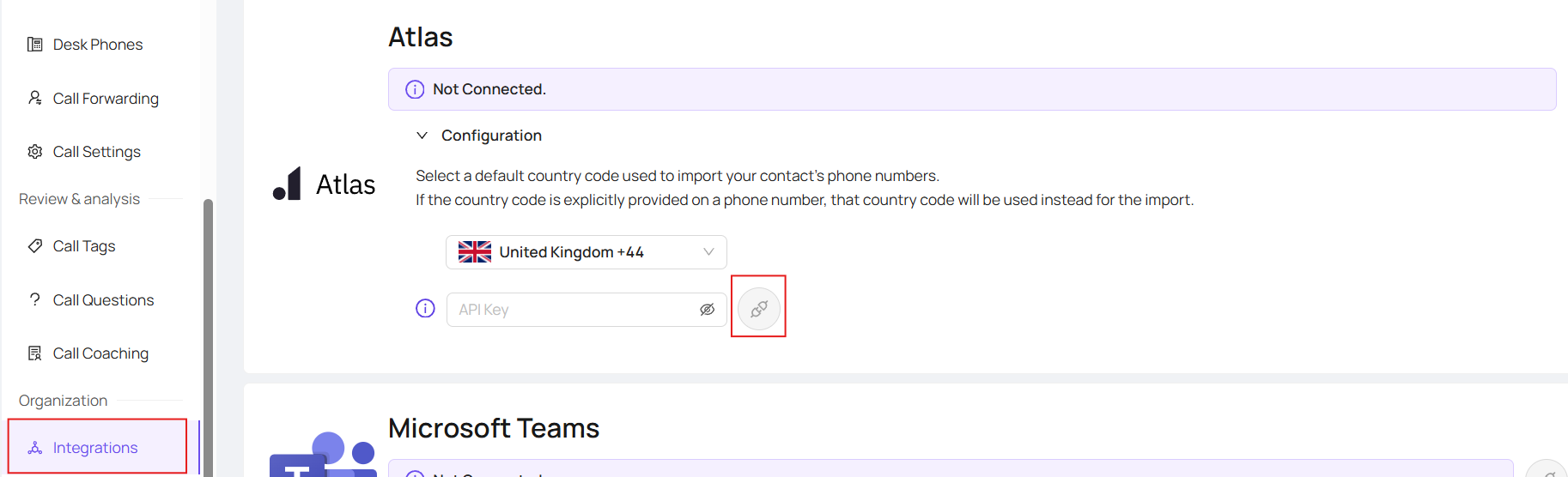
Enter your API key from Atlas and click connect